AI Agent
AI Agent (AI, neural network, ChatGPT) in the LEADTEX chat bot: answers client questions from a knowledge base, automated contact collection, and support without a human. Works in one-step mode and in dialog mode
What the AI Agent block does
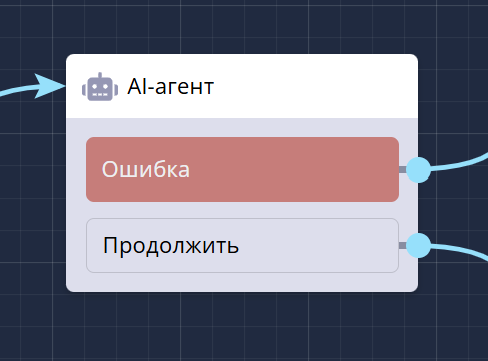
AI Agent block in a chat bot scenario
The AI Agent block connects a neural network to the scenario that answers the client’s free-form questions. You set the role and reply style, add a knowledge base (text and/or a file), and the bot writes replies to the client’s messages.
Typical tasks:
- answers to frequent questions (FAQ) from your knowledge base;
- client consultations and support;
- text generation from contact data.
Information
The block is in the Special and Integrations categories in the block list.
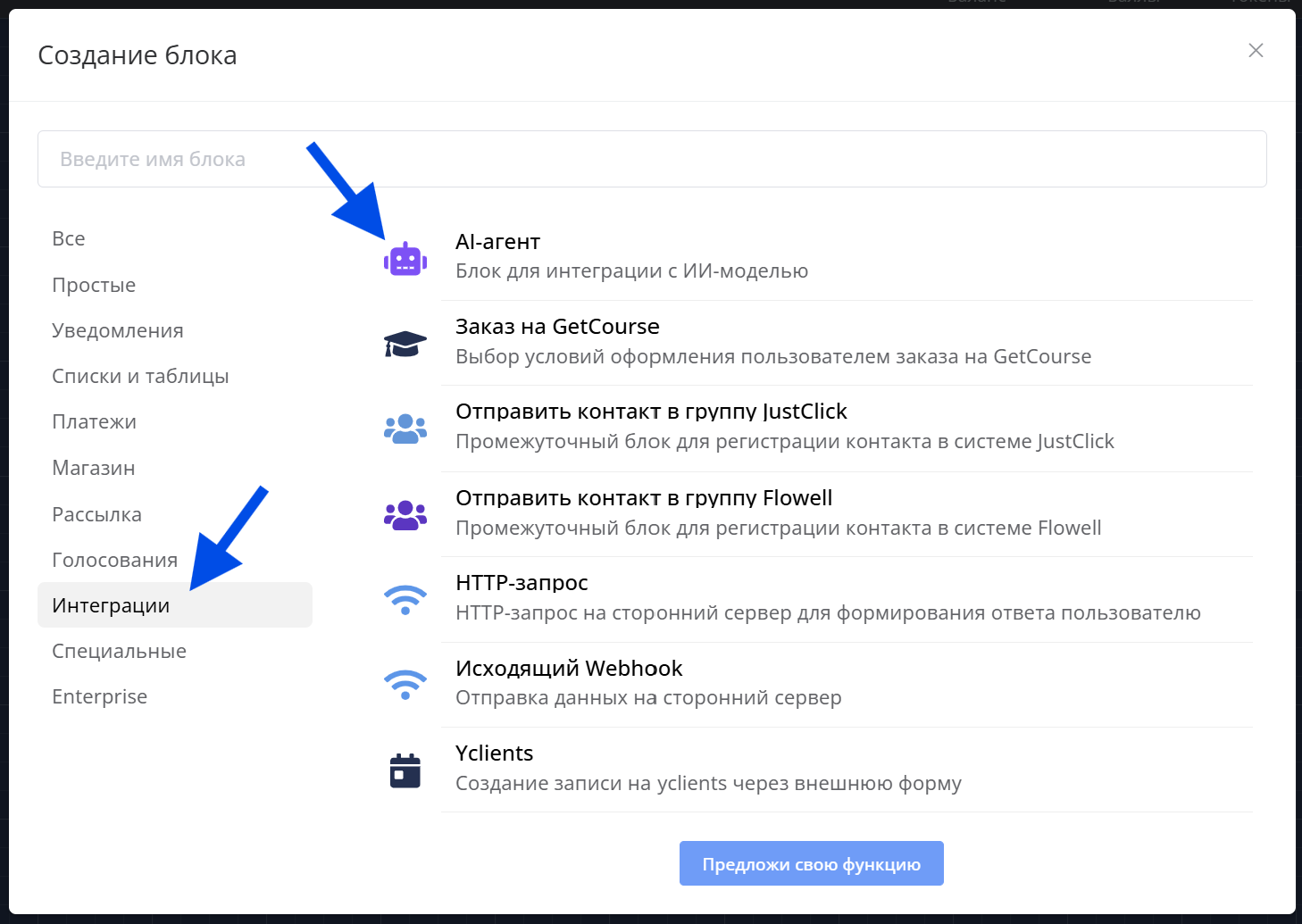
Adding the AI Agent block
How to add the block to a scenario
Click Add block, find AI Agent by name search or in the Special or Integrations section. After adding it, open the block settings in the side panel.
By default the block has two system connections:
- Continue — runs after the AI reply (or when the dialog ends);
- Error — runs if a reply could not be received (for example, tokens ran out or the service is temporarily unavailable).
You can also create custom branches that the AI Agent selects after the dialog ends.
Block settings
Settings include these sections:
Model
In the Model field, choose a neural network that fits the task:
- GPT-5.6 Luna — for simple questions and a large number of short dialogs;
- o4-mini — for tasks of medium complexity;
- GPT-4.1 Mini — for dialogs where it is important to follow the instruction, use the knowledge base, and work with variables, tags, and branches;
- GPT-4.1 — for complex instructions and a large knowledge base;
- GPT-5.6 Terra — for complex requests that need reasoning;
- GPT-5.6 Sol — for the most complex tasks, when quality matters more than speed and cost.
If you set up variables, tags, or branches, start with GPT-4.1 Mini.
Information
For GPT-5.6 series models, the Variability (creativity) setting is unavailable.
Source data
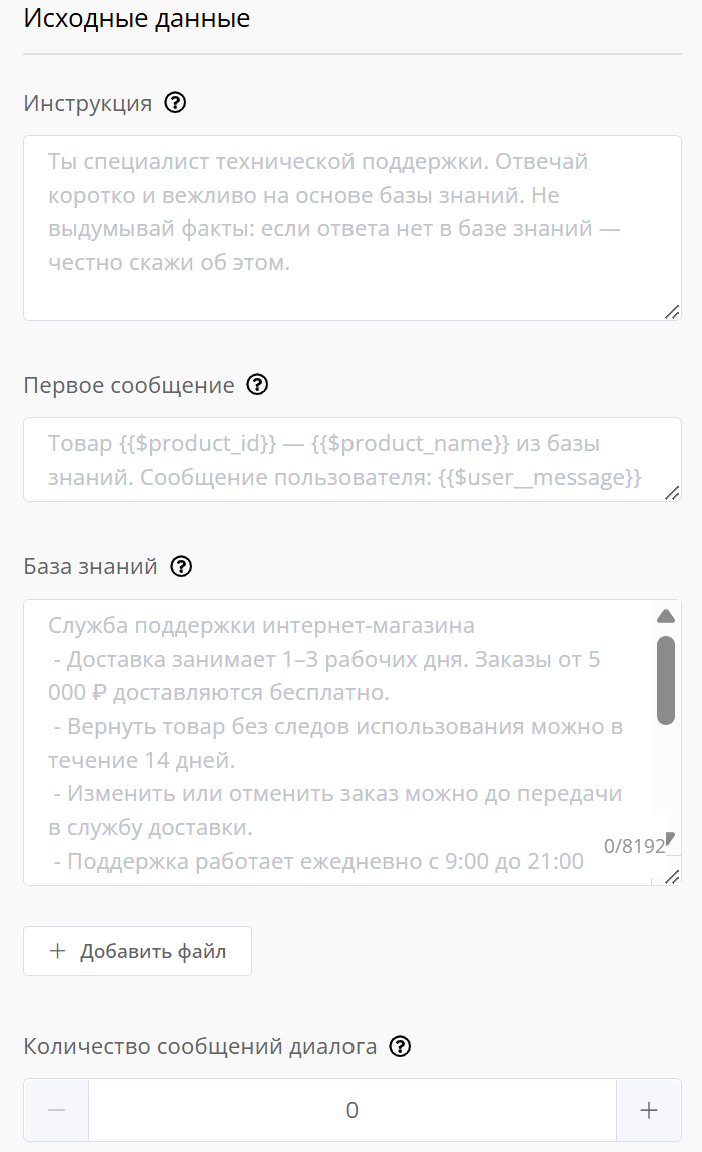
Source data section: instruction, first message, and knowledge base
Instruction — describe the AI role, reply style, and limits. This is the main field that sets the agent’s behavior.
Instruction example
You are a technical support specialist. Reply briefly and politely based on the knowledge base.
Do not invent facts: if the answer is not in the knowledge base, say so honestly.
First message — the message that starts the dialog with the AI.
You can insert contact variables from previous steps. To pass the client’s question from the previous step to the AI, first save it to a variable, then put that variable here.
First message example
Product {{$product_name}}. Client question: {{$user__message}}
If the field is empty, the agent sends the client the Dialog start text (see Chat) and waits for a user message.
Knowledge base — add text (up to 8,192 characters) or upload a .txt, .md, or .csv file (up to 100 MB) with the + Add file button. You can use both sources at the same time.
If the text does not fit into 8,192 characters, upload it as a file.
In the instruction it is enough to refer to the knowledge base in words (for example, “answer using the knowledge base” or “tell about the product from the knowledge base with id {{$product_id}}”).
The larger the knowledge base, the more tokens are charged for each AI request.
Number of dialog messages — how many last message pairs (incoming from the contact and outgoing from the AI) to add to the request so the agent “remembers” the conversation. Value 0 — history is not used.
The more dialog messages you include, the more tokens are used for each AI request.
Agent settings
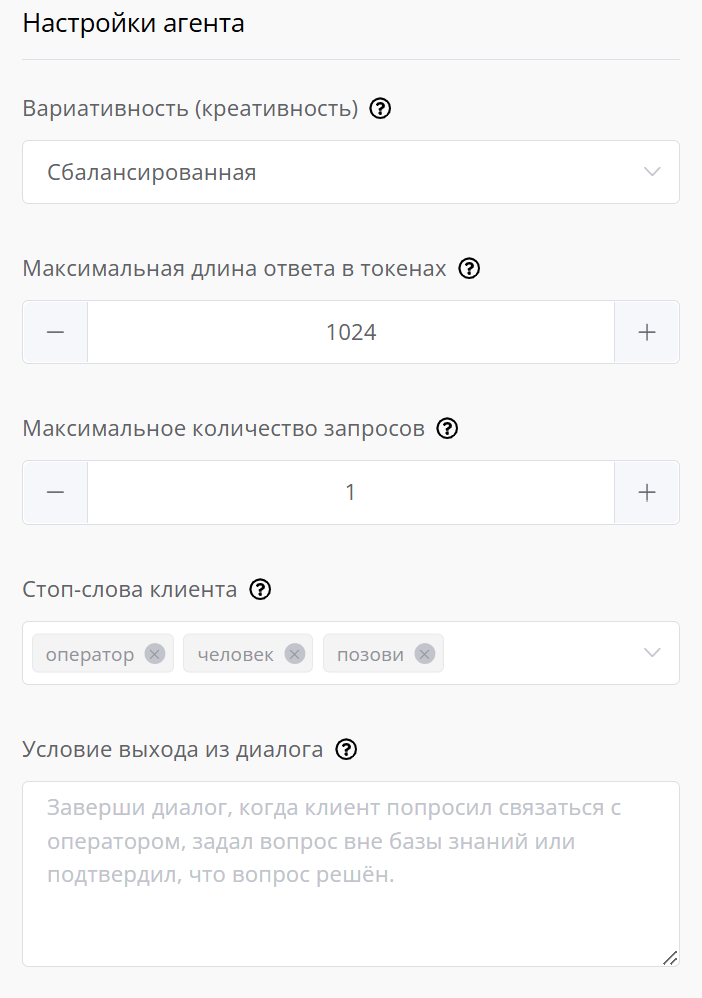
Agent settings section
Variability (creativity) — reply style:
- Precise — more predictable and strict replies;
- Balanced — a balance of accuracy and variety (default);
- Creative — more varied wording.
Maximum response length in tokens — limits the maximum size of one AI reply (from 64 to 4096).
Maximum number of requests — how many times the AI can reply on this step. Allowed values:
1— one-step mode: one reply and exit from the block (convenient for FAQ);- a number greater than
1— a dialog up to that number of requests; - empty field — a dialog with no request limit; exit only by a client stop word or the exit condition.
When the limit is reached, the block follows the Continue connection.
Client stop words — if the message contains one of these words as a separate word, the block ends the dialog without an AI reply and follows the Continue connection. Case does not matter; the separator is a comma (for example: operator, human, call). Think through which words your clients may use to stop the dialog with the AI Agent.
Dialog exit condition — describe in your own words when the AI Agent should end the dialog (for example, “if the user asks for a manager” or “if the client confirmed that the issue is resolved”). Leave the field empty so the agent does not end the dialog on its own.
Information
When the exit condition is met, the block ends the dialog and follows the Continue connection — for example, to a step that passes the request to an operator.
Branches, variables, and tags
During the dialog the AI Agent can extract the needed details from messages and write them to variables, and also add and remove contact tags.
After the dialog ends, the agent can analyze the client’s replies and send the contact down the matching scenario branch. For each variable, tag, and branch you need to set the condition the agent will follow.
For setup details and how dialog history affects branch selection, see AI Agent variables, tags, and branches.
Chat
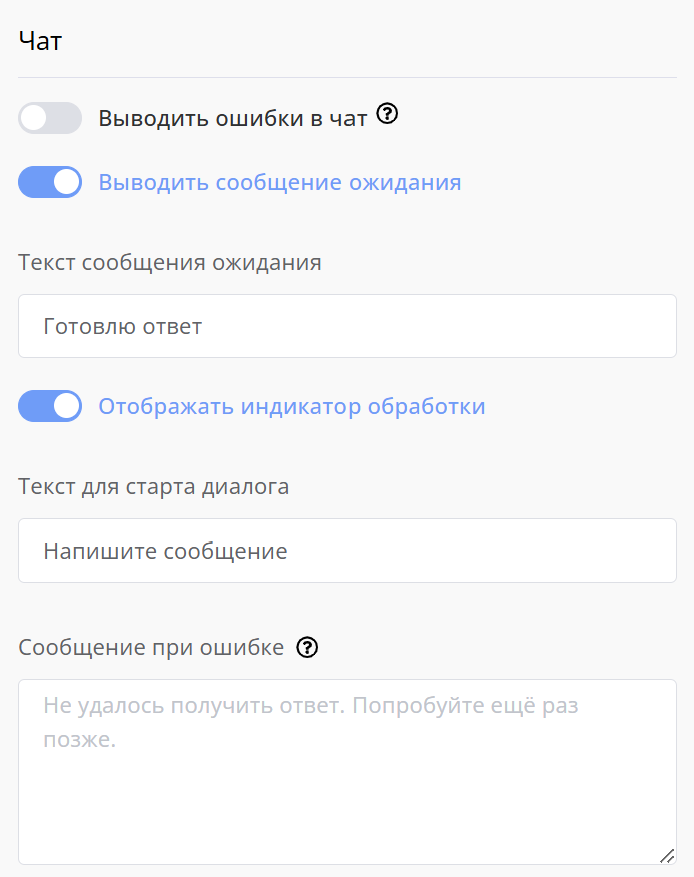
Chat section: waiting message and processing indicator
Show errors in chat — debug toggle. When enabled, the client also receives a technical error description. Use it only while setting up the bot; keep it off in a live bot.
Show waiting message — when enabled, a waiting message is sent to the client before the AI reply (default: “Preparing a reply”). You can change the text.
Dialog start text — shown if the agent has no incoming message from the First message field. Default: “Write a message”.
Error message — this text is shown to the client if the AI is temporarily unavailable or tokens ran out (default: “Could not get a reply. Try again later.”). It is always shown on error.
Response
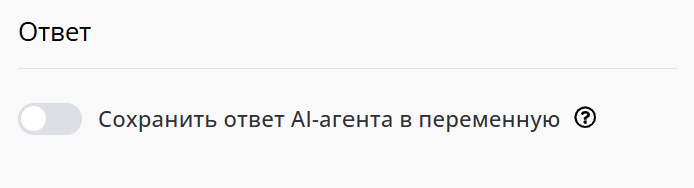
Response section: saving the reply to a variable
Save AI Agent response to a variable — by default the reply is sent to the client in chat. If the toggle is on, the reply is written to the Variable and is not sent to chat — this is convenient for further processing in the scenario.
Information
In a multi-step dialog with the toggle on, the variable stores the last AI reply, and intermediate replies are not sent to the client. Use saving the reply to a variable only in one-step mode.
How the block works
- The client reaches the AI Agent block.
- The block builds the request from the Source data section in this order:
- Instruction;
- Knowledge base — text first, then the file, if both are filled;
- dialog history — the last message pairs, if Number of dialog messages is set;
- First message (on the first turn; then new client messages from chat go into the request).
- The block checks client stop words and the token balance, then sends the request to the neural network and returns the reply.
- The reply is sent to chat or written to a variable — depending on the Response section settings.
- Further behavior depends on Maximum number of requests:
1— the agent replies once and follows the Continue connection;- greater than
1or empty — the agent stays on the step and continues the dialog until a stop word, the exit condition, or the request limit is triggered.
Video lesson: an AI bot in Telegram in one click
Paying for the AI Agent
The AI Agent is paid with tokens from the bot owner’s balance. If the token balance is empty, the neural network is not called, and the client sees the Error message.
You can top up the balance and view usage on the Token Payment tab.
Important
Token usage depends on the request size: a long instruction, a large knowledge base, and dialog history increase the cost of each reply.
Usage examples
1. Answers to frequent questions (FAQ). Instruction + store knowledge base, Maximum number of requests = 1. The client asks a question — the agent replies from the knowledge base and sends the client further through the scenario.
2. Multi-step technical support. A dialog with a request limit greater than 1 (or with no limit), a knowledge base, and message history. The client clarifies the question in chat, and the agent replies from the knowledge base. When the client asks for an operator or confirms that the issue is resolved, the block ends the dialog by a stop word or the exit condition and follows the Continue connection.
3. Text generation from contact data. Contact variables are inserted into First message — the agent writes a personalized text (for example, a greeting or a product description).
AI Agent variables, tags, and branches
In the LEADTEX account you already have 250+ lessons on chat bot and MiniApp development, and you can join the largest developer community with 6000+ members — Go to account.