AI Agent variables, tags, and branches
During the dialog the AI Agent can write client data to variables and add or remove tags. After the dialog ends, the agent can send the contact down the matching scenario branch.
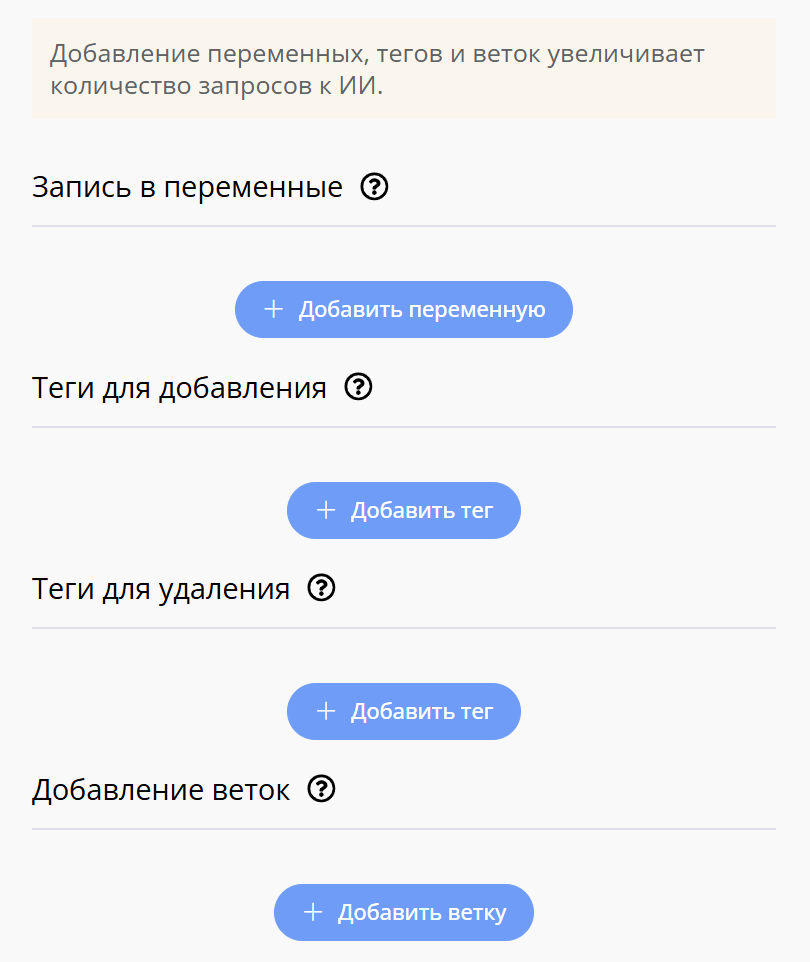
AI Agent variables, tags, and branches
How to write data to variables
The Write to variables section is used to save details the client shared in the dialog: name, phone, city, budget, date, and other data.
- Click Add variable.
- Enter the variable name.
- Choose the value type: text, number, phone, email, or date.
- In What to write to the variable, explain to the agent which data to extract from the dialog.
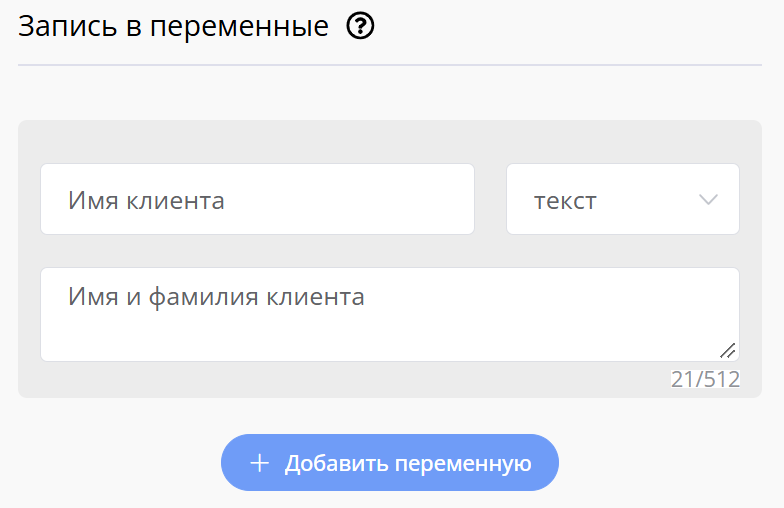
Write to variables section
For example, for the user_phone variable you can write: “The phone number the client left for contact”.
The agent checks new messages on each dialog turn and writes the value when the client shares the needed data.
How to add and remove tags
Use the Tags to add and Tags to remove sections to change contact tags based on the conversation.
- Click Add tag in the needed section.
- Select or create a tag.
- Describe the condition when the agent should add or remove the tag.
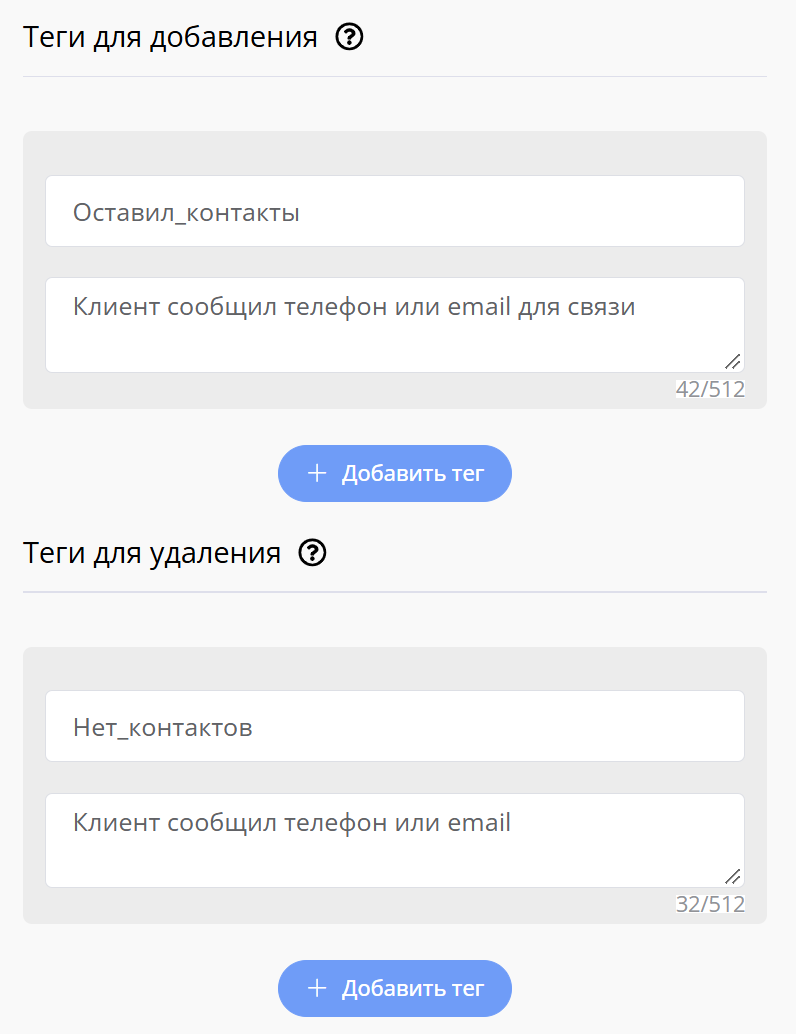
Tags to add and Tags to remove sections
Condition examples:
- to add the
Hot leadtag — “The client is ready to place an order in the next few days”; - to remove the
Undecidedtag — “The client chose a specific plan”.
How to set up branches
Branches let you send the contact to different parts of the scenario after the dialog ends. For example, you can handle a submitted request, a refusal, and a request to contact a manager separately.
- In Adding branches, click Add branch.
- Enter the branch name. It will appear on the block’s outgoing connection on the map.
- In Branch selection condition, describe when the agent should choose this branch.
- Connect the new link to the needed scenario block.
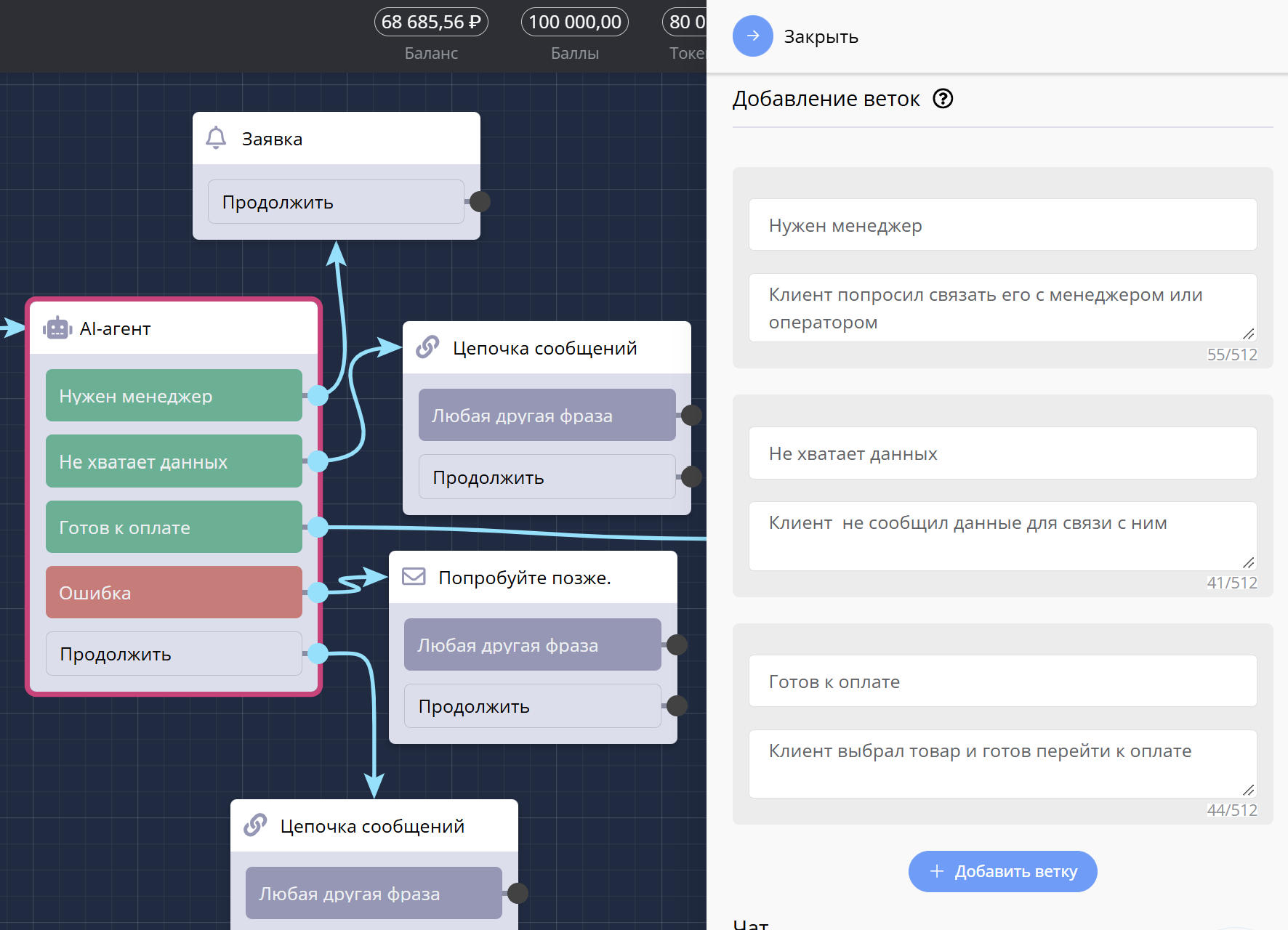
Adding branches section
Important
The branch condition defines where to go after the dialog ends, but it does not end the dialog by itself. The moment of completion is set by Maximum number of requests, Client stop words, and Dialog exit condition.
To leave through a branch right after the condition is met, and not only after the dialog ends, duplicate this condition in Dialog exit condition.
When the dialog is finished, the agent analyzes it and selects the matching branch. If none of the conditions is met, the contact follows the system Continue connection. The Error connection is used only when the block fails.
How dialog history affects branch selection
Branch analysis uses the history set in Number of dialog messages.
If you set the value to 0, the agent will rely only on the last message when choosing a branch. It may miss data, a refusal, or a client request from earlier replies.
For branches that depend on the whole conversation, set a message count that includes the important client answers. For example, if the agent asks for name, phone, and city one after another, the history should cover all of these answers.
Important
The more messages you send in the history, the more tokens are used. Keep only the history size needed for the correct branch.
Practical tips
- Write branch conditions so they do not overlap.
- Do not use a branch condition instead of the Dialog exit condition. First set when the conversation should end, then where to send the contact.
- In the variable description, specify one concrete value. Create two separate variables for a phone number and a city.
- In the tag add or remove condition, describe a concrete client action. For example: “The client chose a product and asked for a payment link”.
- Test the scenario on different endings: the goal is reached, the client refused, the message limit ended, a stop word was triggered.
- Fill in all fields of the setting rows. Rows with empty conditions are not used by the agent.
Token usage
Variables, tags, and branches can increase the number of AI requests. Check the token balance before launching the scenario.