Saving User Variables
How to save contact variables in a bot. Recording user response in a user variable
In the "Simple message" and "Message chain" blocks, you can save user responses in variables
To do this, come up with a variable name and enter it in the lower part of the block settings, enabling the "Save response to user variable" checkbox
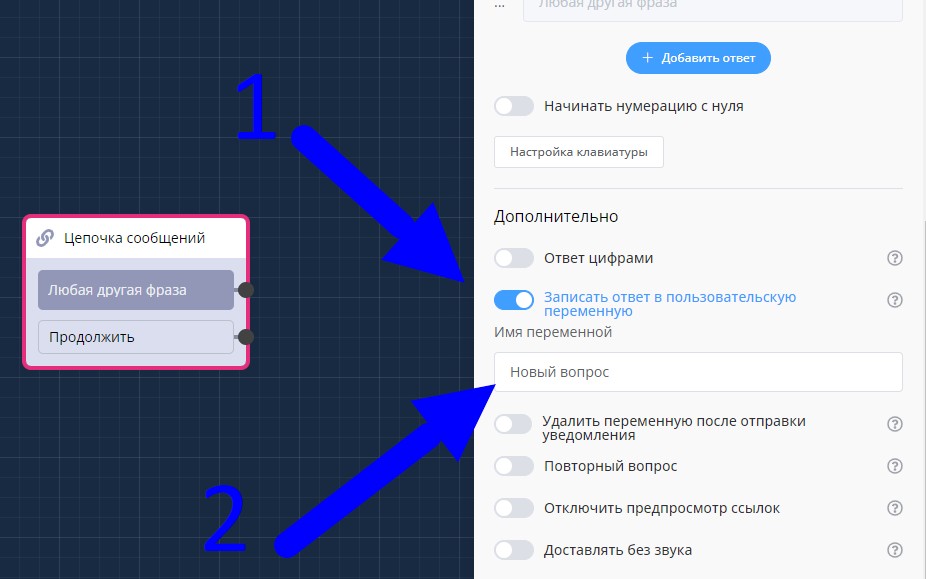
Saving response to user variable in "Message chain" block
You can track information entered by the user in the "Lists", "Contacts" section by opening the user's information (screenshot below).
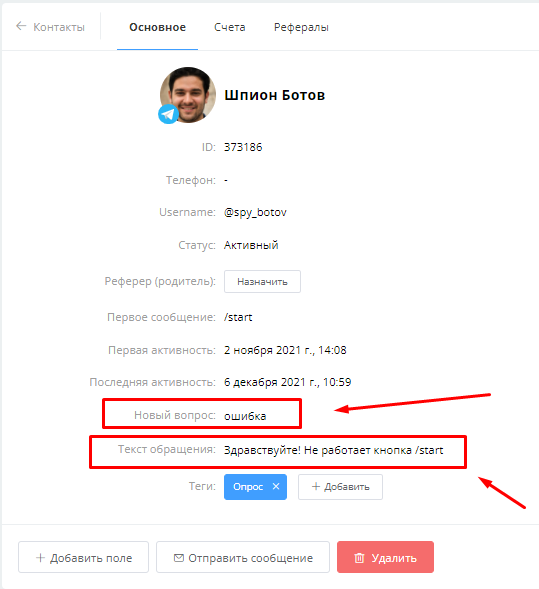
User variables in contact card
If you enable the "Delete variable after sending notification" checkbox, the variable will be cleared after the notification is sent — what the user entered will disappear (screenshot below).
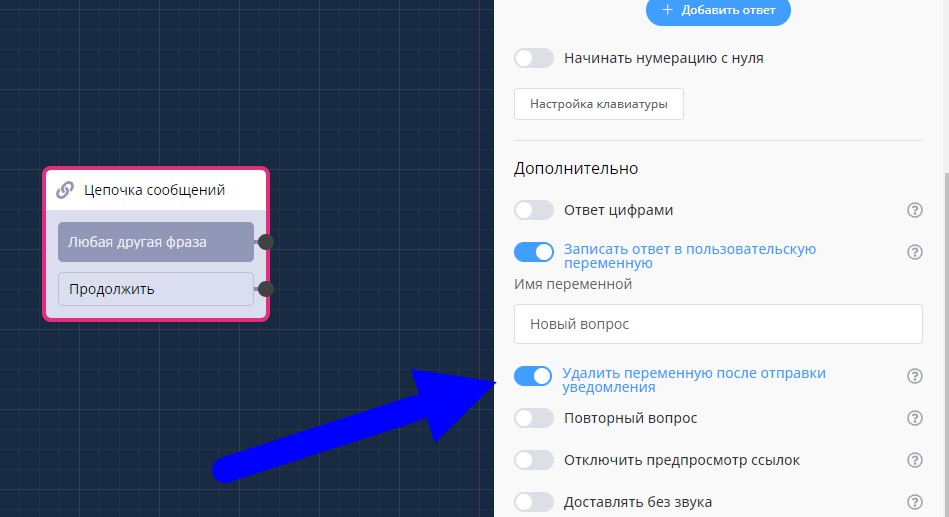
Deleting variables after sending notification
A variable can also be assigned from the user card. Go to the user card, click "add field", in the line that appears specify the variable name or select from the dropdown list, and in the value field specify the value of that variable.
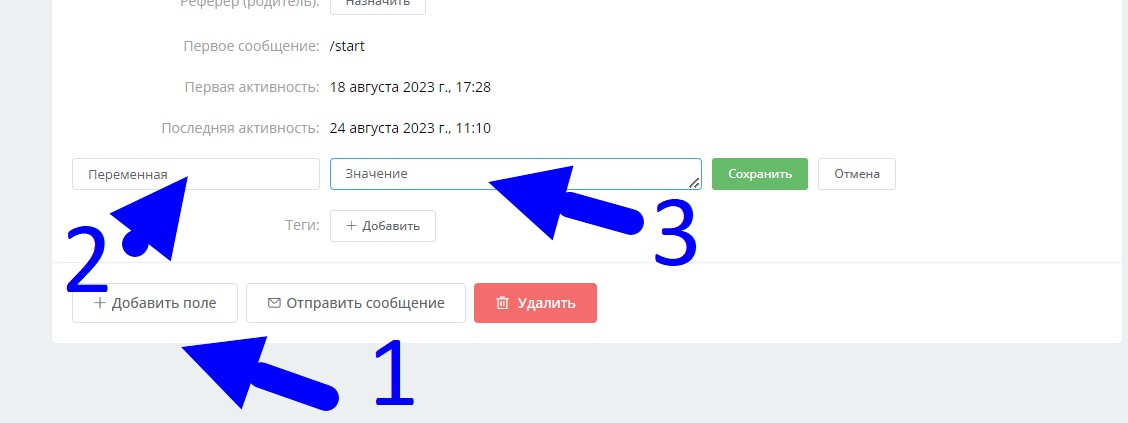
Assigning user variables in contact card
In the LEADTEX personal account, 250+ lessons on chat bot and MiniApp development are already available, as well as the opportunity to join the largest developer community with 6000+ participants - Go to personal account.