Yclients
Bot integration with Yclients. Integration with Yclients for online booking
How to Integrate Chat Bot with Yclients
STEP 1 — Register in the YCLIENTS Marketplace Developer Personal Account.
Get access to the developer personal account. To do this, go to the link https://www.yclients.com/signin/JTJGYXBwc3RvcmUlMkZkZXZlbG9wZXJz and create a personal account.
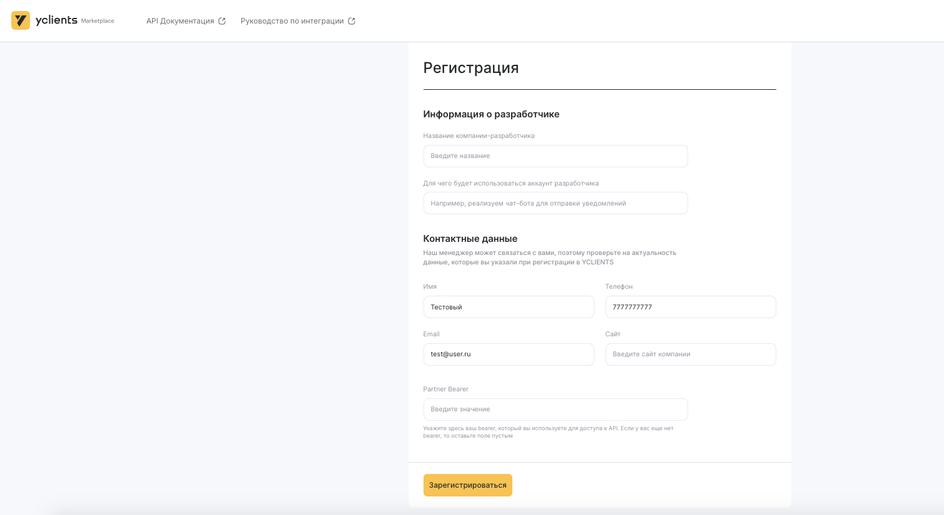
Yclients Registration
STEP 2 — Create an Application in the Marketplace
In the developer personal account, create your first application for the marketplace.
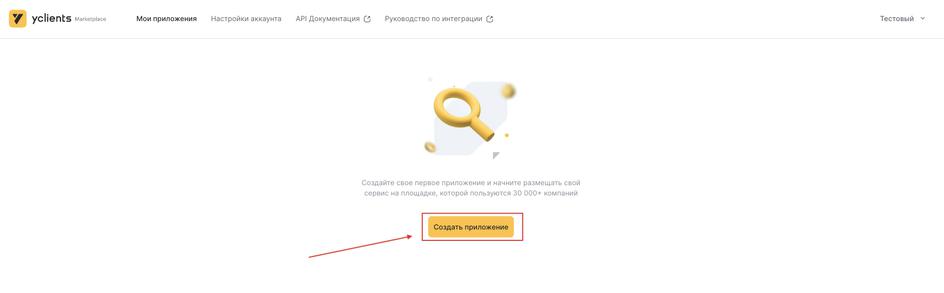
Creating Application in Yclients
When creating an application, be sure to mark the type as "Non-public", otherwise you will not be able to install webhooks in the branch.
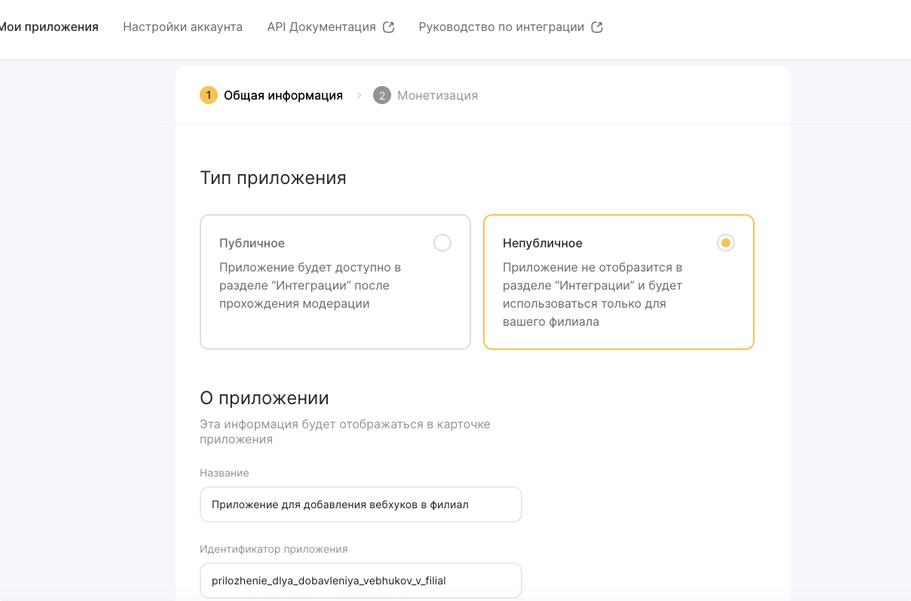
Creating Application in Yclients
STEP 3 — Specify the Required Webhook Address in the "Development Settings" Section
To do this, go to editing your application.
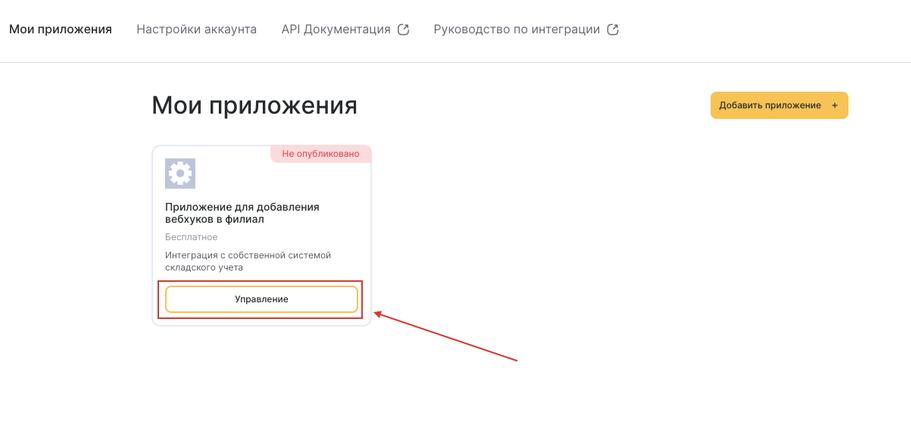
Yclients Integration
Copy the url address from our platform in section "Bot" > "Settings" > "Integrations" > "Yclients" > "webhook"
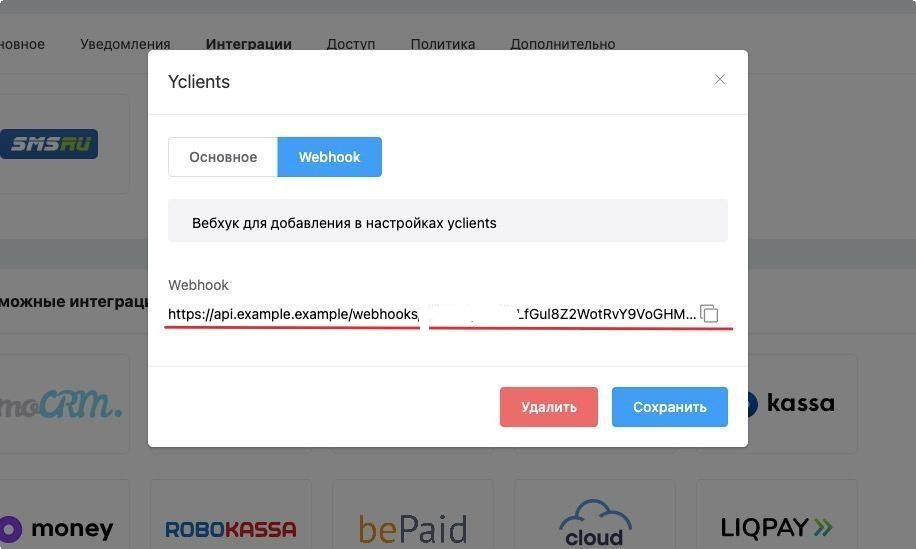
Getting Webhook for Integration Setup
Go to the "Development Settings" section. In the "Address to send notifications to" field, specify the url address for sending webhooks. This address will be added to branches when connecting the application.
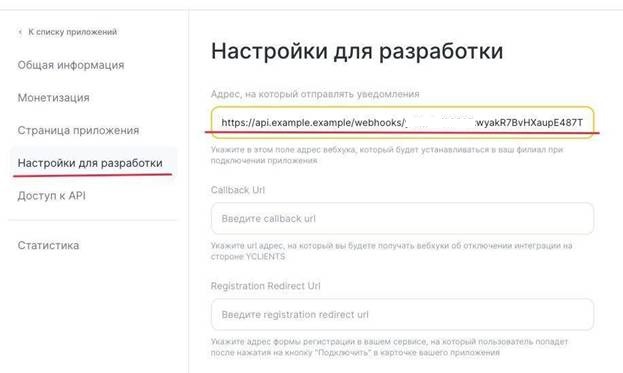
Yclients Notification Settings
STEP 4 — Connect the Application to the Branch
Your application will not be in public access, only you will be able to use it. To open the application connection page:
Go to the developer account. This can be done through "Integrations" > "Developer Account" or by going to the link https://www.yclients.com/signin/JTJGYXBwc3RvcmUlMkZkZXZlbG9wZXJz
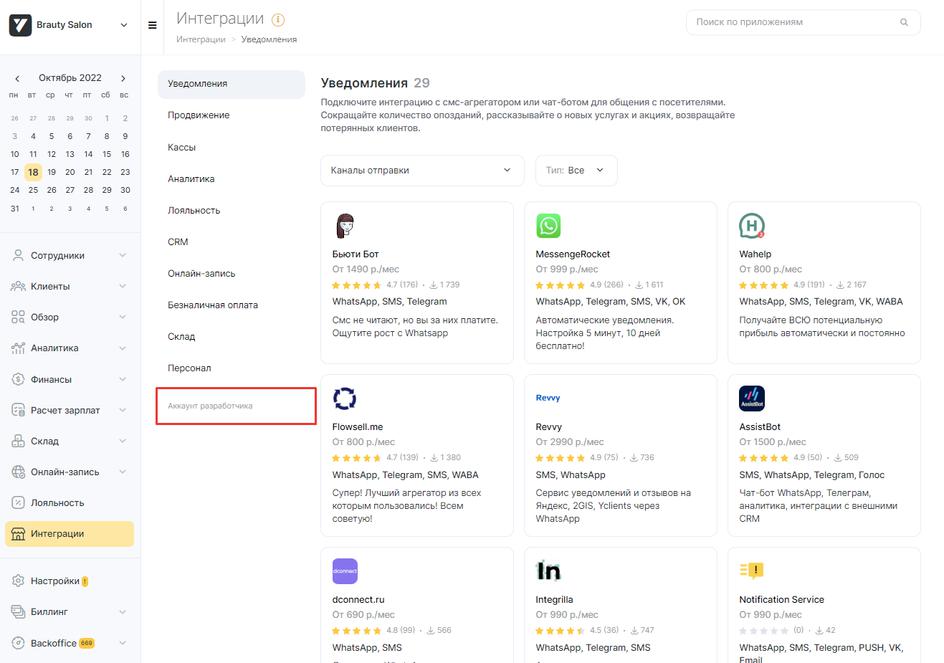
Yclients Developer Account
Open the edit form for your application.
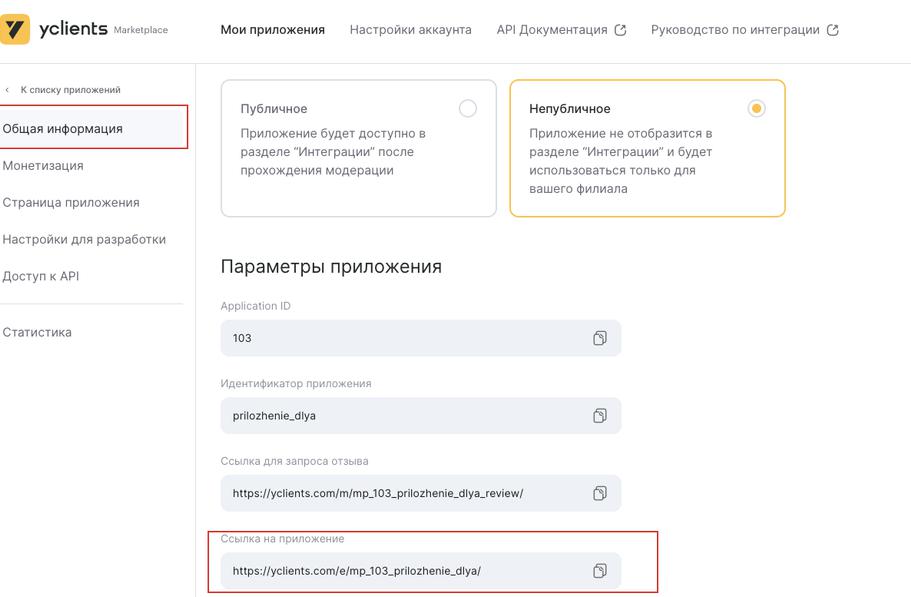
Editing Yclients Application
Copy this link and paste it into the browser. You will see your application page with a "Connect" button.
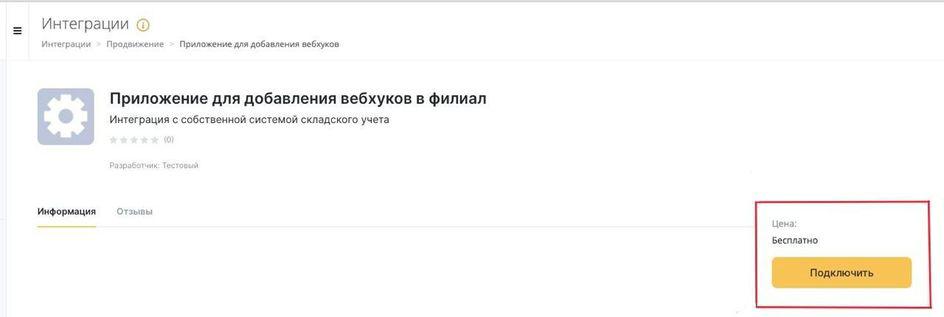
Connecting Yclients Application
Note: If you decide to change the webhook address in the application to a new one. The application must be disconnected from the branch and connected again. Note: For the yclients block to work correctly, the contact must have a phone and email specified.
"Yclients" Block
In the scenario settings, click Add Block and select "Yclients" Block
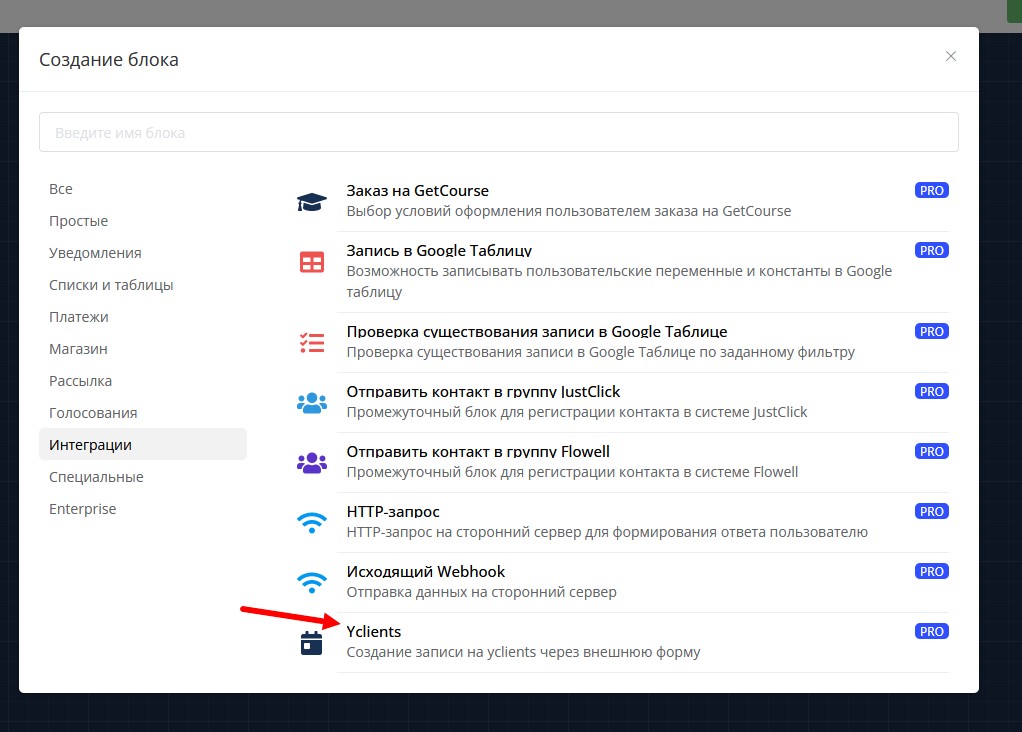
"Yclients" block in scenario
In the block, you need to add a link to the online booking form from YCLIENTS, it will be sent to the chat bot when this block is reached.
You can create several blocks with different forms from YCLIENTS
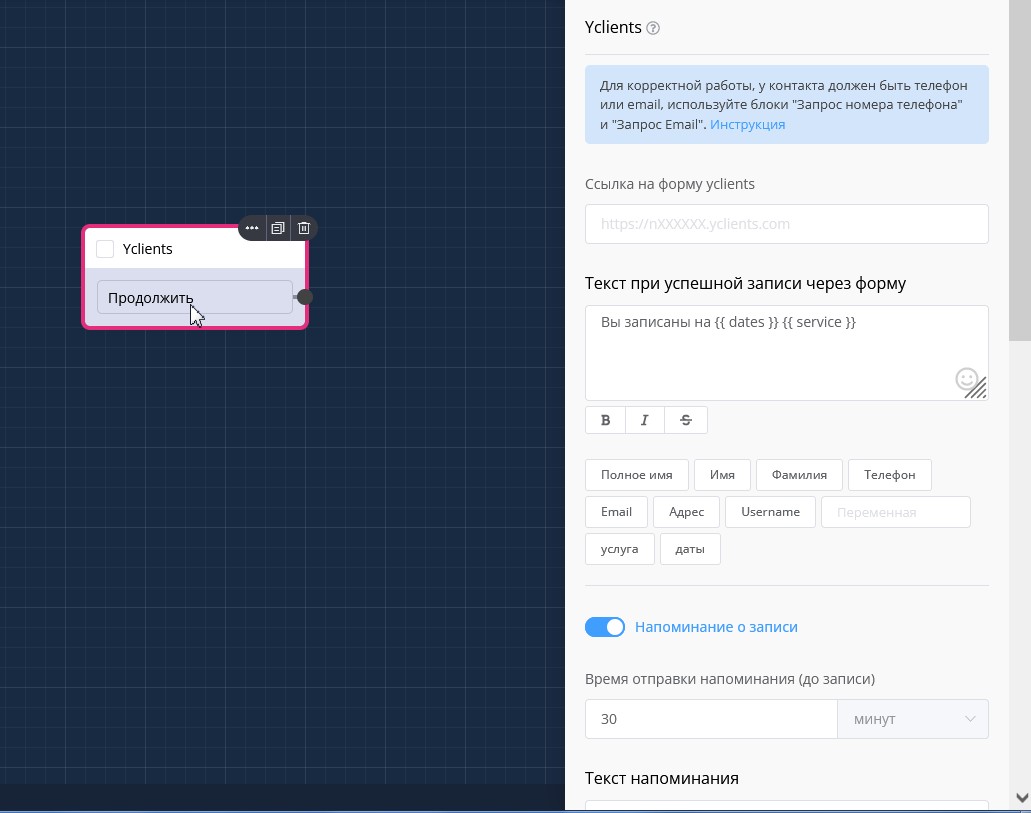
"Yclients" block settings - forms
Three texts can be sent through the "Yclients" block:
- immediately after receiving the webhook on successful booking;
- in advance before booking at a certain time - at the time (if value is "0") or after the booking date;
- after a specified time interval after booking (successful and missed).
Variables can be used in the text.
Time is set using minutes, hours, or days.
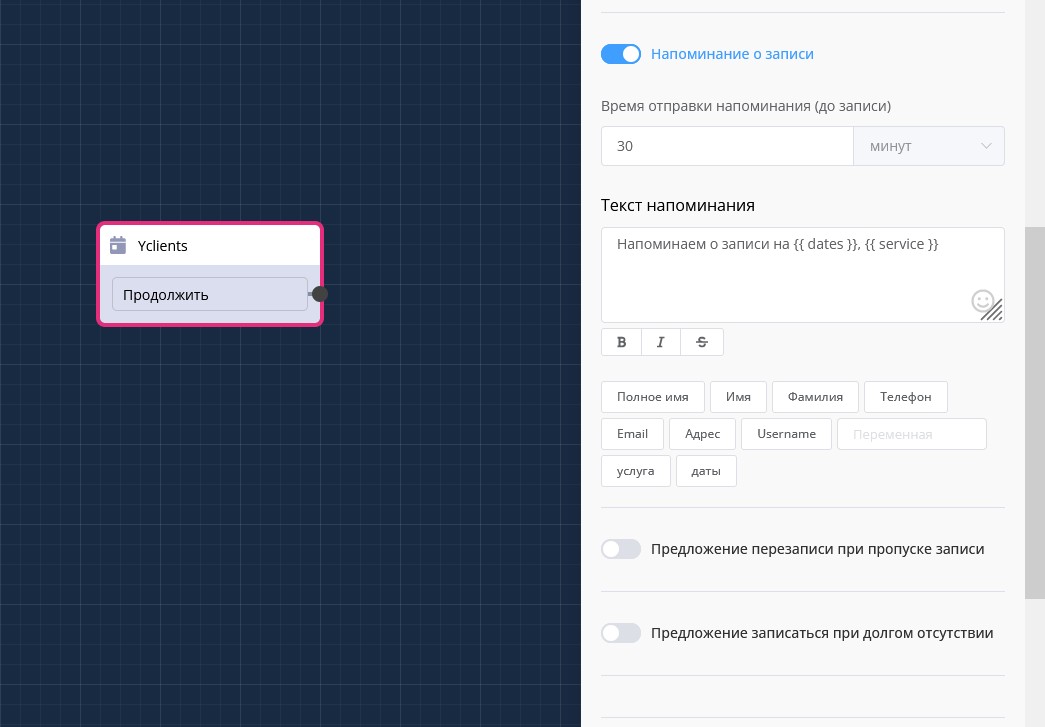
"Yclients" block settings - booking reminders
🎁 Free course on developing chat bots and MiniApps for all users with an active PRO subscription is already on LEADTEX.
10 detailed lessons with immersion from A to Z.
Start learning right now - Start learning.