T-Bank
Chat bot integration with T-Bank payment service
Connect T-Bank internet acquiring and accept payments directly in chat with the bot, without third-party integrations and classic development.
.jpg)
T-Bank Integration
Convenient payment for chat bot users:
T-Pay, Mir Pay, Ya Pay
Bank cards Visa, MasterCard (RF Banks), Mir cards (any banks).
Installment and "Shares" payment.
Fast. Convenient. Effective.
How to Set Up Integration on T-Bank Side
Information
Important! Integration connection is only available for legal entities and individual entrepreneurs.
Open a business account in T-Bank
.jpg)
Opening account in T-Bank
To open a business account, simply follow the link specified in the integration description, and select "Business Account" or complete IP (LLC) registration with T-Bank, with automatic account opening.
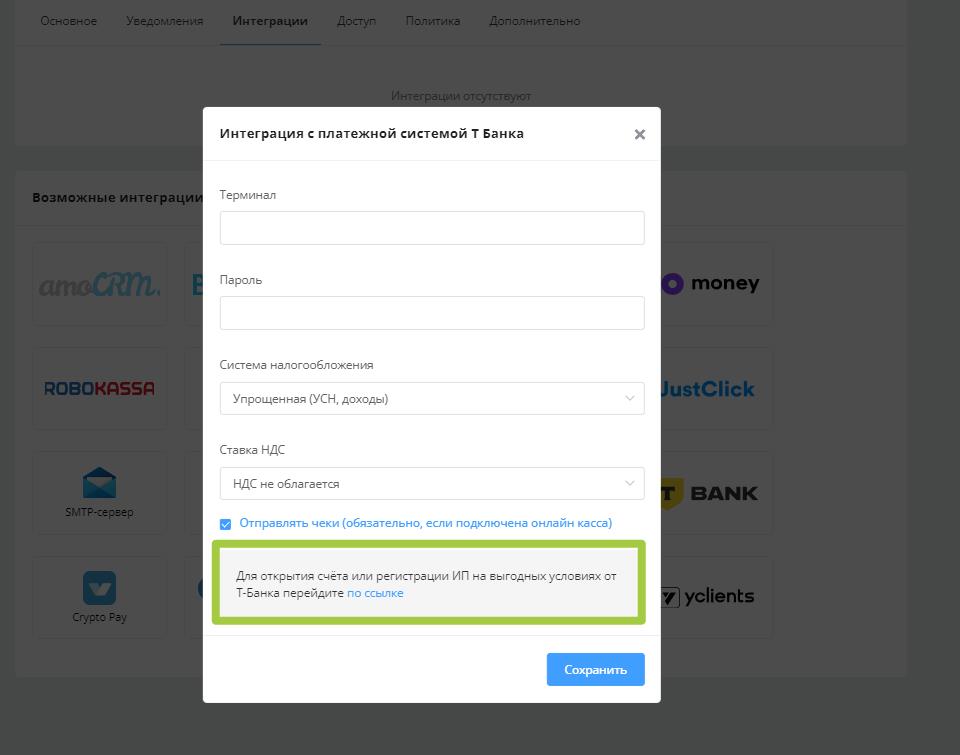
Setting up T-Bank integration
After approval from T-Bank specialists, you will need to perform a number of settings to connect the integration in the IP or Organization personal account.
Settings in T-Bank Personal Account
- Go to T-Bank personal account, "T-Business" section.
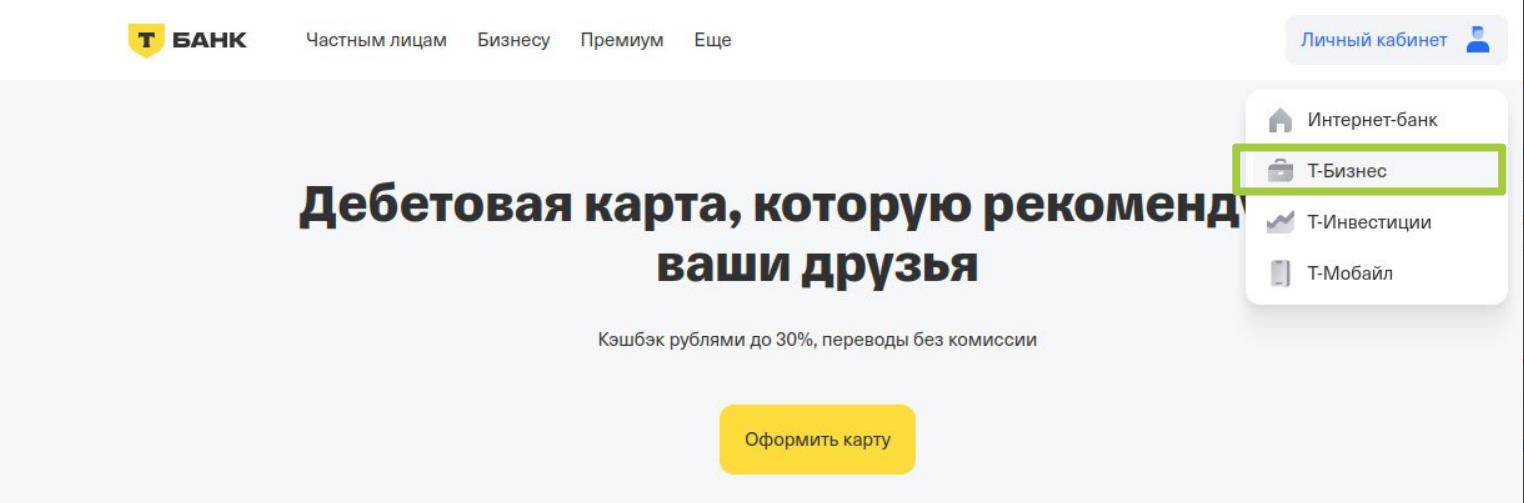
Going to "T-Business" section
- Next, go to the "Internet Acquiring" section, subsection - "Stores".
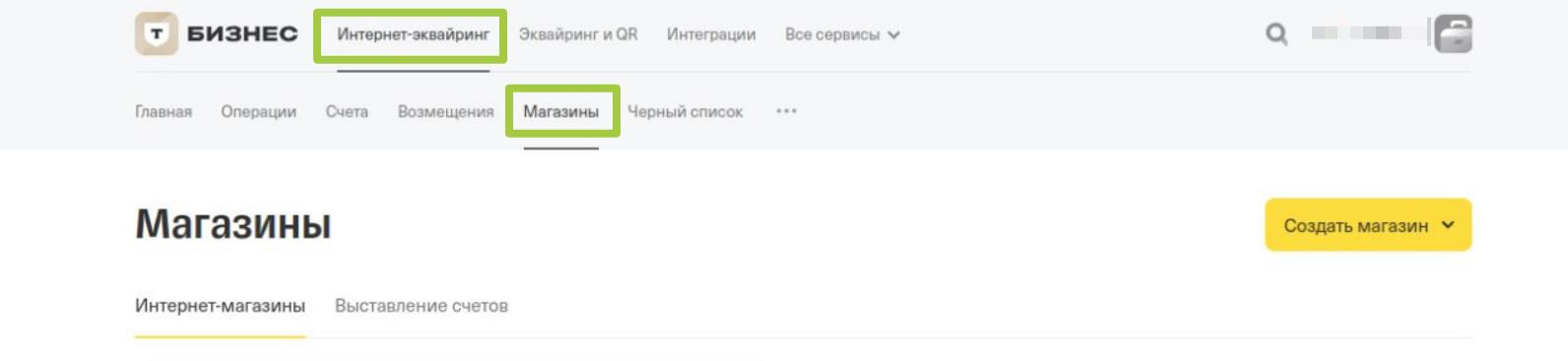
- The next step is to create a store to connect the integration.
To create a store, select the item in the dropdown list "Create Store" - "Online Store".
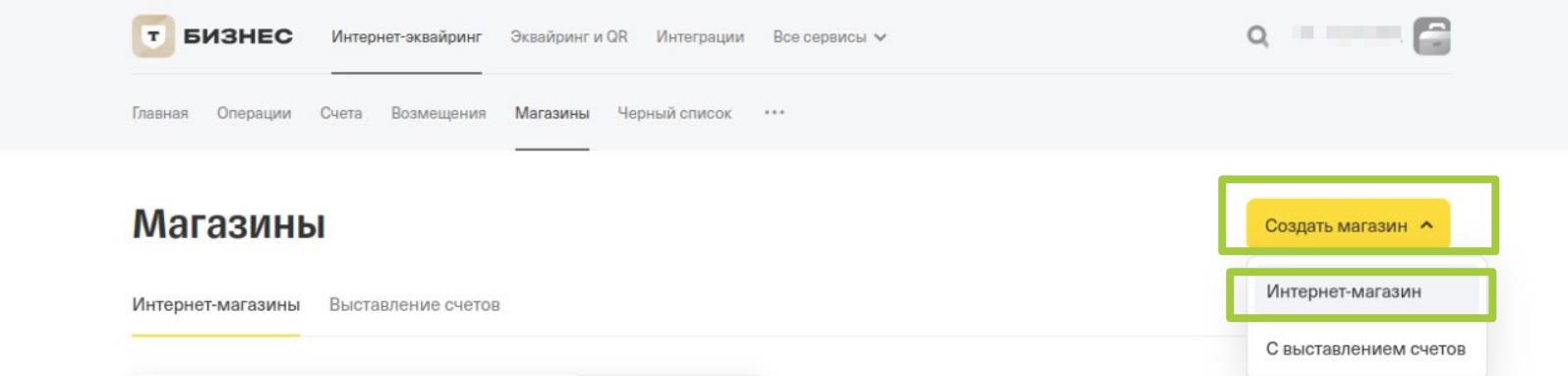
Creating store in T-Bank
- Fill in the proposed form.
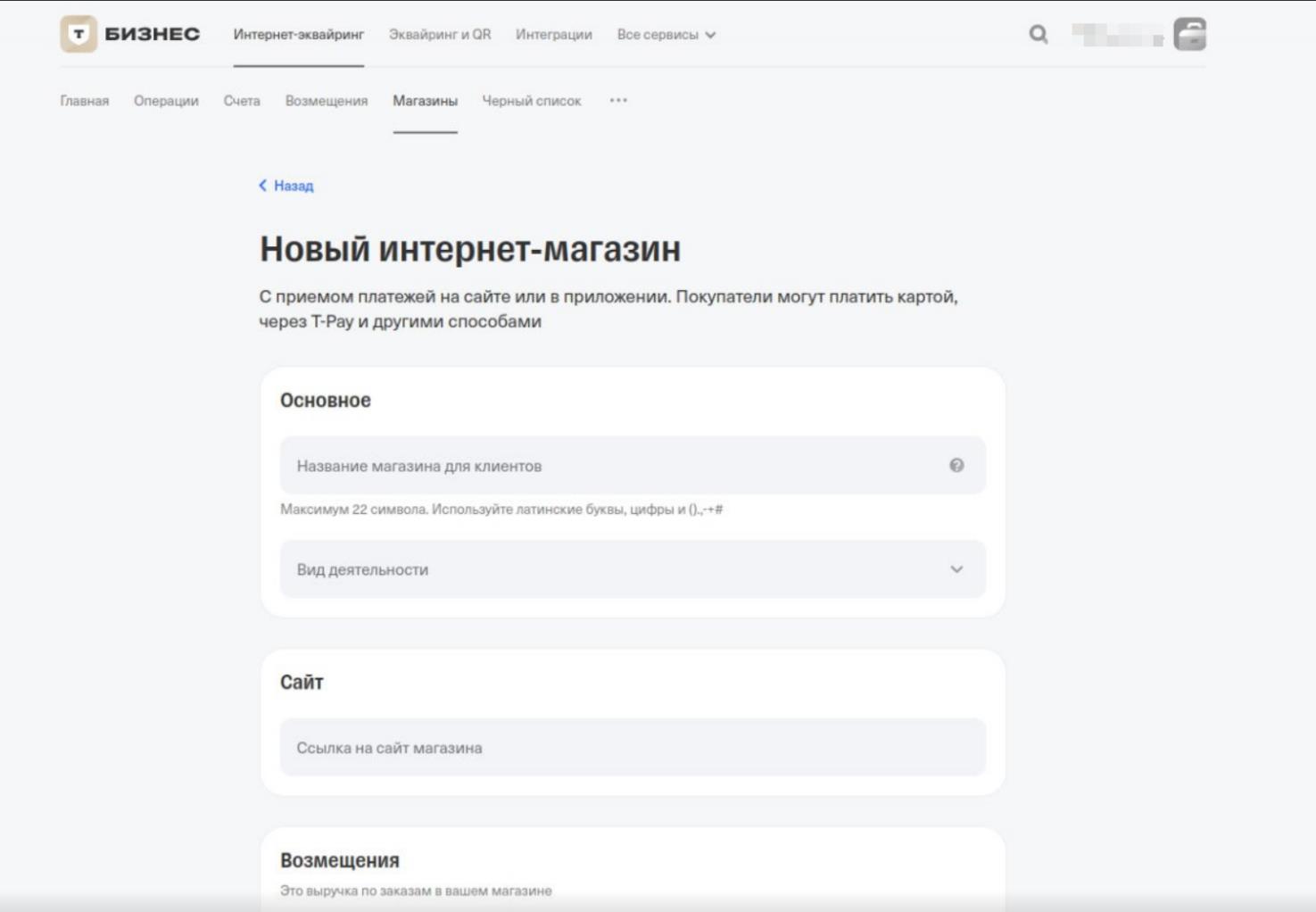
Creating store in T-Bank
Information
Important! In the "Website" field, specify the organization's or IP's website, not a link to Leadtex or created chat bot.
All data in the form must be specified for the organization or IP.
After filling out the form, T-Bank representatives will conduct a check, as a result of which they may contact the merchant to clarify details, in case of a positive decision, test and production Terminals will be created.
Conducting Tests
For correct integration setup, you will initially need to conduct tests with the test Terminal.
- Go to the "Internet Acquiring" - "Stores" section
Copy the values of the "Terminal" and "Password" fields for the TEST Terminal.
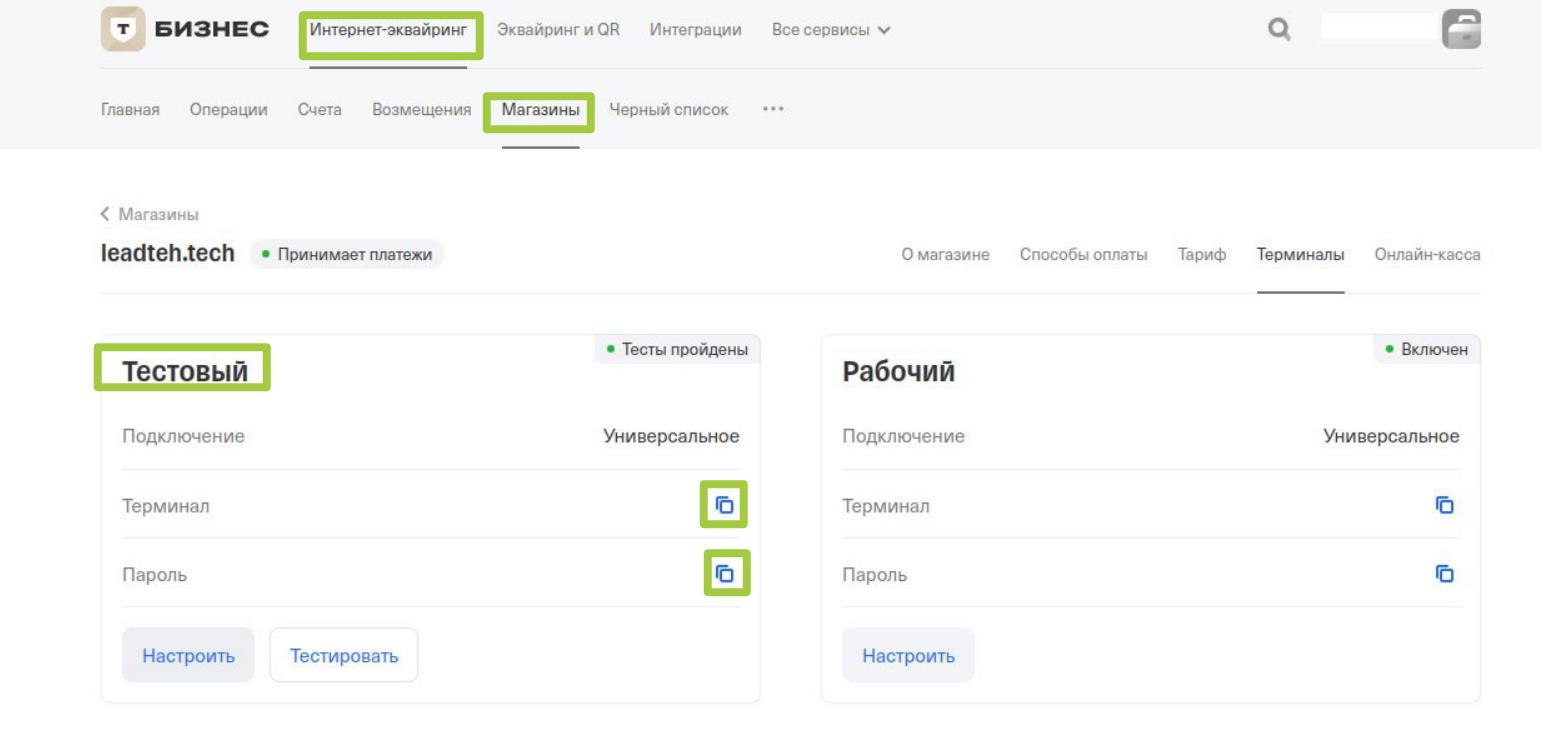
Conducting tests with test Terminal
- Enter the test Terminal field values into the integration settings fields on the Leadtex side
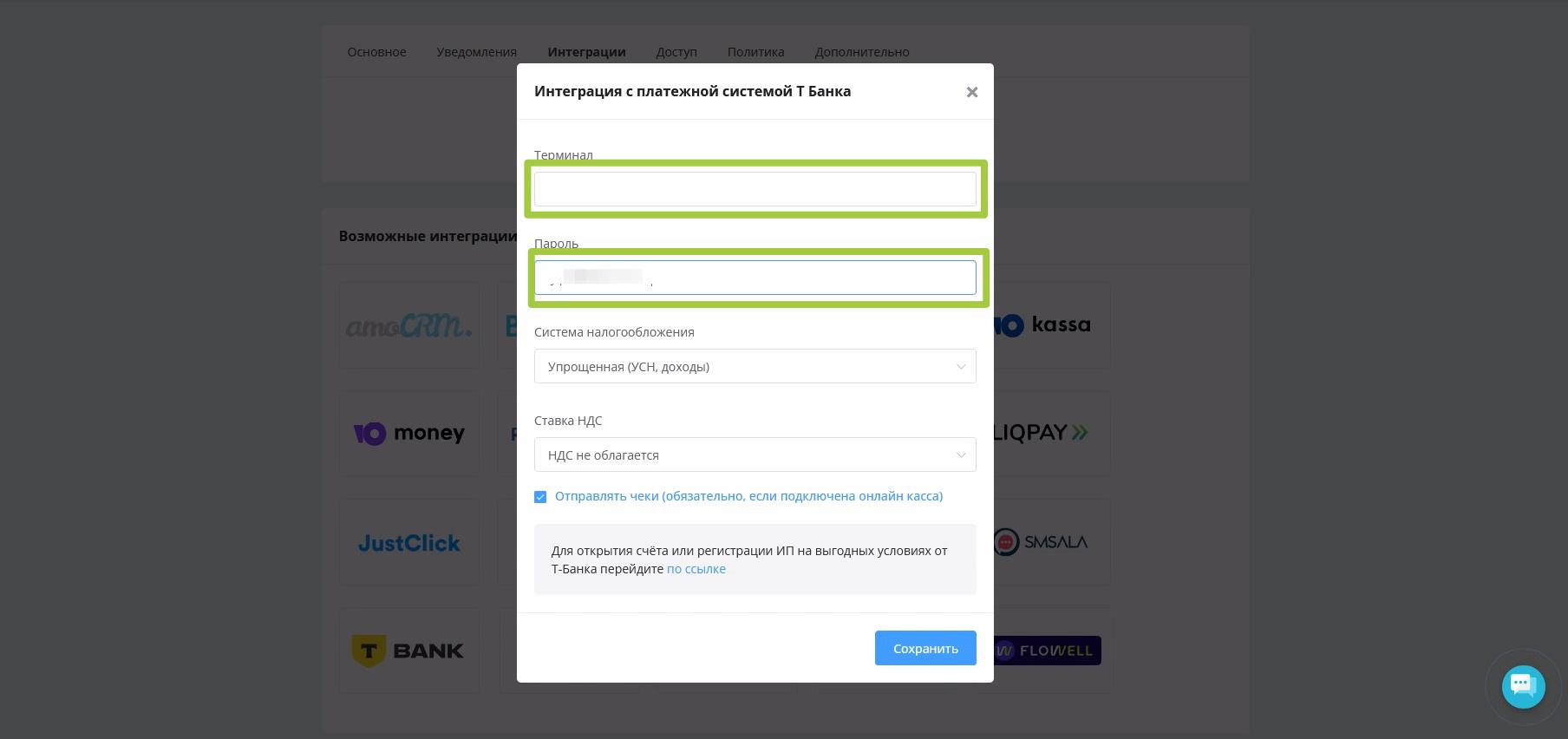
Setting up test integration Leadtex
Additionally specify the current taxation system of the legal entity or IP and VAT rate - "Save".
- Go to the connected integration - "Notifications" section, and copy the created Webhook.
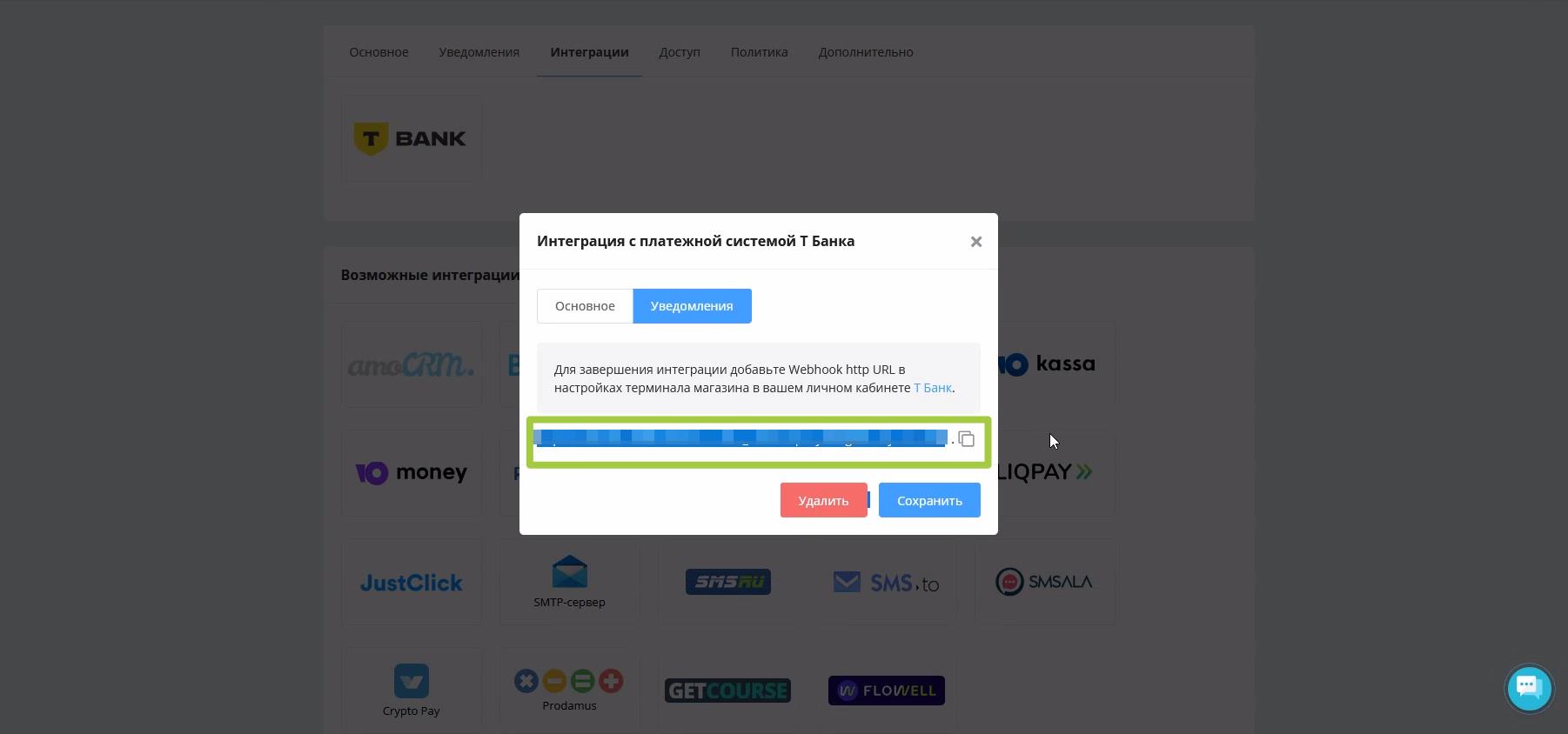
Getting Webhook for integration setup
- Return to T-Bank personal account and go to test Terminal settings.
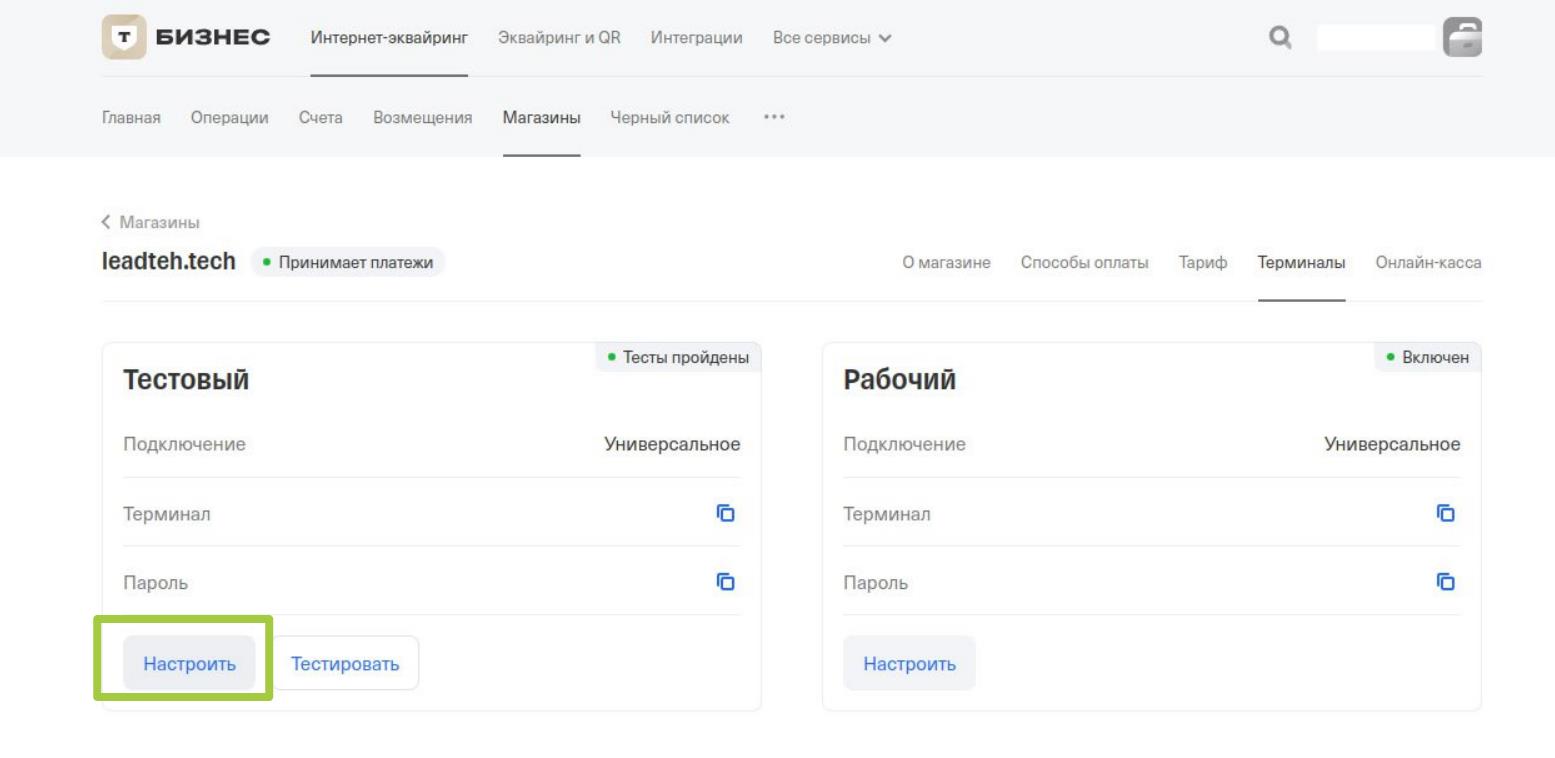
Setting up test integration T-Bank
5. Fill in all fields on the test Terminal settings page
In the "Notifications" section, select "Via HTTP Protocol" and add the value of the Webhook copied in step #3.
You can specify your own "Success" and "Error" pages or use the "Default" function.
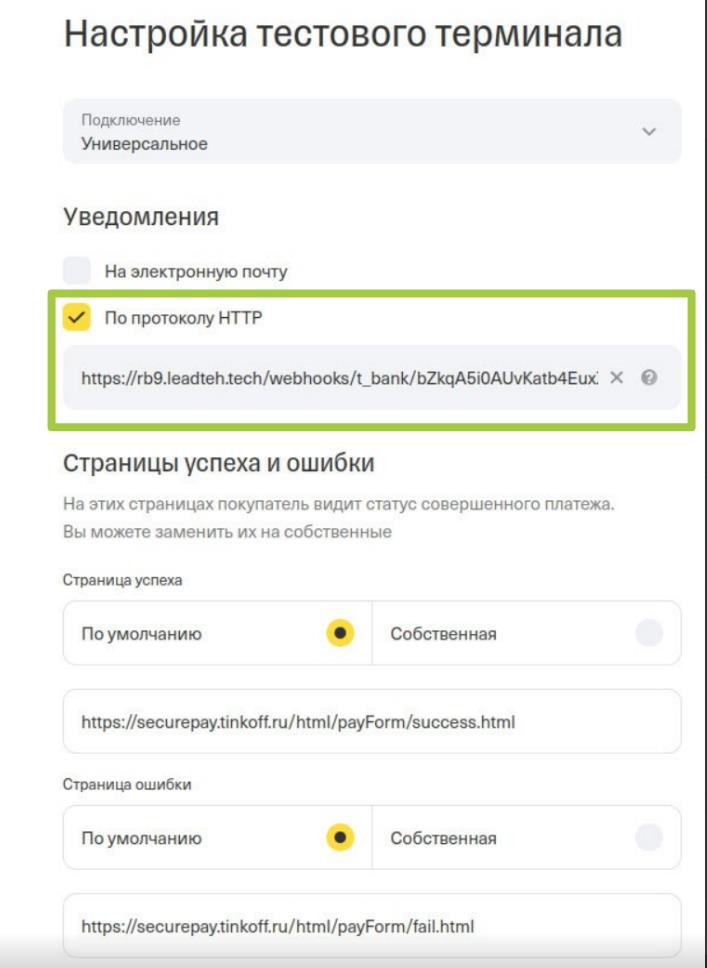
T-Bank notification settings
- Save changes and click "Test"
.jpg)
Testing T-Bank integration
Next, you will need to pass 5 tests, for each test a test card and instructions are provided.
Tests can be passed using Leadtex integration.
Information
Important! Passing tests is necessary to unlock the PRODUCTION Terminal.
To create a payment link and test the integration, the "T-Bank" block on the Leadtex constructor is used.
.jpg)
"T-Bank" block in scenario
In case of difficulties during tests, you can contact T-Bank technical support.
After completing 5 tests, you need to send data for verification to T-Bank employees using the "Check" button.
.jpg)
T-Bank payment testing
Connecting Integration
- After passing all tests and unlocking the production Terminal, you need to copy the values of the "Terminal" and "Password" fields.
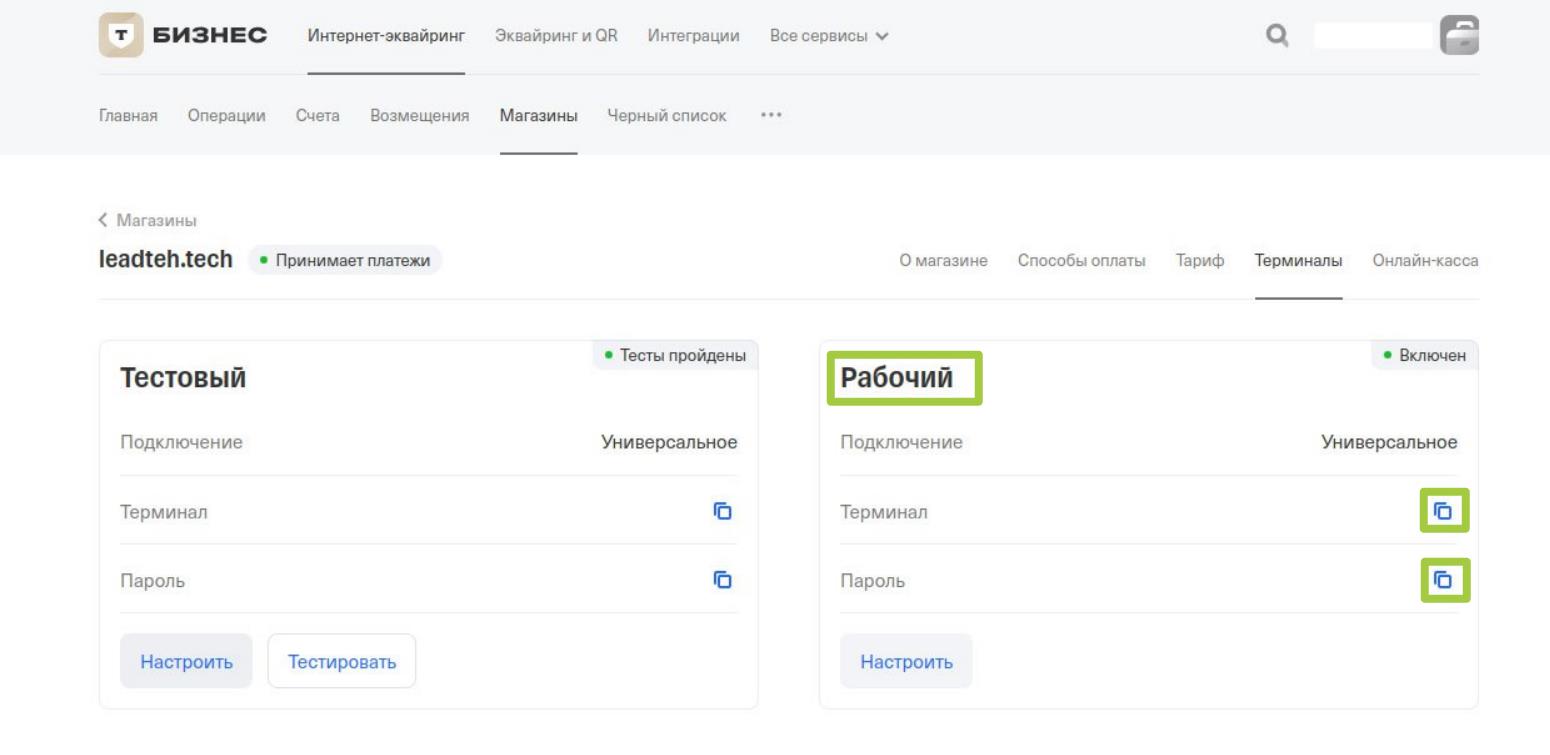
Getting production Terminal data
And enter these values into the integration settings on the Leadtex platform.
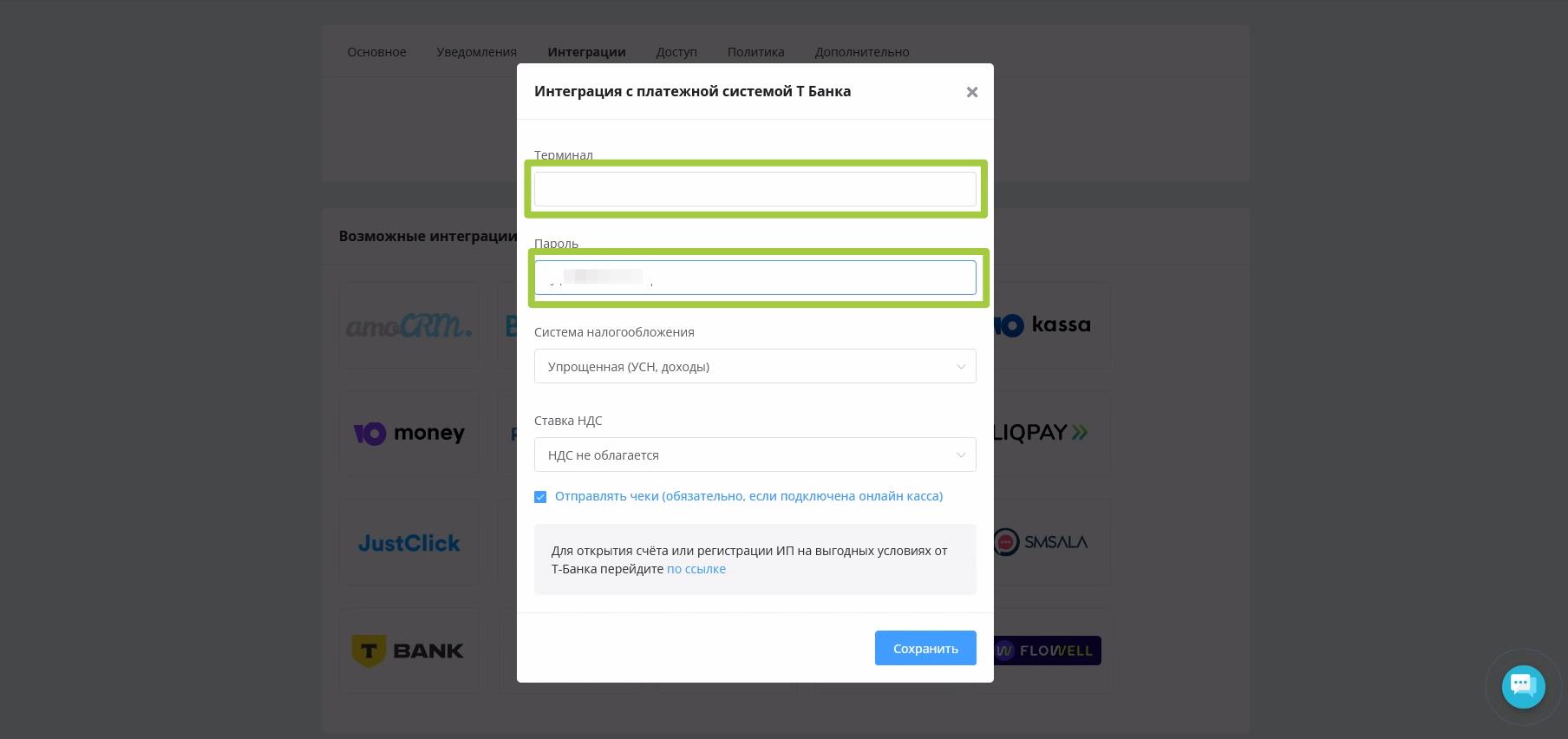
Connecting production Terminal
- The final step is setting up the PRODUCTION Terminal. You need to copy the newly created Webhook in Leadtex, after updating the data.
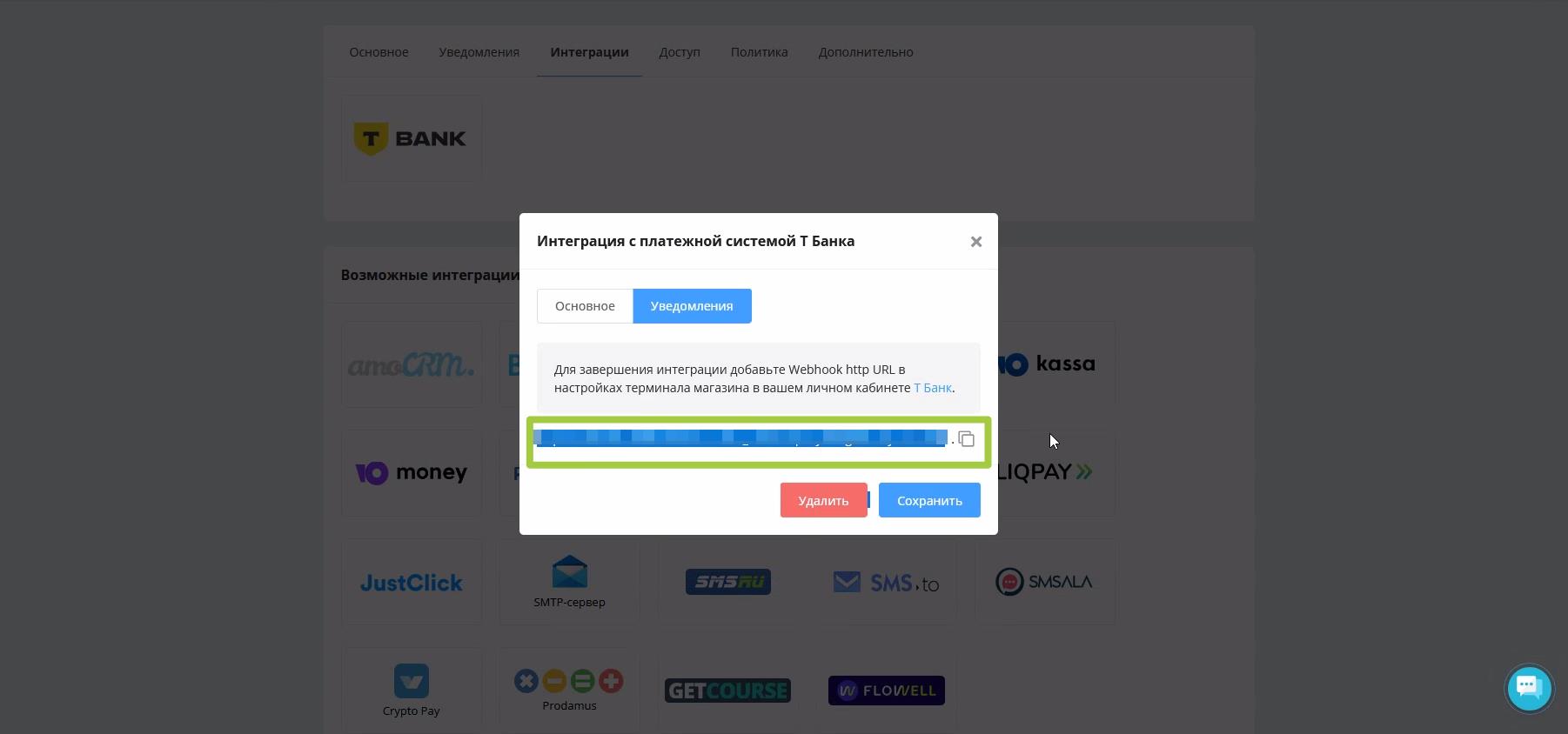
Getting Webhook for integration setup
The received Webhook needs to be entered on the production Terminal page.
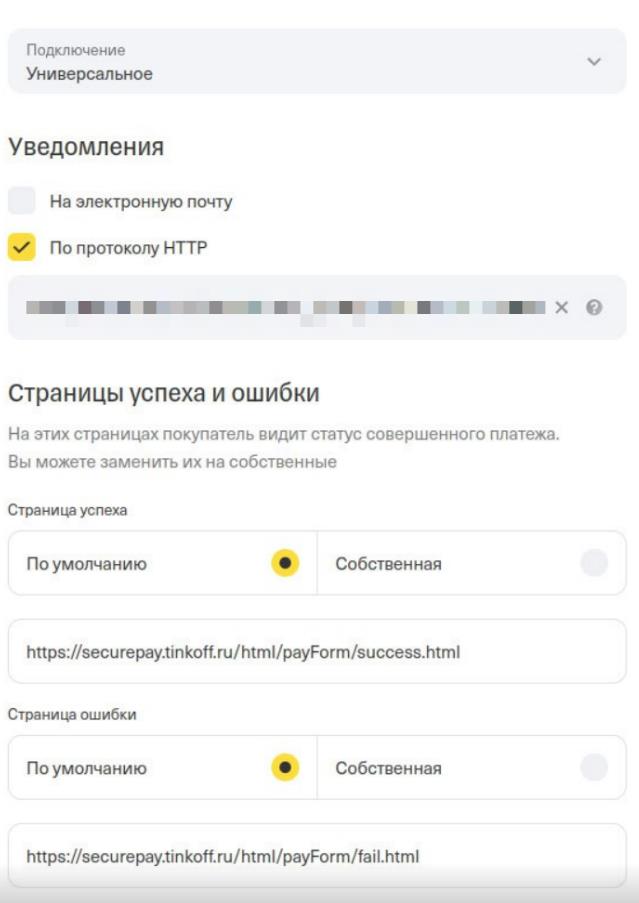
T-Bank notification settings
Additionally, you can specify "Success" and "Error" pages and save changes.
Done! Integration is set up.
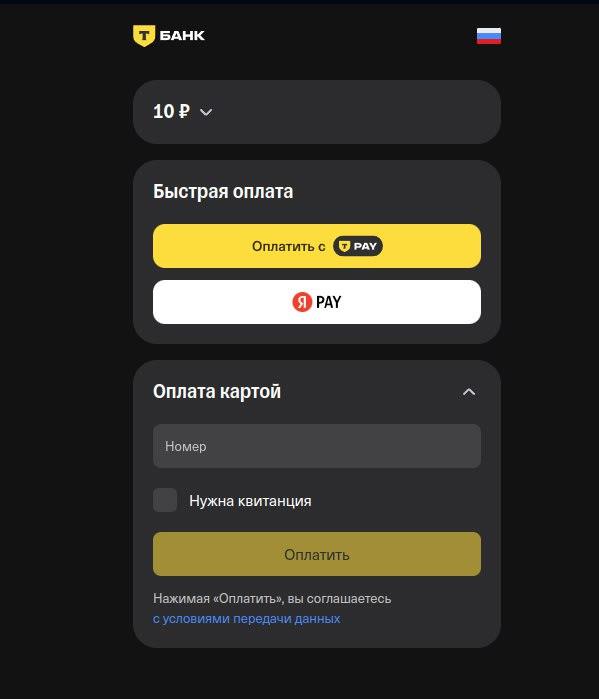
Processing T-Bank payment
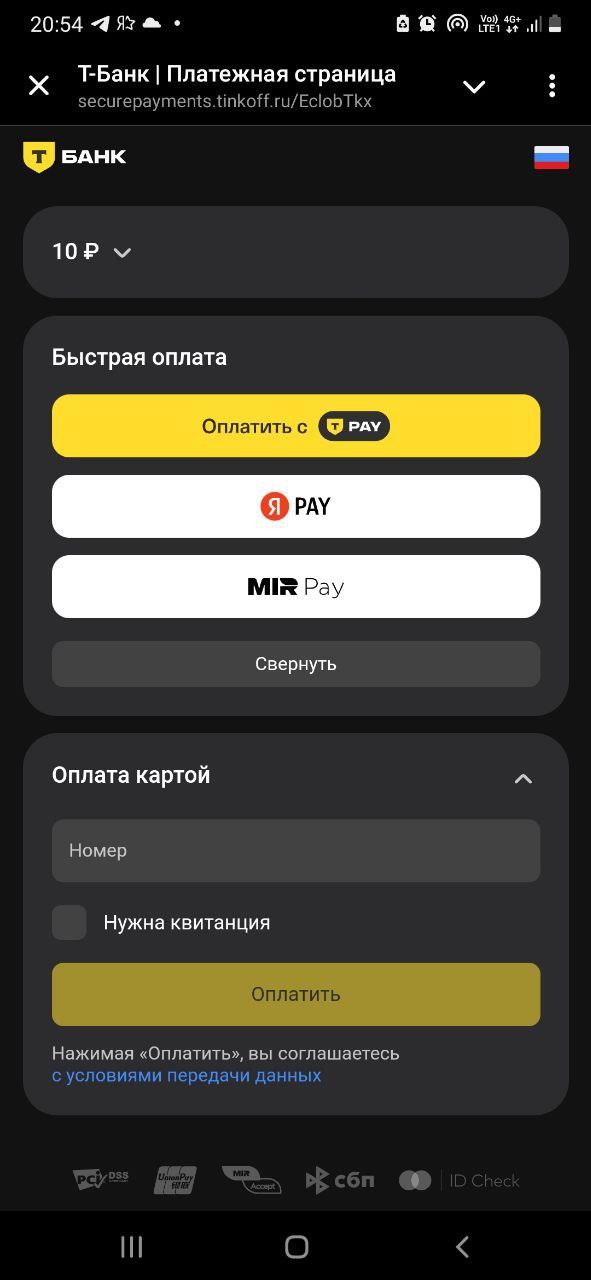
Processing T-Bank payment
Information
Important! For correct integration operation, before the "T-Bank" block on the LEADTEX platform, there must be a "Request Phone Number" block.

"Request Phone Number" block
Creating Online Store in Telegram with T-Bank Integration
Practical guide to creating a functional online store in Telegram with T-Bank payment system integration through LEADTEX constructor.
The video lesson demonstrates the entire process from creating a Telegram bot and connecting to the platform to setting up a product catalog, integrating with a bank terminal, conducting test payments and launching a production store.
Bonus for new users and the opportunity to receive 500 rubles as a gift 🎁
- Register on LEADTEX
- Create and test your first project
- Don't miss the special offer. Get gift 👈