Telegram Stars
Accepting payments in Telegram Stars right in the chat with the bot
Telegram Stars is Telegram's internal currency. A contact buys Stars in the Telegram app and pays the bot with them without leaving the chat: the bot sends an invoice, the contact taps "Pay" and confirms the payment.
There are three ways to accept Stars:
- the "Telegram Stars" block — payment of a fixed amount or an amount from a variable (this article);
- the "Cart" block — payment for an order of list items (Paying with Stars in Cart);
- a MiniApp store — payment for an order in the mini app (Paying with Stars in MiniApp).
No payment system to connect
Stars do not need a separate integration in "Settings" → "Integrations": a Telegram channel connected to the bot is enough. The block is available on the PRO plan.
Telegram only
Payment with Stars works only in Telegram bots. If a contact from another messenger (VK, MAX, WhatsApp, etc.) reaches the block, no invoice is sent and the contact receives "Payment with Stars is only available in Telegram."
Adding the block
In the scenario builder, click "Add block" and find the "Telegram Stars" block in the "Payments" section or via search.
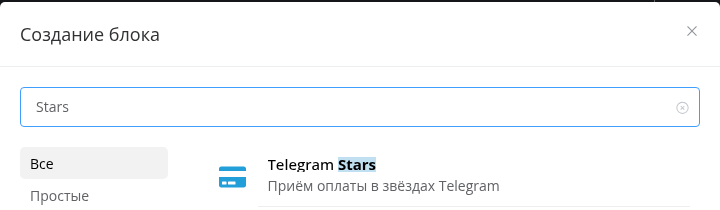
The "Telegram Stars" block in the block creation window
The block has two branches:
- "Successful payment" — the contact goes here after paying the invoice;
- "Continue" — the contact goes here right after the invoice is sent, without waiting for payment.
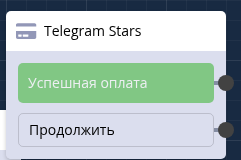
The "Telegram Stars" block in the scenario
Block settings
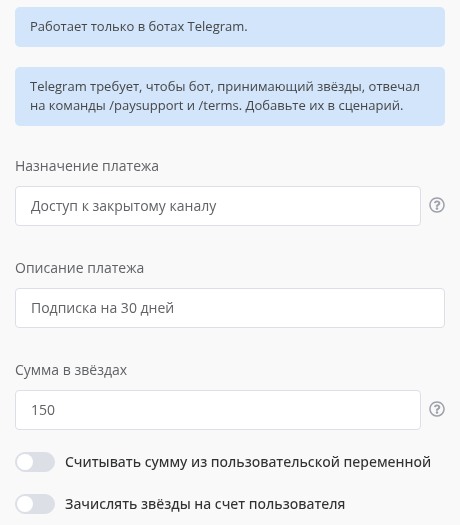
"Telegram Stars" block settings
| Field | What to enter |
|---|---|
| Payment purpose | Required. The invoice title the contact will see. Telegram shows up to 32 characters, longer text is cut |
| Payment description | Optional, up to 255 characters. The text under the invoice title. If empty, the payment purpose is used |
| Amount in Stars | A whole number of Stars, at least 1 |
| Read the amount from a user variable | The amount is taken from a contact variable instead of the "Amount in Stars" field |
| Credit Stars to the user account | After payment, Stars are credited to the contact's internal account (see below) |
Variables in "Payment purpose" and "Payment description" are not substituted: the text goes into the invoice as is.
Amount from a variable
Turn on "Read the amount from a user variable" and enter the variable name without curly braces.
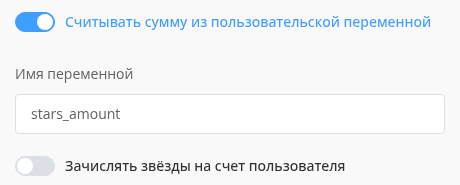
Amount from a contact variable
The variable must contain a whole number of Stars. The amount is not rounded:
- if the contact has no such variable — the contact receives "Amount not found. Please retry.";
- if the variable holds 0, nothing or a negative number — "Zero amount transferred. Please complete your purchase again";
- if the variable holds a fractional number or text — "Payment system error: the amount for payment with Stars must be a whole number, got 12.5."
In these cases no invoice is sent and the contact does not go to the "Continue" branch: the contact stays on the error message.
Crediting to the account
If "Credit Stars to the user account" is on, after payment the contact gets an account in the XTR currency and the paid Stars are credited to it. The account is shown in the contact card under "Accounts".
To show the Stars balance in a bot message, use {{ getBalance("XTR") }} — for example, "150 ⭐". To debit Stars from the account, use the Debit from Contact Account block with the currency code XTR.
More about accounts — in Subscriber Balance in Chat Bot.
How payment works
- The contact reaches the block, and the bot sends an invoice with a "Pay" button. Telegram draws the button with the amount itself.
- The contact immediately goes to the "Continue" branch.
- The contact taps "Pay" and confirms the payment in Telegram.
- After payment, the contact goes to the "Successful payment" branch. Payment notifications and crediting to the account work the same way as with other payment systems.
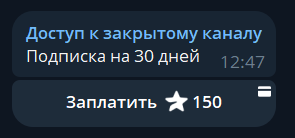
Invoice in the chat: purpose, description and the "Pay" button with the amount
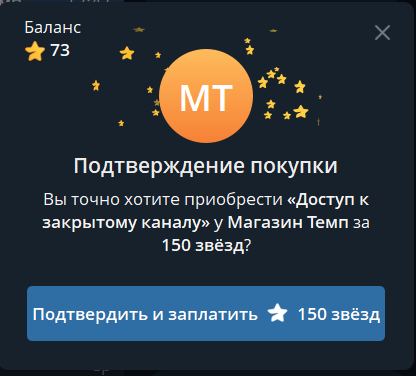
Payment confirmation window in Telegram
A payment counts as completed only after Telegram reports a successful payment. Tapping "Pay" without completing the payment changes nothing.
Unpaid invoice
An invoice that is not paid within 3 days is canceled. The invoice message stays in the chat, but when trying to pay, Telegram shows "This invoice is no longer valid. Please request a new one." An invoice that has already been paid cannot be paid again: the contact sees "This invoice has already been paid."
Forwarded invoice
If a contact forwards the invoice to someone else, the forwarded copy has a link to the bot instead of the "Pay" button. The link opens the bot's regular start, and the tg_start variable of that person gets a value like stars_123456, where 123456 is the payment number. You can build a condition on this variable in the scenario.
Telegram seller requirements
Telegram requires a bot that accepts Stars to:
- respond to the
/paysupportcommand — payment support; - respond to the
/termscommand — terms of purchase the buyer agrees to before paying; - resolve disputes with buyers on its own.
The platform does not add these commands automatically — set them up in the scenario (how to do it).
Digital goods — Stars only
Under Telegram rules, digital goods and services (access to a channel, course, content) inside Telegram can be sold only for Stars. Otherwise Telegram may stop showing the bot to mobile app users. Physical goods can be sold both for Stars and through regular payment systems.
How to set up /paysupport and /terms
Plain /paysupport text sent in the middle of a scenario is treated by the current block as "any other phrase". To make the command work anywhere in the dialog, use Telegram events:
- Create a scenario that answers the command, for example "Payment support". For
/terms, create a separate scenario with the terms of purchase. Create a Telegram event, link the "Payment support" scenario to it and paste the code:
var m = response.data.message;
if (!m || m.text !== '/paysupport') { stop.stop }
Create a second event for
/termswith its own scenario and replace/paysupportwith/termsin the code.- Add the commands to the bot menu via @BotFather with the
/setcommandscommand.
If the message does not match the command, the code fails, the event does not fire, and the message is processed as usual. If it matches, the event scenario starts and the contact's current block does not receive the command.
Information
Event code cannot use ?., arrow functions or let — the interpreter supports ES5 syntax only.