YooKassa
Chat bot integration with YooKassa payment service
Information
To register and connect the payment system follow the link.
Special conditions for acquiring are available upon registration (reduced rate 2.8%)
After making a payment, you can configure automatic bot action, for example send a link to an online course or assign a tag.
To set up the integration, go to Your Bot → Settings → Integrations → YooKassa. Fill in the form fields.
Important
When disabling receipt sending the payment block will not request the user's email.
If the contact number is not known, the payment link will not be generated (in WhatsApp the contact number is always known, in other messengers you can add a Request Phone Number block before payment).
.png)
YooKassa integration settings form
Go to YooKassa personal account:
- Complete registration and fill in the connection form.
 (1).png)
Integration settings on YooKassa side
As the payment acceptance format, you need to select "Via Telegram bot".
 (1).png)
Integration settings on YooKassa side
- Check the store name, it should have a telegram link to your chat bot (link not from Leadtex site!!!).
- The shopid parameter can be found in the Settings → Store tab. Copy it and paste it into the corresponding field in the integration section on the platform.
The screenshots below were taken in the Test Store, but the integration setup for a real store is identical.
 (1).png)
Store data in YooKassa
Secret Key is located in the Integration → API Keys tab. Copy it and paste it into the corresponding field in the integration section on the platform.
 (1).png)
Integration settings on YooKassa side
Select the taxation system and VAT rate according to your taxpayer status.
If you are self-employed, you can choose any taxation system, as payment receipts are generated in the "My Tax" app.
Click "Save" and go to the Webhook tab.
 (1).png)
Getting Webhook for integration setup
Copy the URL for notifications and paste it on the YooKassa side: \ Integration → HTTP Notifications.\ In the "URL for notifications" field, paste the copied URL and activate all events.
.png)
Connecting Webhook for notifications in YooKassa
After setting up the integration, create a "YooKassa" block in the bot scenario and configure it as needed.
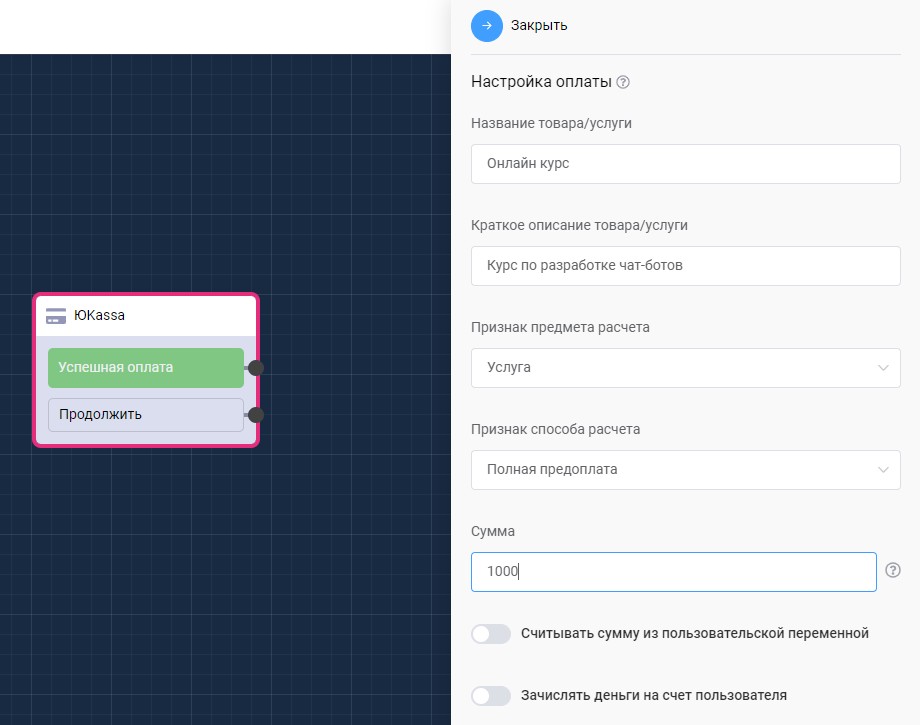
YooKassa block
YooKassa Integration: creating referral program with withdrawal through chat bot
Video on setting up YooKassa payment system to create a chat bot with a full referral program.
The lesson shows: setting up balance top-up through YooKassa, automatic percentage accrual to referrer, creating a withdrawal system in two ways and working with user internal accounts.
In the LEADTEX personal account, 250+ lessons on chat bot and MiniApp development are already available, as well as the opportunity to join the largest no-code developer community with 6000+ participants - Go to personal account.