Message Chain
Instructions for using the "Message Chain" block to send messages, files and media in the bot
A chain of messages that are sent to the client sequentially.
You cannot attach media files to a simple message; instead, use a message chain.
.png)
"Message Chain" block in scenario
When adding a new block, simply select the corresponding menu item.
Important
Note that without text or file, the block will not work, even if there are buttons in it, which means the bot will not move along the chain (if the message chain is without text in the middle of the scenario) and will not start (if such a block is at the beginning)
The message chain is configured like a regular block. "Message Chain" block settings
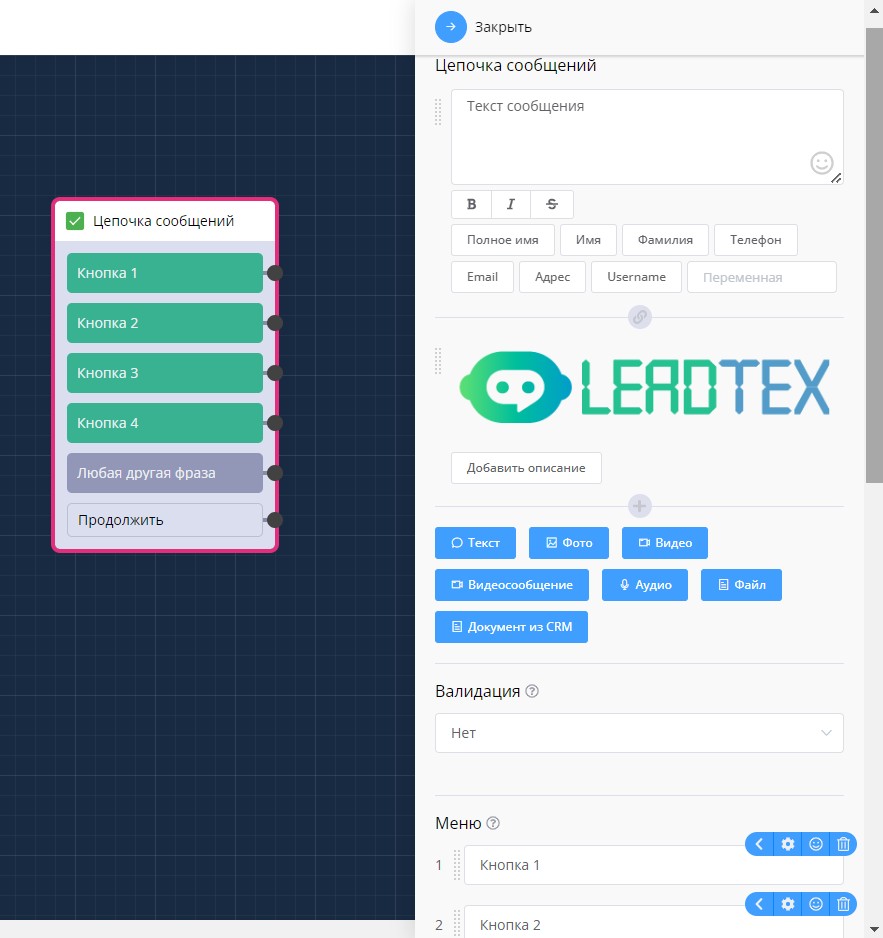
"Message Chain" block settings
Messages can be of different types:
- text
- photo
- video (there are cases when Telegram may stretch videos. Try changing the format or size)
- video message
- audio
- file
- document from CRM
One chain can contain up to 10 messages.
Messages can be sorted by simply dragging the desired message to the desired place in your chain.
For media files, we've integrated a built-in player.
Also, when uploading media, the upload progress is now shown, which is relevant for large files.
With this block, you can output the following constants:
- full name,
- first name,
- last name,
- phone,
- email,
- address,
- username.
The following additional functionality is available in this block:
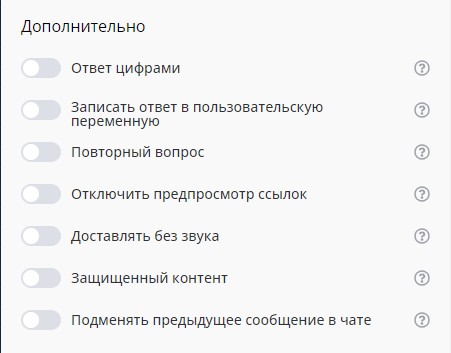
Additional features in "Message Chain" block
- Answer with numbers
This option allows the client to answer the bot with a number that corresponds to the menu item. If there is no item with such a number, the search is performed by menu item values.\ This function is used for bots in WhatsApp.
- Save answer to user variable
The client's answer (text of the selected button or text/photo/video/audio/file sent by the user to the bot) will be saved to a variable that can be used later. If answering the bot with numbers is allowed, the menu item value will be saved to the variable, not the number. Variables can also be used in bot messages later. For example: {{$имяПеременной}}
- Delete variable after sending notification
This variable will be deleted after sending the notification and will not appear in subsequent applications.
- Repeat question
The bot will resend this question to the client if there are no matching answers and any other phrase does not lead to another block.
- Disable link preview in Telegram
By default, link preview in text messages is enabled in all supported messengers. Currently, this setting only works for Telegram messenger.
- Send silently
You can send silent messages that will not notify your subscribers. This is very useful for night or non-urgent messages. Currently, this setting only works for Telegram messenger.
- Protected content
The user will not be able to forward or copy content in the bot. Currently, this setting only works for Telegram messenger.
- Replace previous message in chat
When clicking on an inline button, the previous message in the chat will be replaced with a message from this block, instead of sending a new message. Currently, this setting only works for Telegram messenger.
Note that message replacement only works if the previous message was text. That is, if your scenario had "message chain" + condition + "message chain" with previous message replacement, this will not work because the previous message was not text.
Also note that message replacement only works for similar messages, i.e., a picture can only replace a picture.
Advanced message chain settings: variables and disappearing messages
Master the advanced features of the "Message Chain" block: working with user variables, disappearing messages, special functions for WhatsApp and Telegram, protected content and message replacement.
Simple functions are available in buttons.
List of simple functions:
•sum()
•diff()
•div()
•multiplication
•сумма()
•разность()
•деление()
•произведение()
•rand()
•strRandom()
•time()
•date()
•substr()
*List may be updated
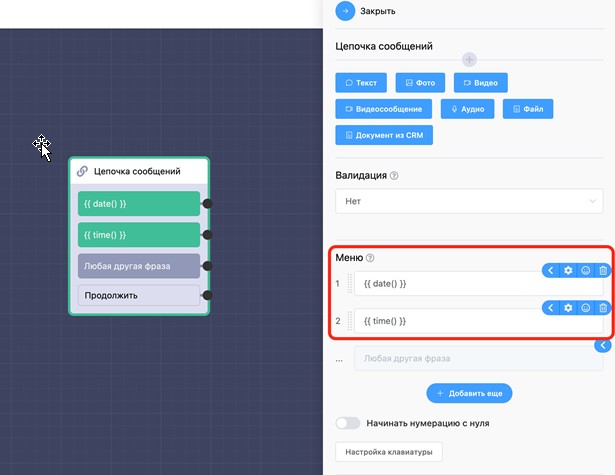
Function processing in keyboard
Simple functions in buttons: mathematical operations and dynamic content
Learn built-in simple functions for creating dynamic content in chat bots. The video covers mathematical operations, random value generation, working with date and time directly in bot buttons.
In the LEADTEX personal account, 250+ lessons on chat bot and MiniApp development are already available, as well as the opportunity to join the largest no-code developer community with 6000+ participants - Go to personal account.