Delete Tag
Instructions for deleting tags in the bot using the "Delete Tag" block. Deleting tags in scenario
Using the "Assign Tag" block, we assign labels to users that can be seen in the section (Lists>Contacts>Click on contact). You can delete a tag from a user manually, or automatically using the "Delete Tag" block.
Deleting tags from a user is necessary so that they do not have access to certain sections in the bot if there is a "Condition" or "Switch" block that is set at the "entrance" or so that users do not receive autoresponders if there is a condition "User contains tag" or "User does not contain tag".
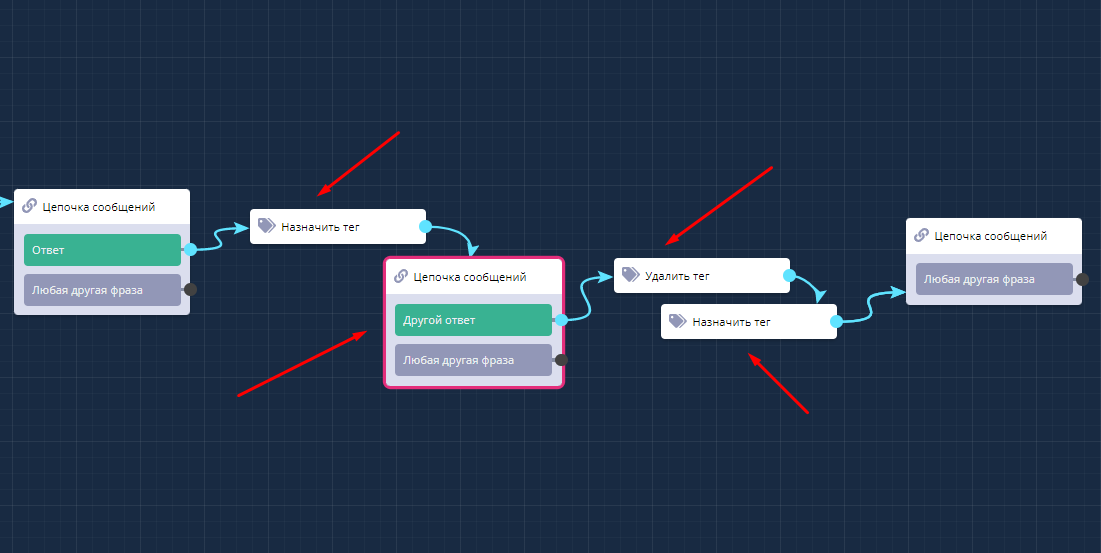
"Delete Tag" block in scenario
The "Delete Tag" block can be placed after buttons or "Any other phrase" that the user can enter. You can also use the block in combination with "Assign Tag" if a button or phrase changes the user's decision.
For example, when first filling out in the bot, the user clicked "10 days" and received the tag "10", after which they received an autoresponder for 10 days. In the last mailing, they received a "Message Chain" with a "Delete Tag" block and lost the tag. And the next month they clicked "20 days", receiving the "20" label, after which they received an autoresponder for 20 days respectively.
See an example of using assign and delete tags in our video:
In the LEADTEX personal account, 250+ lessons on chat bot and MiniApp development are already available, as well as the opportunity to join the largest no-code developer community with 6000+ participants - Go to personal account.