AI Image
AI Image in the LEADTEX chat bot: generate an image from a text prompt (text-to-image) and edit a source photo by URL.
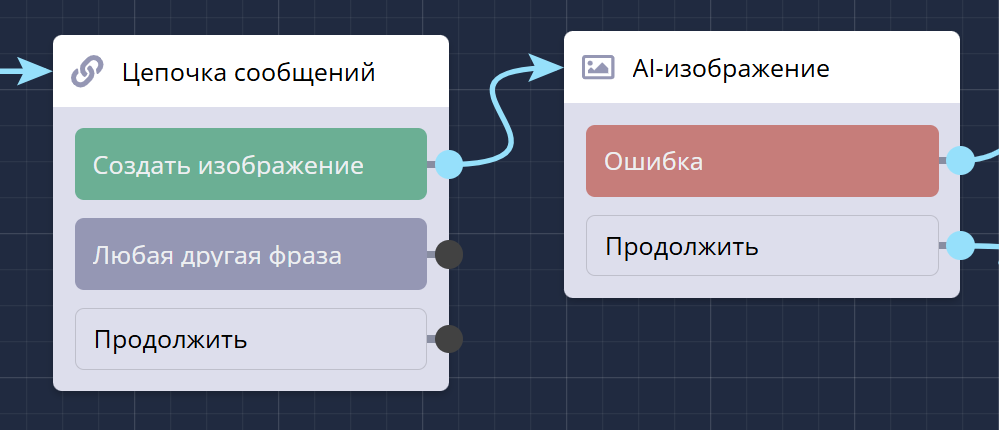
AI Image block in a chat bot scenario
The AI Image block connects a neural network to the scenario that draws an image from a prompt. What to generate is set by the user (for example, via a message or variables). Quality and format are chosen by the bot owner — the bot creates the image and sends it to the client in chat right away.
Typical use cases:
- greeting cards and congratulations with the contact’s name;
- photo enhancement and stylization;
- virtual try-on;
- interior redesign from a photo;
- avatars, memes;
- banners, covers, product cards.
Information
The block is in the AI category in the block list (next to AI Agent). Available on the PRO plan.
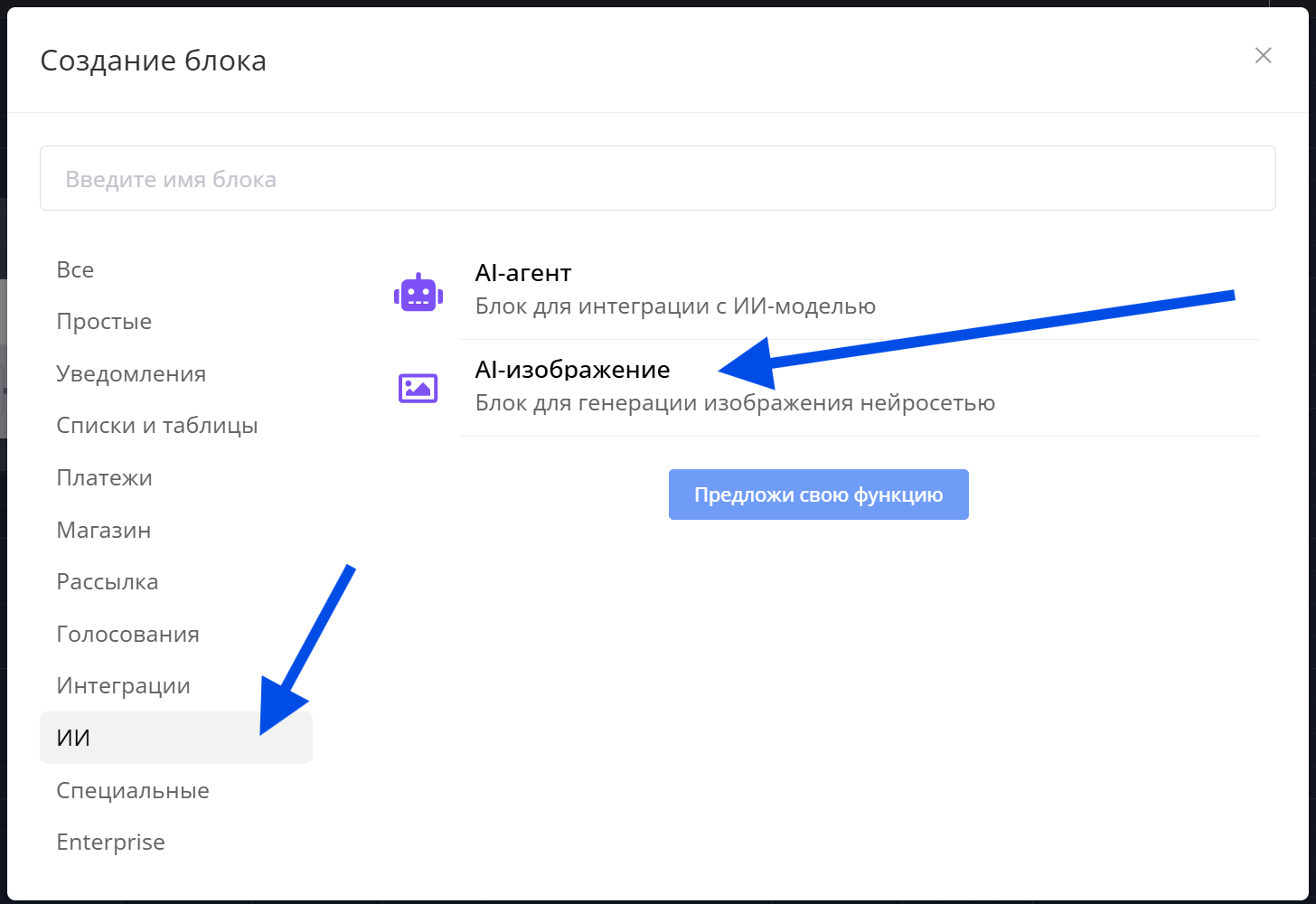
AI Image block in the AI section
How to add the block to a scenario
Click Add block, find AI Image by name search or in the AI section. After adding it, open the block settings in the side panel.
The block has two outgoing connections:
- Continue — runs after a successful generation and sending the image to chat;
- Error — runs if the image could not be created (for example, tokens ran out, the prompt is empty, or the service is temporarily unavailable).
Block settings
Settings are grouped into two sections:
Source data
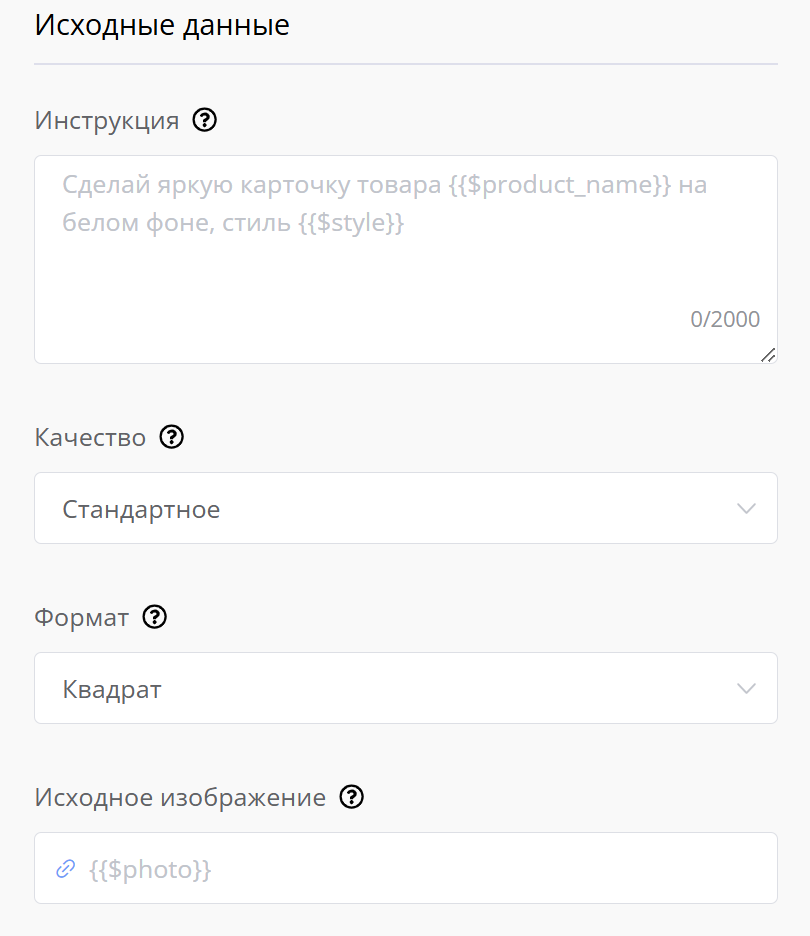
Source data section: prompt, quality, format, and source image
Prompt — describe what to draw or how to change the source image. This field is required: generation does not start without a prompt. You can insert contact variables.
Prompt example
Make a bright product card for {{$product_name}} on a white background, style {{$style}}
After variable substitution, the prompt must be no longer than 2000 characters.
Quality — affects speed, cost, and detail of the result:
- Standard — faster and cheaper (Nano Banana 2 model);
- Optimal — balance of price and quality (Nano Banana Pro model);
- High — best quality, more expensive (GPT Image 2 model).
The model for each quality level may be changed to another one at the platform’s discretion.
Format — aspect ratio of the finished image:
- Square — square image 1:1 (default);
- Landscape — horizontal, wide (for example, 16:9);
- Portrait — vertical, tall (for example, 9:16).
The exact size in pixels depends on the model.
Source image — a link to the photo to edit (image-to-image). You can enter a direct URL or a contact variable, for example {{$photo}}. If the field is empty, the neural network draws the image from the prompt only (text-to-image).
Typical flow with a source photo:
- The client sends a photo → save it to a variable on the previous step.
- In Source image, enter
{{$photo}}(or a direct URL). - In Prompt, describe what to do with the image — for example: “remove the background” or “make it anime style”.
Chat
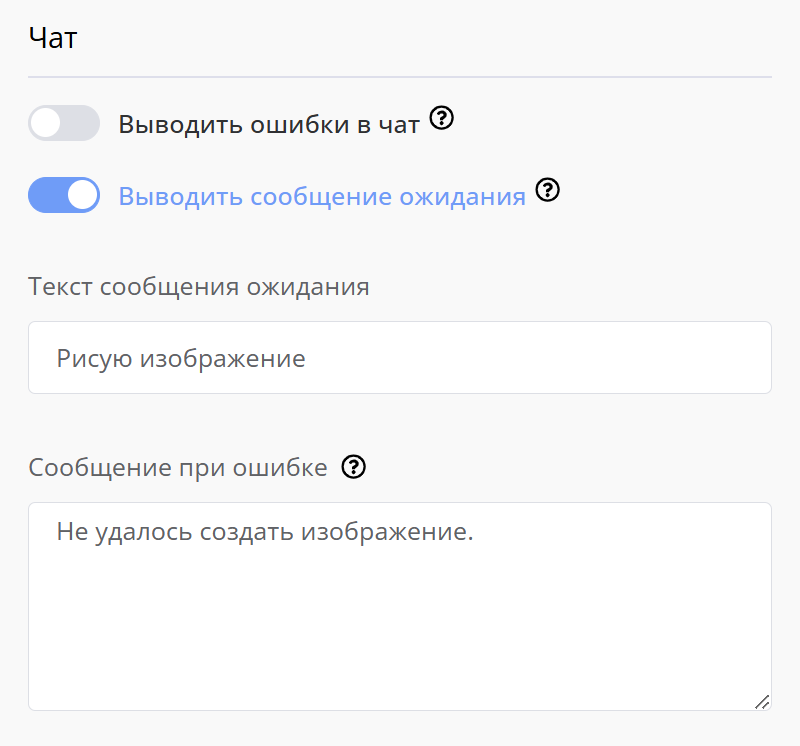
Chat section: waiting message and error message
Show errors in chat — debug toggle. When enabled, the client also receives a technical error description. Use it only while setting up the bot; keep it off in a live bot.
Show waiting message — when enabled, a waiting message is sent to the client before generation (default: “Drawing an image”). You can change the text. After generation or an error, the waiting message is removed.
Error message — this text is shown to the client if generation failed (tokens ran out, the service is unavailable, the source image could not be downloaded, and so on). It is always shown on error.
How the block works
- The client reaches the AI Image block.
- The block substitutes variables into the Prompt. If the prompt is empty after substitution — generation does not start, the client sees an error message, and the block follows the Error connection.
- If Source image is set, the block downloads it by URL. If the link is unavailable — an error without charging tokens.
- The block checks the token balance. If funds are not enough for the estimated generation cost — the neural network is not called, an error message is sent to chat, and the block follows the Error connection.
- If Show waiting message is enabled, a waiting message is sent to the client.
- The platform generates the image and sends it to the client in chat.
- After a successful send, the block follows the Continue connection.
Information
In the account’s built-in messenger, a text placeholder may be shown instead of the image itself. In client messengers (Telegram, VK, and others) the image arrives as a regular picture.
Paying for AI Image
The block is paid with tokens from the bot owner’s balance. Tokens are charged after a successful generation. If generation failed (service error, timeout, empty prompt), nothing is charged.
If the token balance is below the estimated generation cost, the neural network is not called, and the client sees the Error message.
You can top up the balance and view usage on the Token Payment tab. In token usage, generation operations appear as a separate line AI Image.
Important
Token usage depends on the selected quality and request size: higher quality and working with a source image usually cost more.
Usage examples
1. Product card from a description. In Prompt, describe the product and style (you can insert {{$product_name}}), choose Square format and Standard or Optimal quality. The client gets the finished image in chat and continues through the scenario.
2. Personalized image. In Prompt, use contact variables — name, selected product, style. The block will create a unique image for that client.
3. Editing the client’s photo. On the previous step, save the photo to a variable. In the AI Image block, put it in Source image, and in the prompt write what to do (“remove the background”, “make studio lighting”). The result image goes to the client in chat.
In the LEADTEX account you already have 250+ lessons on chat bot and MiniApp development, and you can join the largest developer community with 6000+ members — Go to account.