Two-Way Communication with Bitrix24
How to set up two-way communication between chat bot and Bitrix24
Information
This instruction assumes that you have already set up the connection between LEADTEX and Bitrix24, if not, follow the link below.
How to Set Up Bitrix24 Integration
What is this for?
At the time of writing, it is possible to configure Bitrix24 to transmit deal update events. This allows our system to know at what stage of the funnel the deal is, and you can configure autoresponder for a specific deal stage.
Deal Communication
1. Getting Handler Address
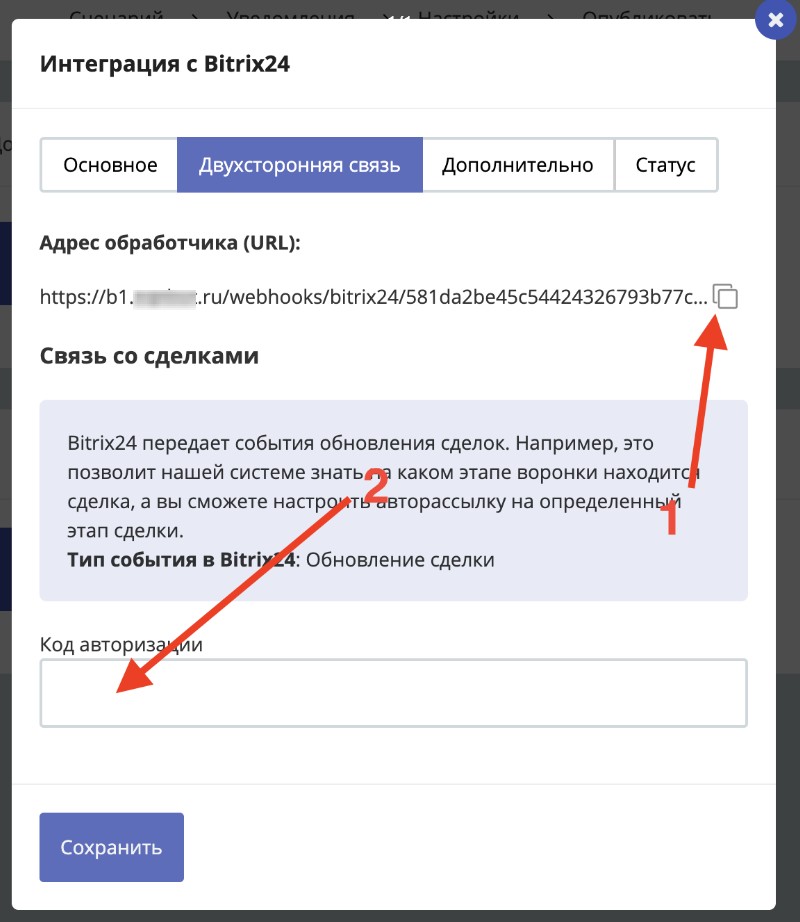
Open LEADTEX personal account, go to your bot in Settings > Integrations > Bitrix24
Go to the Two-Way Communication tab
Two-Way Communication with Bitrix24
- Handler address - copy it by clicking the button and proceed to the next step.
- Authorization code - obtained in step 2
2. Bitrix24 Setup
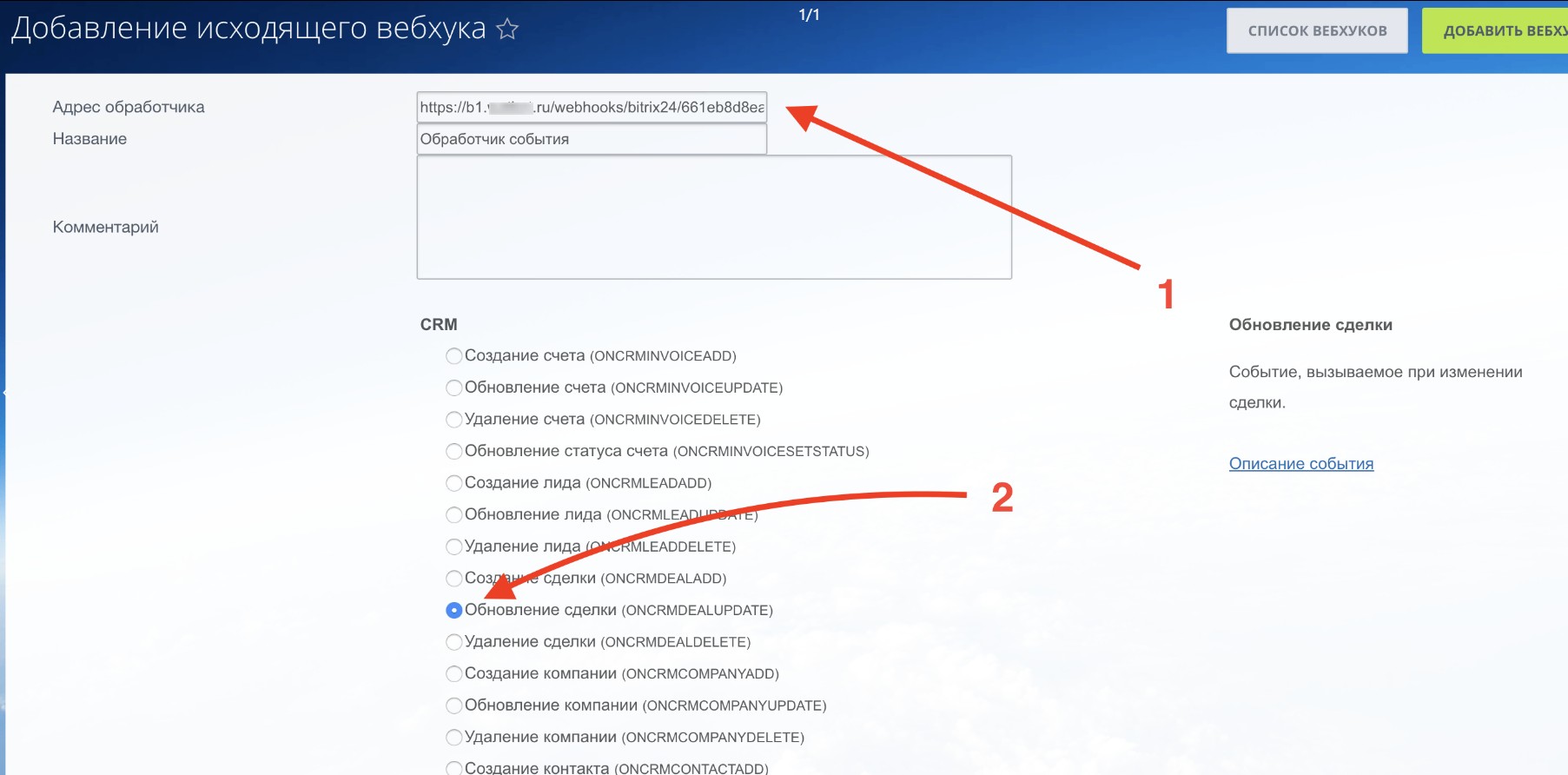
Log in to your personal account Bitrix24, then go to Applications, then open the Webhooks tab and click Add Webhook > Outgoing Webhook.
In the handler address, paste the address obtained in step 1. Select event type - Deal Updates and click Save.
Two-Way Communication with Bitrix24
- Handler address
- Event type
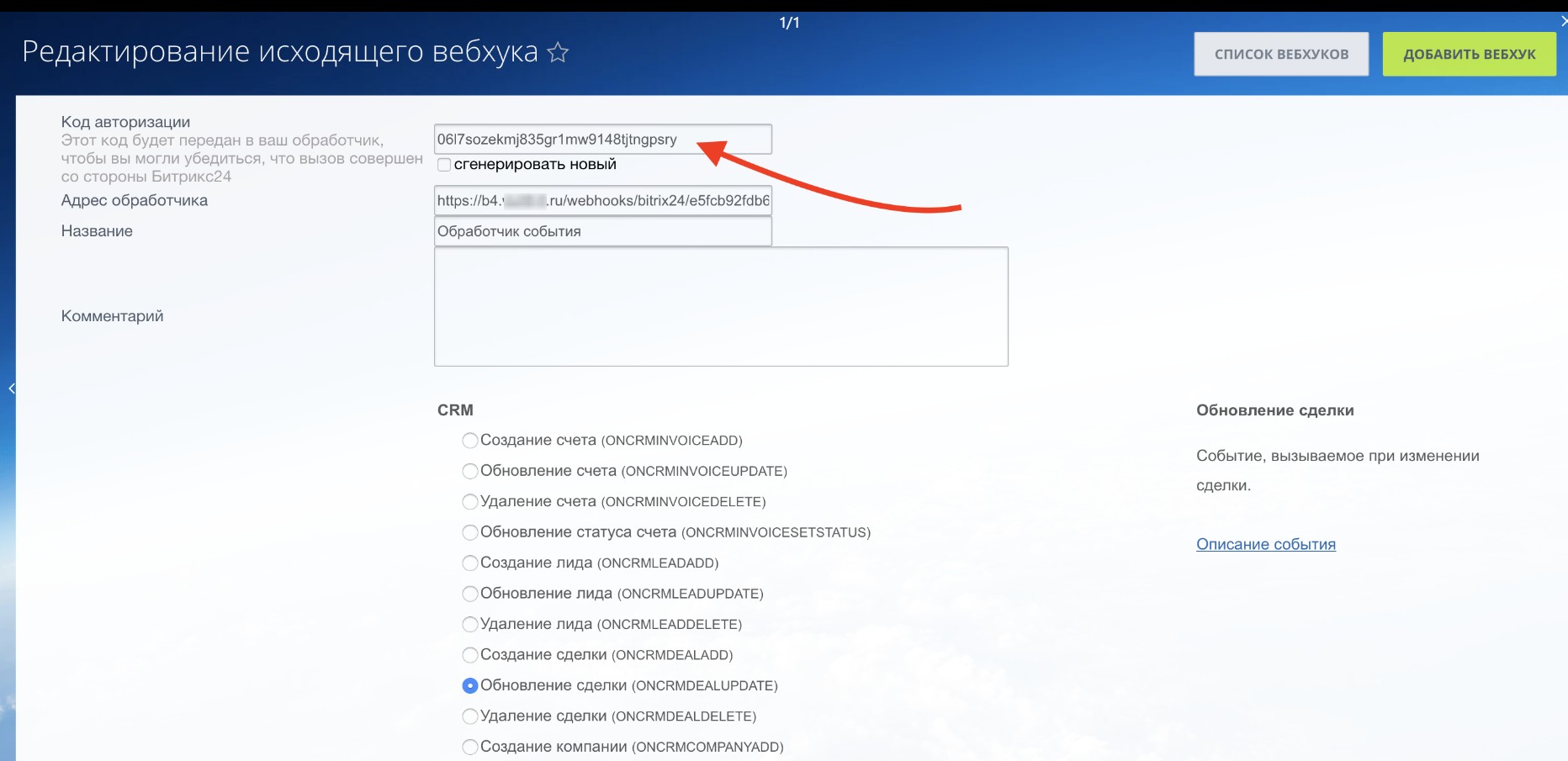
In the end, you should get something like this:
Two-Way Communication with Bitrix24
The figure shows the authorization code, copy it and proceed to the next step
3. LEADTEX Setup
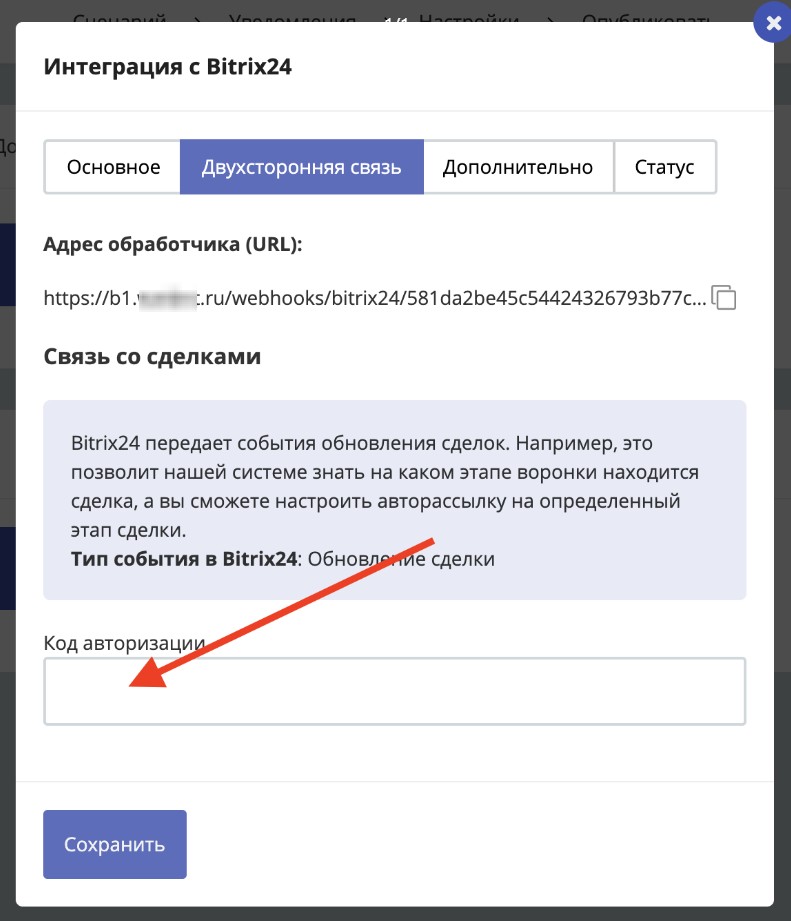
Return to LEADTEX personal account, paste the authorization code and click Save.
Two-Way Communication with Bitrix24