How to Grant Access to Another User. Permissions and Roles
Instructions for collaborative project work: how to add an administrator to a bot, widget, or landing page, how to configure permissions and roles for access to folders and bots, and how to revoke access.
You can grant another platform user access to your folder or to a specific bot within a folder.
About the plan
One administrator is available free on the PRO plan. To add more administrators, pay for the required number of additional administrators in the Billing section.
The cost of adding one administrator is 100 rubles, with no limits on the number of folders and chat bots.
Creating a Role
First, you need to configure permissions and roles. Follow these steps:
1. Go to Settings: Permissions and Roles
Open the menu in the upper right corner and go to "Settings", or use the link: Permissions and Roles.
.png)
"Permissions and Roles" section
The settings page will open with the "Permissions and Roles" tab.
2. Click the "Add Role" button
.png)
Add Role button
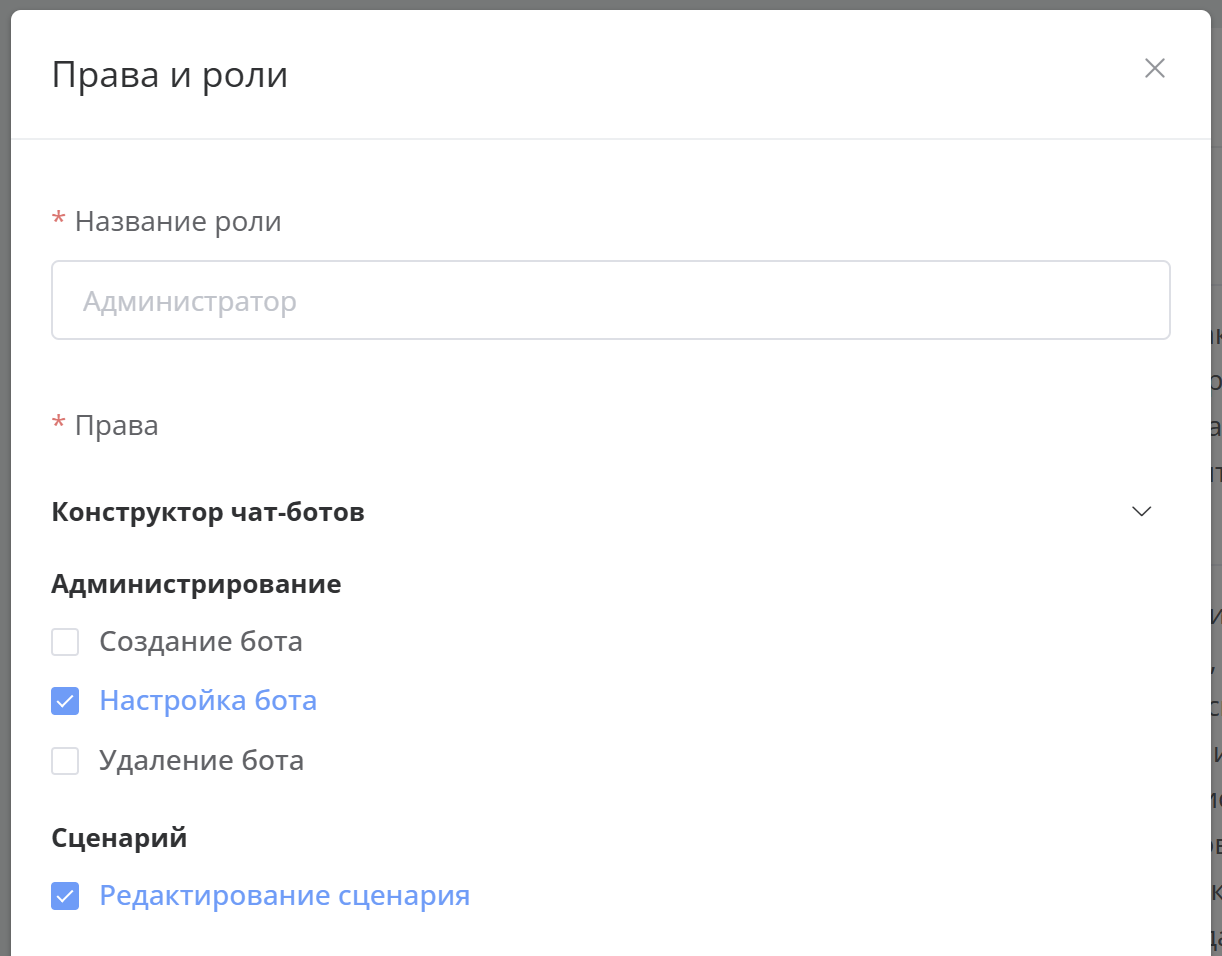
The "Permissions and Roles" modal window will open.
3. Configure permissions
Enter your role name and check the required boxes.
You can grant permissions for specific folder components, for example, only chat bots or only widgets.
You can also configure access only to specific constructor functions, for example, allow the user to edit the bot scenario but not delete it.
.png)
"Permissions and Roles" settings window
Configuring access to mini-apps (MiniApps) in Telegram
Mini-app permissions are configured in the "Telegram miniApp Store" section:
- Settings — the administrator will have access to: Home, Settings, Design.
- Storefront — the administrator will have access to: Categories, Products, Options, Banners, Orders, Promotions
When granting mini-app permissions, you must also grant "Scenario Editing" or "Bot Configuration" permissions for the constructor to work correctly
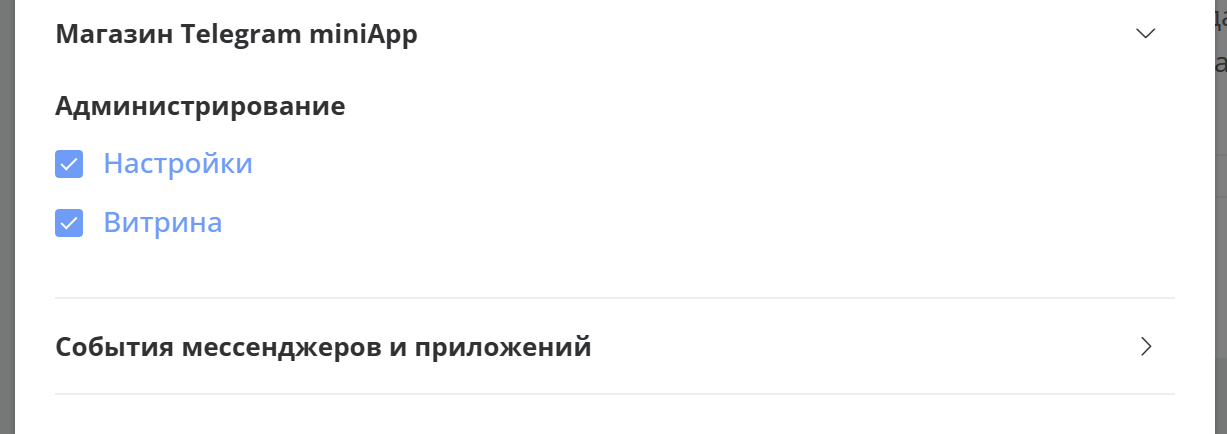
MiniApp access configuration
4. Click the "Save" button
The created role will appear on the "Permissions and Roles" tab.
Adding an Administrator
After creating a role, add an administrator. Follow these steps:
1. Go to the "Access Management" section
In the right panel, click "Access Management" or follow the link: "Access Management"
.png)
"Access Management" item
2. Click the "Add Administrator" button
.png)
"Add Administrator" button
3. Fill in the fields in the add administrator window
- In the email field, enter the platform user's email address
- Select a role
- Specify Type: whether you want to grant permissions for the entire folder or for a specific bot
- When selecting type "Bot", choose which bot you want to grant access to
- Select a folder or bot
.png)
"Administrator Invitation" modal window
4. Click the "Send Invitation" button
The invited user will receive an email at the specified address with an invitation link. To receive the granted access, they need to log in to the platform and follow the link from the email.
The invitation link is valid for 14 days.
The granted folder or bot will appear in the administrator's "Available to Me" list.
.png)
"Available to Me" section
Adding a Folder or Bot to an Administrator
After the invited user (administrator) confirms the invitation, you can grant them access to any number of your folders or bots. Follow these steps:
1. Click the "Add Folder/Bot" button
.png)
"Add Folder/Bot" button
2. Select a folder or bot
Select a role and type: whether you want to grant permissions for the entire folder or for a specific bot.
.png)
Selecting a folder or bot
3. Click the Grant Access button
The granted folder or bot will appear in the administrator's "Available to Me" list.
Changing a User's Role
Go to the "Access Management" section and find the user whose role you want to change. In the folder or bot row for which you want to change the user's role, click the role dropdown and select the required role.
.png)
"Role" dropdown
Removing Access to a Folder or Chat Bot
Go to the "Access Management" section and find the user whose access you want to revoke. In the folder or bot row for which you want to revoke access, click the delete button.
If you remove all folders and bots from an administrator, the administrator themselves will also be removed.
.png)
Removing folder access
Removing an Administrator (Revoke All Access)
Go to the "Access Management" section and find the user you want to remove as an administrator. Click the delete button in the user's row.
When an administrator is removed, all access granted to them for folders and bots will be revoked.
.png)
Removing an administrator
More about collaborative folder management in the video lesson:
Important
Previously, folders in the constructor were called projects.
Collaborative chat bot management
Collaborative chat bot management
🎁 Free course on chat bot and mini-app development for all users with an active PRO subscription is already on LEADTEX.
10 detailed lessons from A to Z.
Start learning now — Start learning.