Digital Products
Creating digital products in a mini-app (MiniApp) store. Digital products can include text information and materials that will be available to the buyer only after payment.
Information
Before creating a digital product, you need to configure the store — see store setup
Creating and Configuring a Digital Product
Go to "Store" in the "Products" section and click "Add Product".
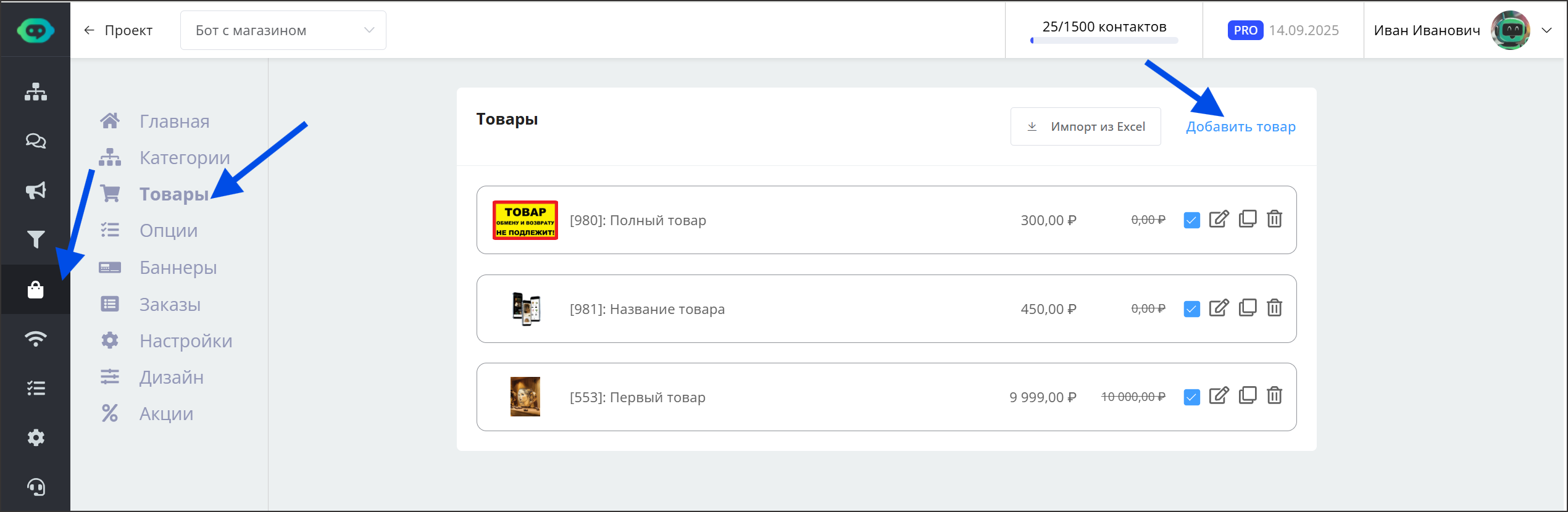
Adding a product
Fill in all tabs the same way as for regular products. On the "Digital Product" tab, enable the "Digital Product" toggle.
Information
All information on the "Digital Product" tab will be available to the user only after order payment.
.png)
In the "Description (digital_product_info)" field, specify information for receiving the digital product, for example: a link, coupon, login/password, and so on.
Information
For this text to be sent to the user after purchasing a digital product, add the {{digital_product_info}} variable to the message template — see Configuring Messages for Digital Products
Optionally, you can add to a digital product:
- an additional text message
- a photo
- video and video message
- audio
- a file
Information
All these materials, except the text message, are sent as protected content (cannot be copied or forwarded).
.png)
Digital product configuration
Configuring Messages for Digital Products
After the user pays for a digital product, all materials attached to that product are sent to the chat and, optionally, a template message is sent.
The message template for digital products is configured in the "Settings" section on the "Messages" tab.
Information
If the "Send message" toggle is enabled, the message will be sent for each digital product in the order.
.png)
The template can use variables:
- miniapp_product_name — product name
- digital_product_info — description from digital product settings
Custom Digital Product Delivery (Using Events)
You can implement your own custom digital product delivery, for example, for cases such as:
- sending a unique key from a Google Sheet or from a list
- connecting GetCourse and other integrations (see GetCourse integration)
To implement custom digital product delivery in a scenario:
- disable the "Send message" toggle for the "Order with digital products paid" event (see Configuring Messages for Digital Products)
- if necessary, remove all attached digital materials in product settings (see Creating and Configuring a Digital Product).
Information
In product settings in the Description (digital_product_info) field, you can add unique values by which the digital product can be identified.
Go to the events section, Mini App tab, and select the "Order status changed" event. In event settings, select the corresponding scenario (see MiniApp store events).
.png)
In the digital product delivery scenario, check that the order status is "Paid" (order_status = paid) and the cart contains a digital product (the miniapp_cart_json object has the digital_product_info field).
If the condition is met, send the digital product to the user (for example, in a Google Sheet you can assign a set of unique keys to each digital_product_info and send a new key to the buyer with each new order).