Import Products to Store
Bulk import of products from an Excel file into a mini-app (MiniApp) store. Step-by-step instructions for importing products into an online store
How to Import Products into a Mini-App (MiniApp)
Preparing the File
Before importing, prepare the file:
- the file must be in CSV or XLSX format;
- all fields in the table must be numeric, monetary, or text type (make sure product fields contain no formulas);
- the sheet in the file must be named leadtex_products
- headersin the file must exactly match the template.
If a product has multiple variants, each variant must be recorded on a separate row.
If a product has multiple images, images must be listed with a separator in the image field, or each image can be specified on a separate row (see example).
Import Templates and File Examples
Empty import template (universal)
Replace the "opt_Цвет" field with "opt_" + your option name. If your products have no options, delete this column.
Information
You can view the list of all options in the store in the "Options" section:
.png)
Download «LeadTex - шаблон импорта товаров.xlsx»
Empty template for products without variants
Information
If your products have no variants, you can use a simplified template without variants.
Download «LeadTex - шаблон импорта товаров без модификаций.xlsx»
Filled import file example
Download «LeadTex - пример файла импорта.xlsx»
Import Table Field Headers
Add headers from the template to the first row of the file.
In the table, red marks required fields, orange — fields required under certain conditions
| Field name | name | category | sku | quantity | old_price | price | description | image | measure | measure_step | measure_min | measure_name | sku_option | old_price_option | price_option | Option fields (opt_Color, opt_Size, etc.) | video |
| Description | Product name | Category | Product SKU | Quantity | Old price | New price | Description | Image | Unit of measure | Product unit (step) | Minimum quantity | Custom unit of measure name | Variant SKU | Variant old price | Variant price | "opt " + option name | Video |
| Note | names must match names in the Leadtex mini-app; if there are multiple categories, they must be listed separated by comma or semicolon. If a category is not found, a new one will be created | required if SKU is selected as the product identifier | if it contains zero or a positive number, stock tracking is enabled for the product. For products with variants, stock tracking for each product is determined based on its first variant: if there is stock or zero, the product is created with stock tracking. If the first variant has stock and subsequent ones do not (empty, negative value, or filled with text), stock for them will be set to 0. | required if the product has no variants. For variants, price is configured in the price_option field | Contains image links. Links must be separated by space, comma, or semicolon | if not set and measure_name is not set, pcs is used | If set, this value is used as the unit of measure (measure is ignored) | required if this is a variant and you need to sync the product with the platform product | Required if this is a product variant | field name must exactly match the option name in the admin panel + prefix "opt " (for example, opt_Color) | Contains a video link |
Import
1. Go to the store "Products" section
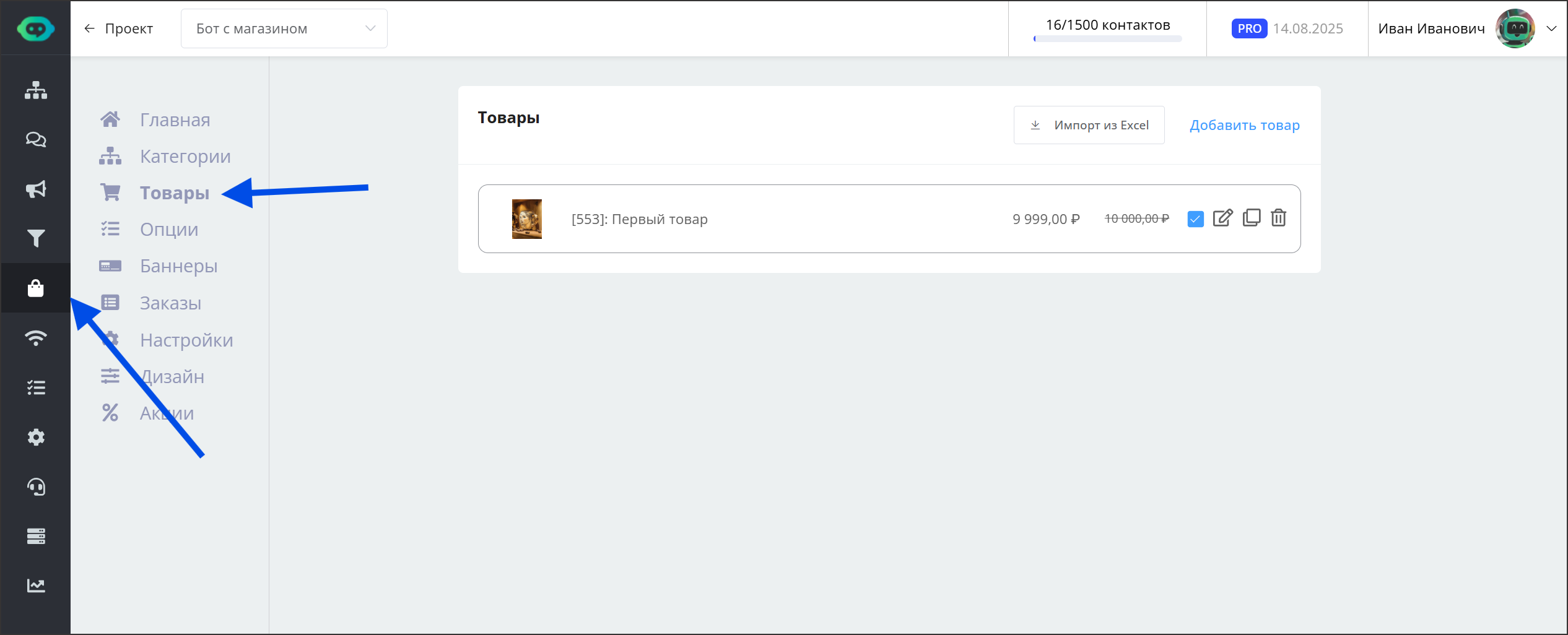
Products section
2. Click the "Import from Excel" button
.png)
Import from Excel button
3. Configure import parameters and click "Next"
.png)
Import parameters settings window
Product identifier — this field is used to link a product from the table with a product on the LeadTex platform and update its information. It also determines which rows belong to the same product (for example, when a product has multiple variants). Choose which field to use as the product identifier:
- Name
- Product SKU
Important
The field you choose as the identifier:
- must not be empty in the import table,
- must be unique for the product (if you use product name as the identifier, two products must not have the same name)
Variant identifier — this field is used to link a product variant from the table with a variant on the LeadTex platform and update its information. It also determines which rows belong to the same variant (for example, when a variant has multiple image links, each on a separate row). Available values:
- "---" — no variants
- Variant SKU (specified on the product "Options" tab)
.png)
Variant SKU
Create new products as enabled: if enabled, all products without errors are created as active; otherwise, as disabled
Information
A product without an image, description, zero price, or with other errors will be created as disabled regardless of this setting
4. Upload the import file and click "Next"
Important
The import file must be prepared according to the template.
.png)
Import file upload window
Import Result
After import completes, you will see the results.
If there are errors in the results, we recommend copying them or taking a screenshot and, using the row number in the file, checking the corresponding products.
Important
Products created with errors must be found in the product list and corrected manually.
.png)
Import results window