Stock Tracking in a Mini-App (MiniApp) Store
Instructions for working with stock tracking functionality in a mini-app store
How to Enable Stock Tracking for a Product
Importing stock
Stock can be loaded from an import file — see Import Products to Store. In this case, you do not need to enable stock tracking manually in product settings.
To enable stock tracking for a product:
Open the product card (Products → Edit).
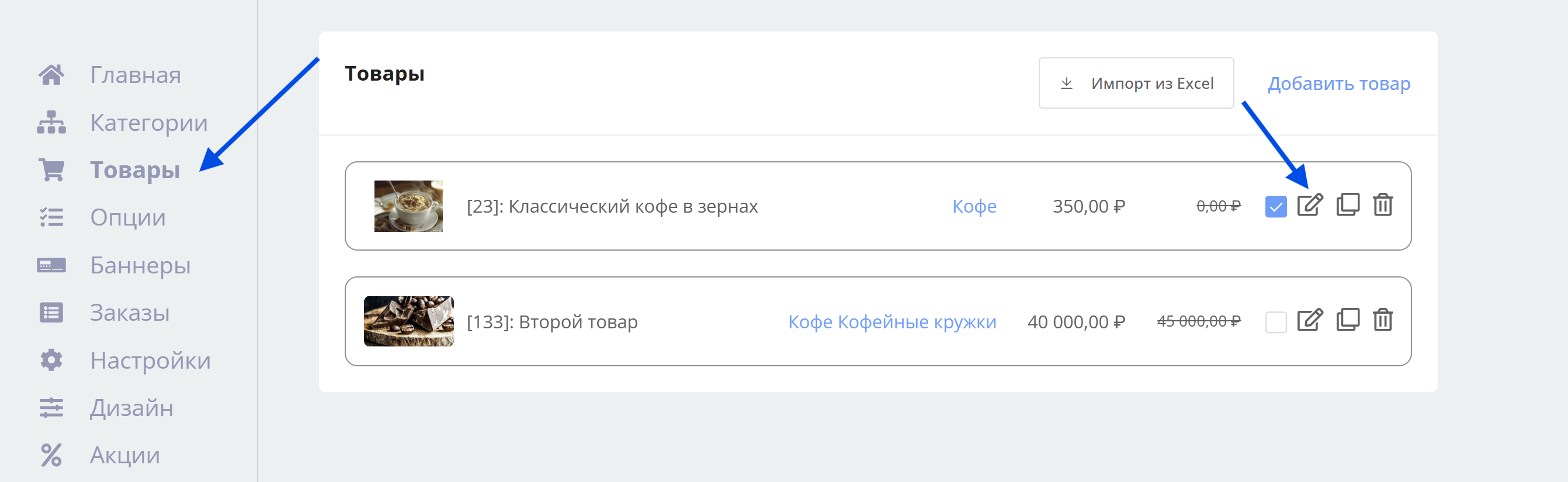
Navigating to product editing
On the Main tab, enable the "Track stock" toggle.
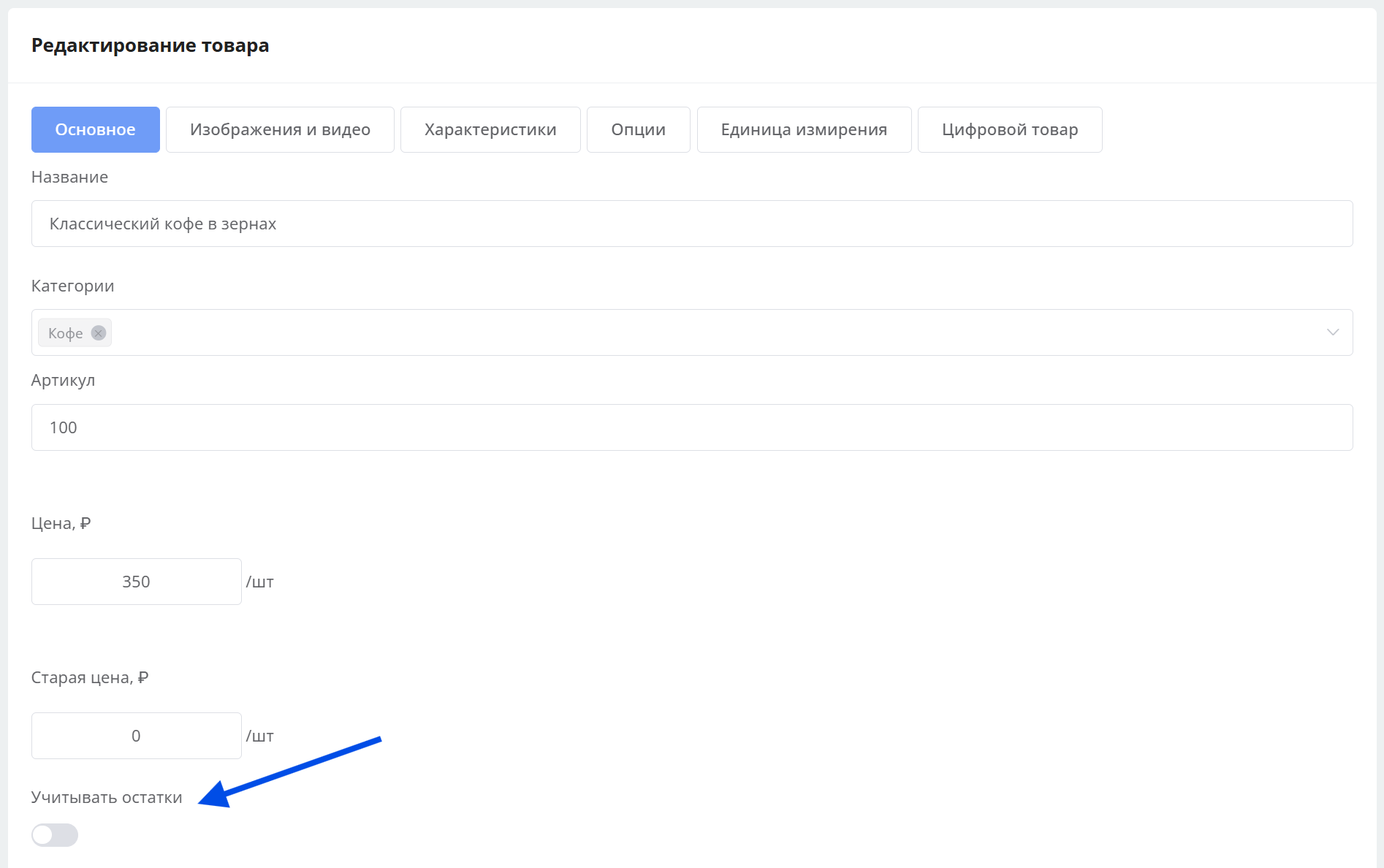
Enabling stock tracking
- Specify the product quantity:
- If the product has no options, specify the quantity on the Main tab
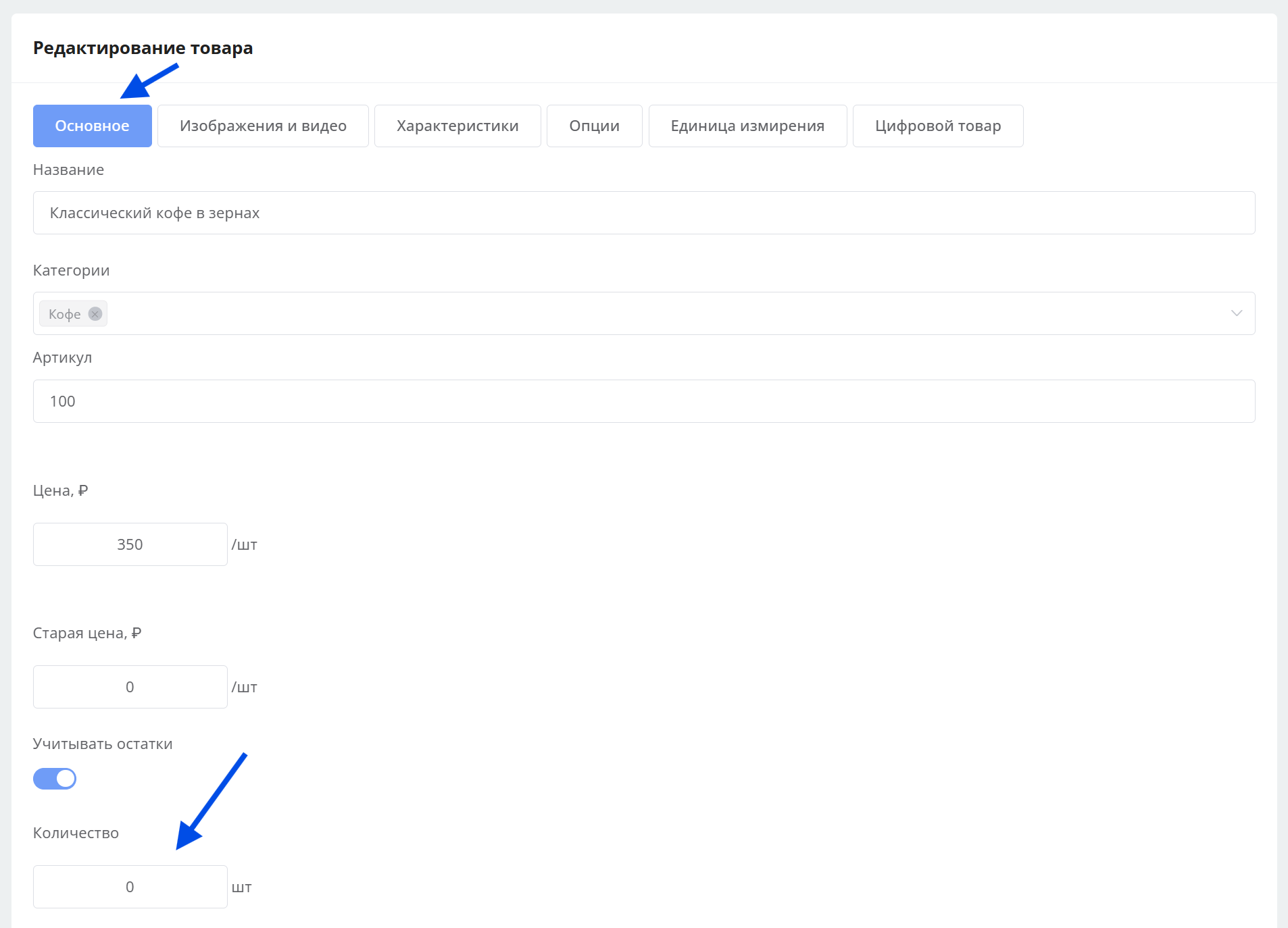
Specifying quantity for a product without options
- If the product has options, specify the quantity for each variant on the Options tab
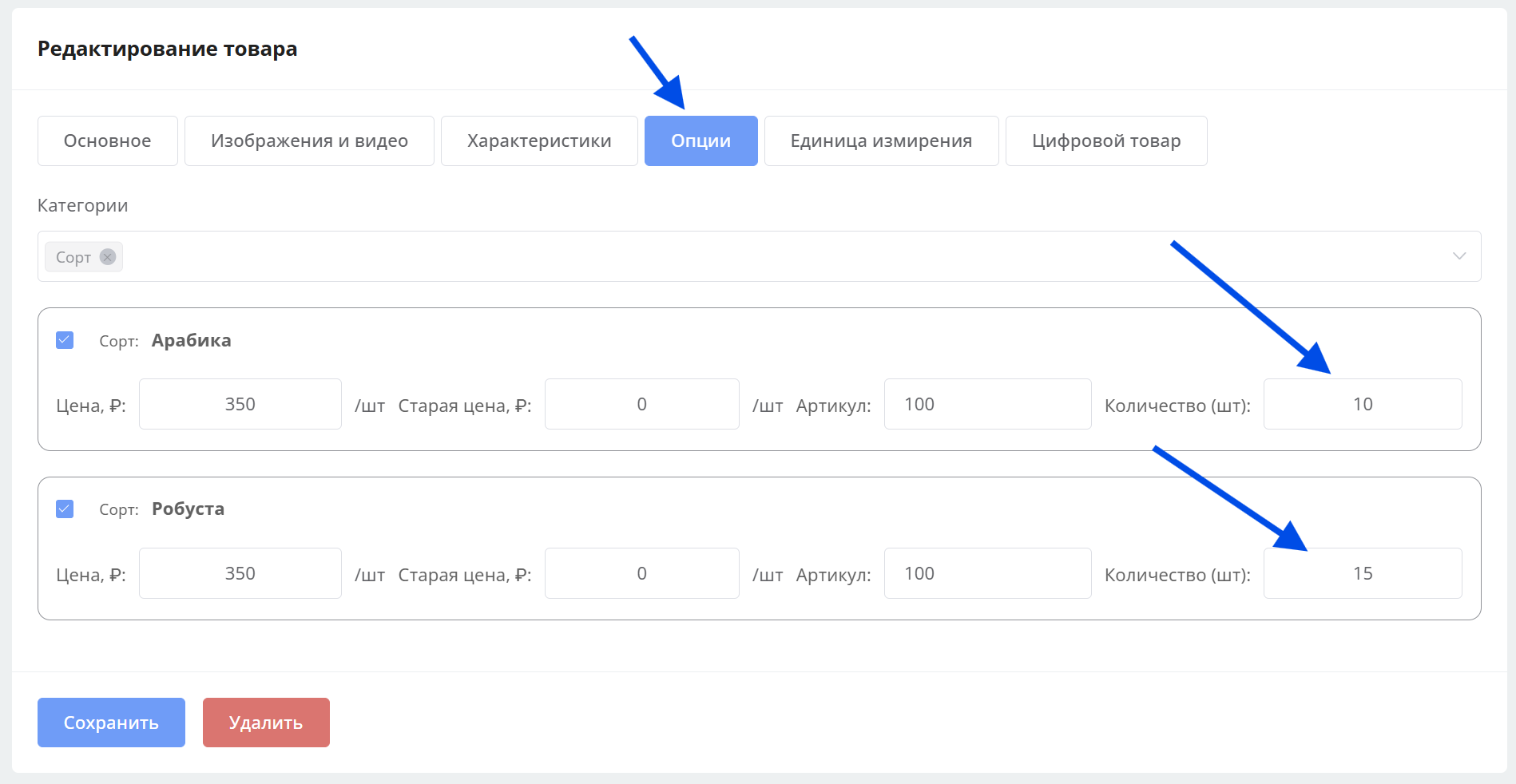
Specifying quantity for product variants
- If the product has no options, specify the quantity on the Main tab
Information
The product list displays the available quantity. If stock is below the minimum quantity or equals zero, the value is highlighted in red.
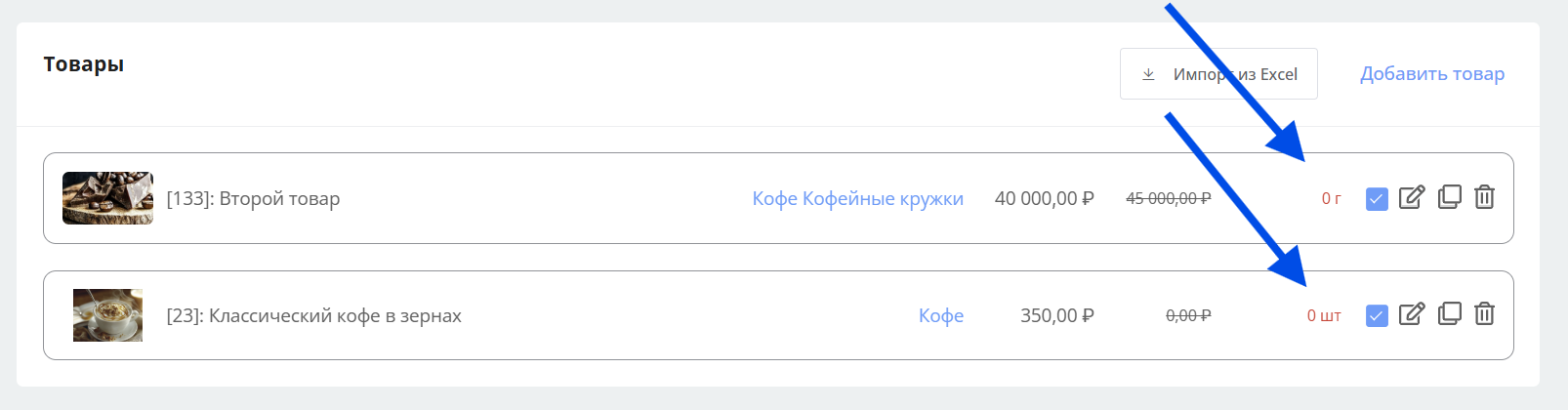
How to Hide Out-of-Stock Products
By default, hiding is disabled: such products are visible but unavailable for purchase.
- Go to Settings → Main.
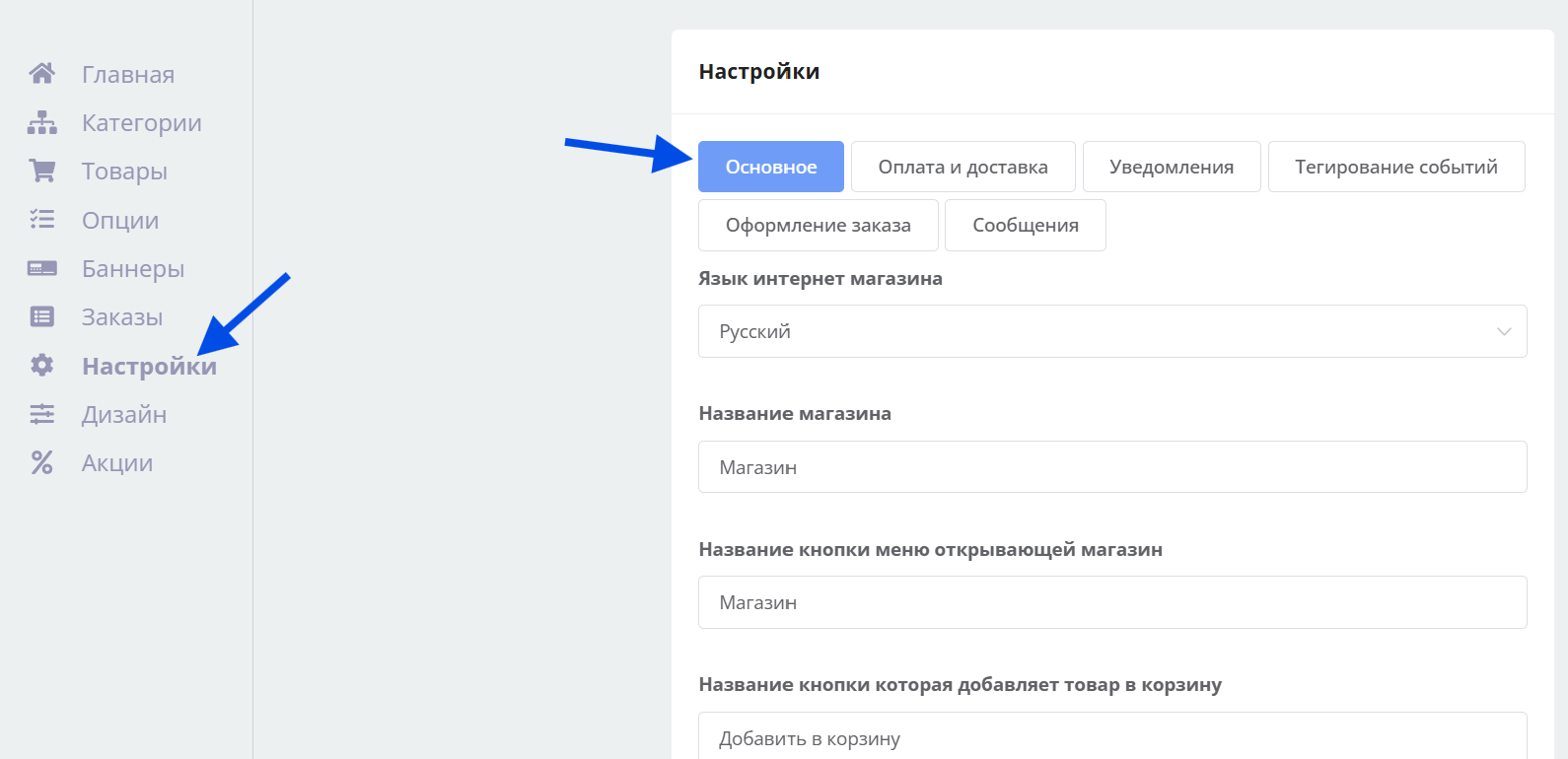
"Settings → Main" section
- If you want to hide unavailable products, enable the Hide out-of-stock products toggle
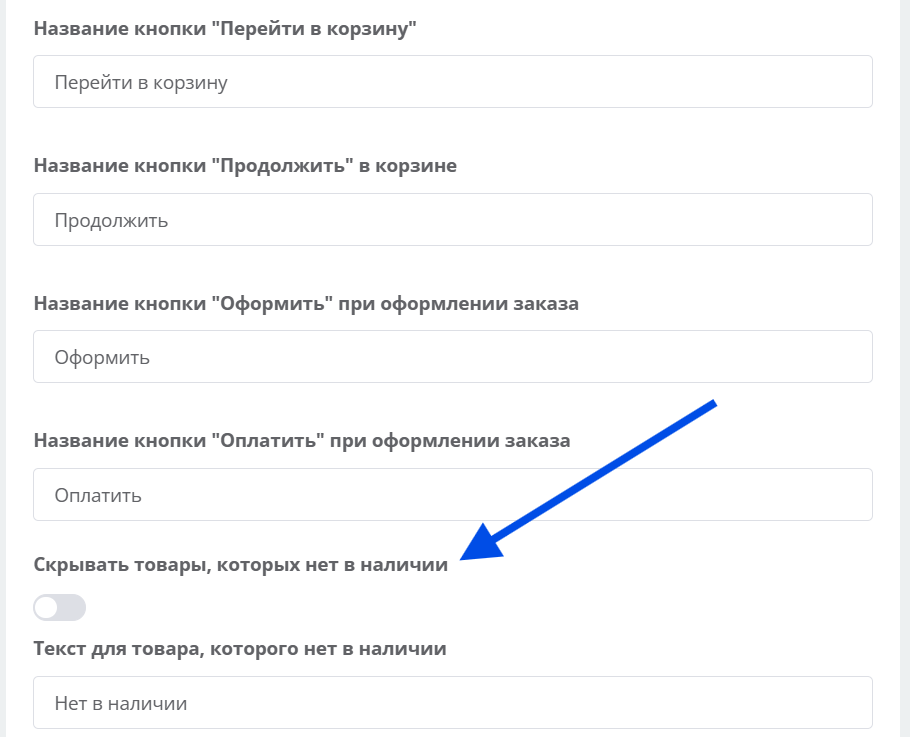
Enabling "Hide out-of-stock products" setting
How to Change Out-of-Stock Product Text
You can change the Text for out-of-stock products: go to Settings → Main and specify the message shown to customers (default: "Out of stock")
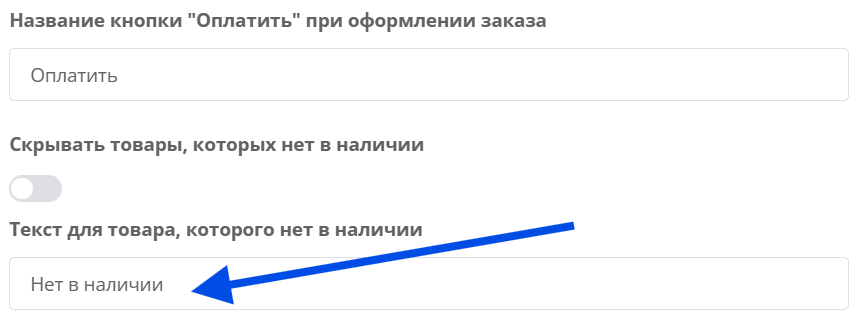
"Text for out-of-stock products" field in settings