File Storage
Uploading and managing bot files, connecting files to scenario blocks, storage space, and buying +2 GB packages
File storage is the place where all your bot's files are kept: AI Agent knowledge bases, images, videos, audio, and documents from message chains, HTTP request files, and files you uploaded yourself.
The storage helps you:
- see all bot files in one place and know where each of them is used;
- connect the same file to several blocks without uploading it again;
- add up to 10 knowledge base files to the AI Agent block;
- keep track of the used space and buy more when needed.
Each bot has its own folder with files. The storage space is shared across the whole account: files of all bots use one quota.
Which files are included in the storage
The storage includes only files uploaded by the bot owner or administrator. Files that clients send to the chat and documents from orders are not shown in the storage and do not take up space.
The storage accepts files of any format. The maximum size of one file is 100 MB, and you can upload up to 2 GB per day.
Storage space
Your plan includes 1 GB of storage, including the trial period.
If you run out of space, buy +2 GB packages — 99 ₽ (1 $ / 1 €) per month for each package. You can buy several packages; their space is added to the space included in your plan. Learn more in How to buy more space.
All storage files take up space, including files that are not connected to any block right now and files of bots in the trash. A file connected to several blocks is counted once.
The Storage page
The Storage page in your account shows how much space is used across the whole account and which bots use the most. The page is available to the account owner.
To open the page, select Storage in the account side menu.
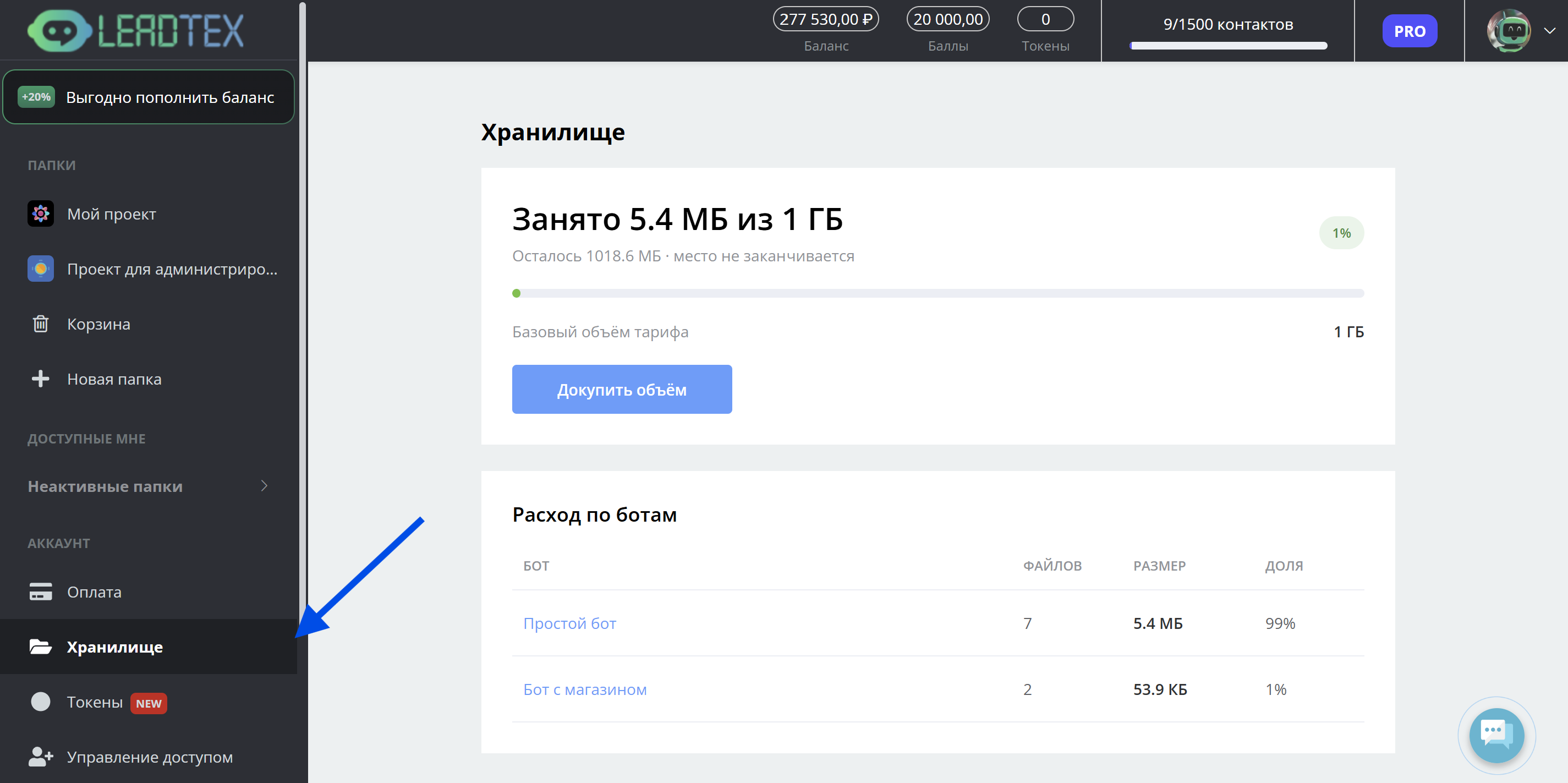
The Storage item in the account menu
The page shows:
- summary — how much space is used and how much is available, for example "420 MB of 1 GB used", and a progress bar;
- what the space consists of — the space included in your plan and purchased packages;
- the Buy more storage button — opens the payment section;
- usage by bot — the number of files, used space, and share of total usage for each bot. Click a bot name to open its Files section;
- the Deleted bots row — how much space the files of bots in the trash take up.
The Files section of a bot
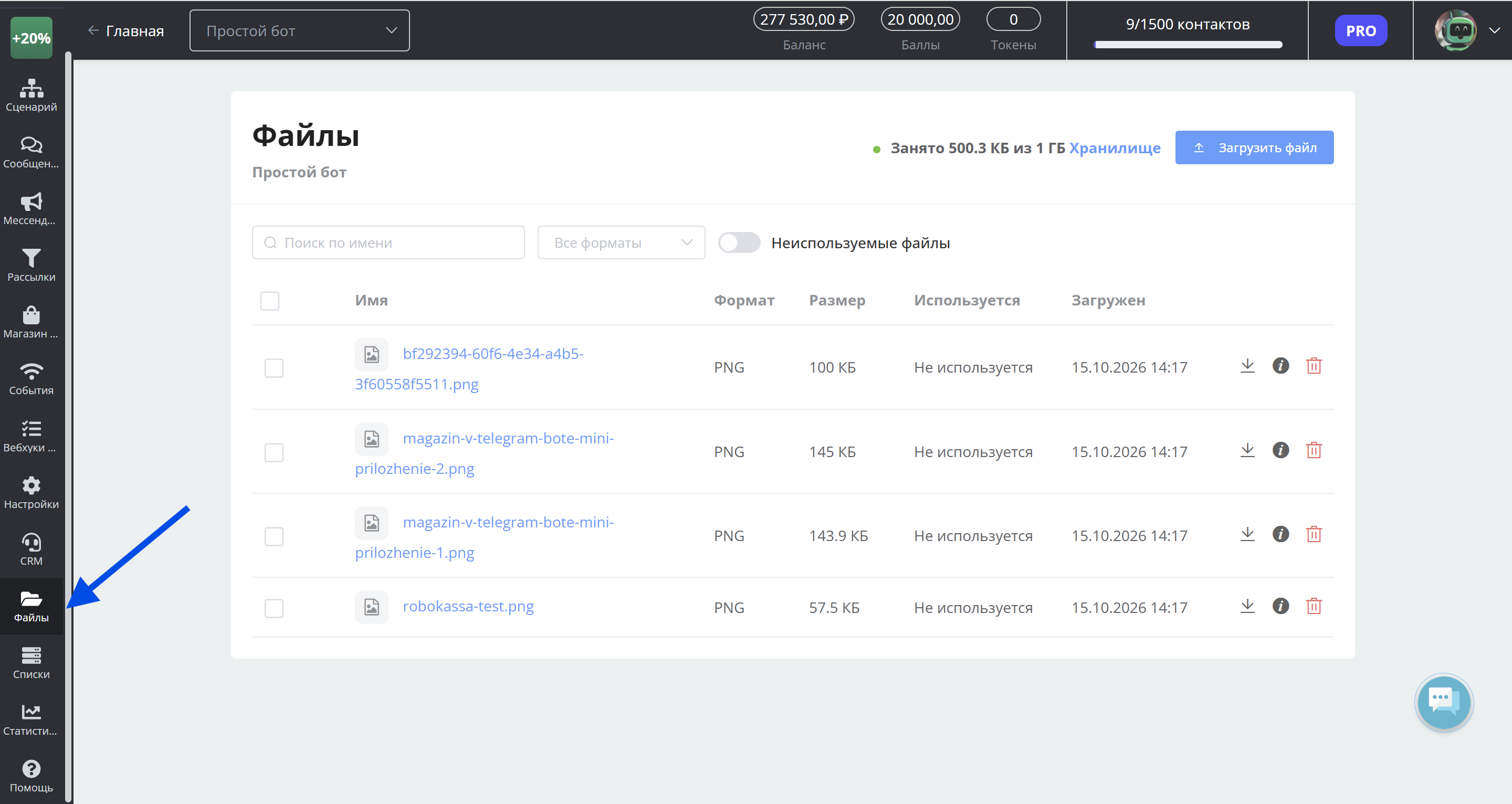
In the bot constructor, open the Files tab in the side menu (above the Lists tab). The section shows all files of this bot.
The Files section in the bot constructor
The section header shows how much space is used across the whole account. The link next to it opens the Storage page.
The file table shows:
- file name with a format icon;
- format and size;
- used in — how many blocks the file is connected to, for example "In 2 blocks", or "Not used";
- upload date;
- actions: download, open properties, delete.
To find a file quickly, use the search by name, the format filter, and sorting: by date, size, name, or format.
How to upload a file
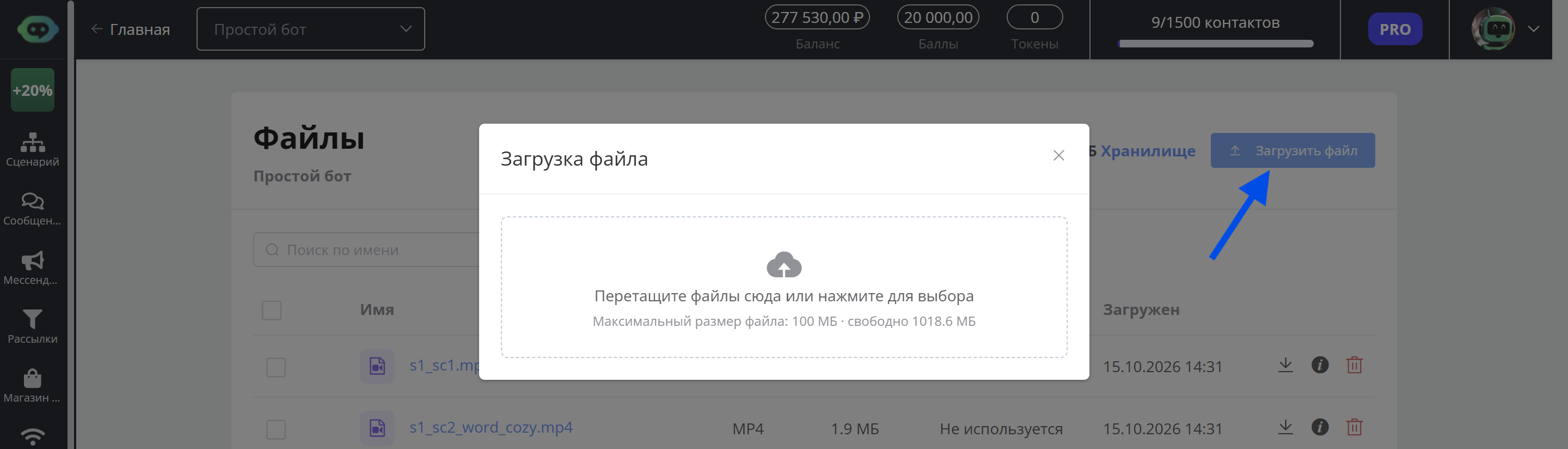
- In the Files section of the bot constructor, click Upload file.
- Drag files to the window or click the select button and choose files on your device. You can upload several files at once.
- Wait until the upload is complete. You can cancel the upload while the file is uploading.
Uploading a file
After the upload, the files appear in the table. Now you can connect them to scenario blocks.
Identical names
A bot can have several files with the same name — each of them is stored separately. You can tell them apart by upload date, size, and the blocks where they are used. To avoid confusion, rename the files.
Where a file is used
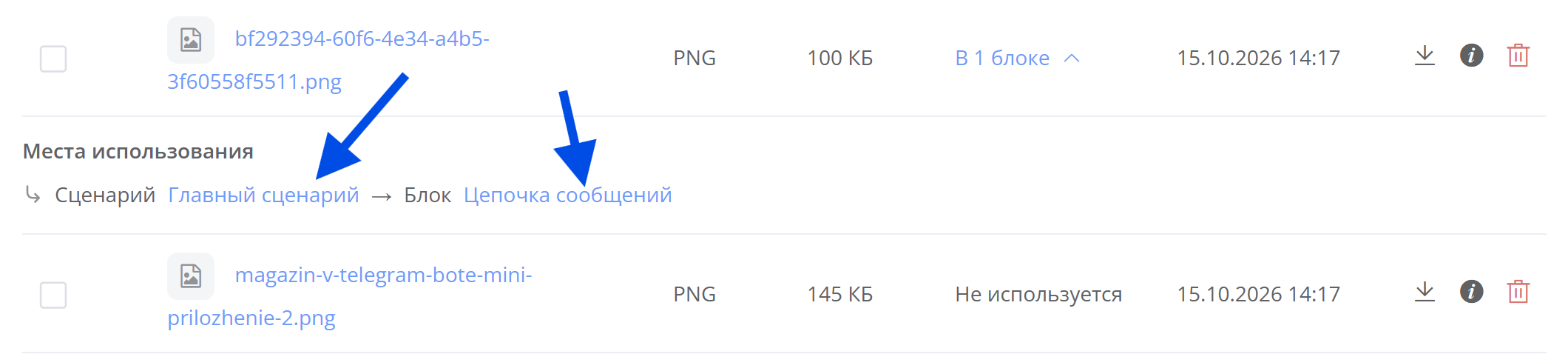
Open the drop-down list in the Used in column to see which blocks the file is connected to. Each row shows a scenario and a block, for example: "Sales" → "AI Agent". The scenario name and the block name are links: use them to go straight to the scenario or the block.
Where the file is used
File card and renaming
To open the file card, click the file name in the table or the properties icon in the row ("i"). The card shows a preview (for images, videos, and audio), the name, format, size, upload date, who uploaded the file, and where it is used. You can also download or delete the file here.
To rename a file:
- In the file card, click the name.
- Enter a new name and confirm the change.
You cannot change the file extension. The new name is shown right away in all blocks where the file is connected.
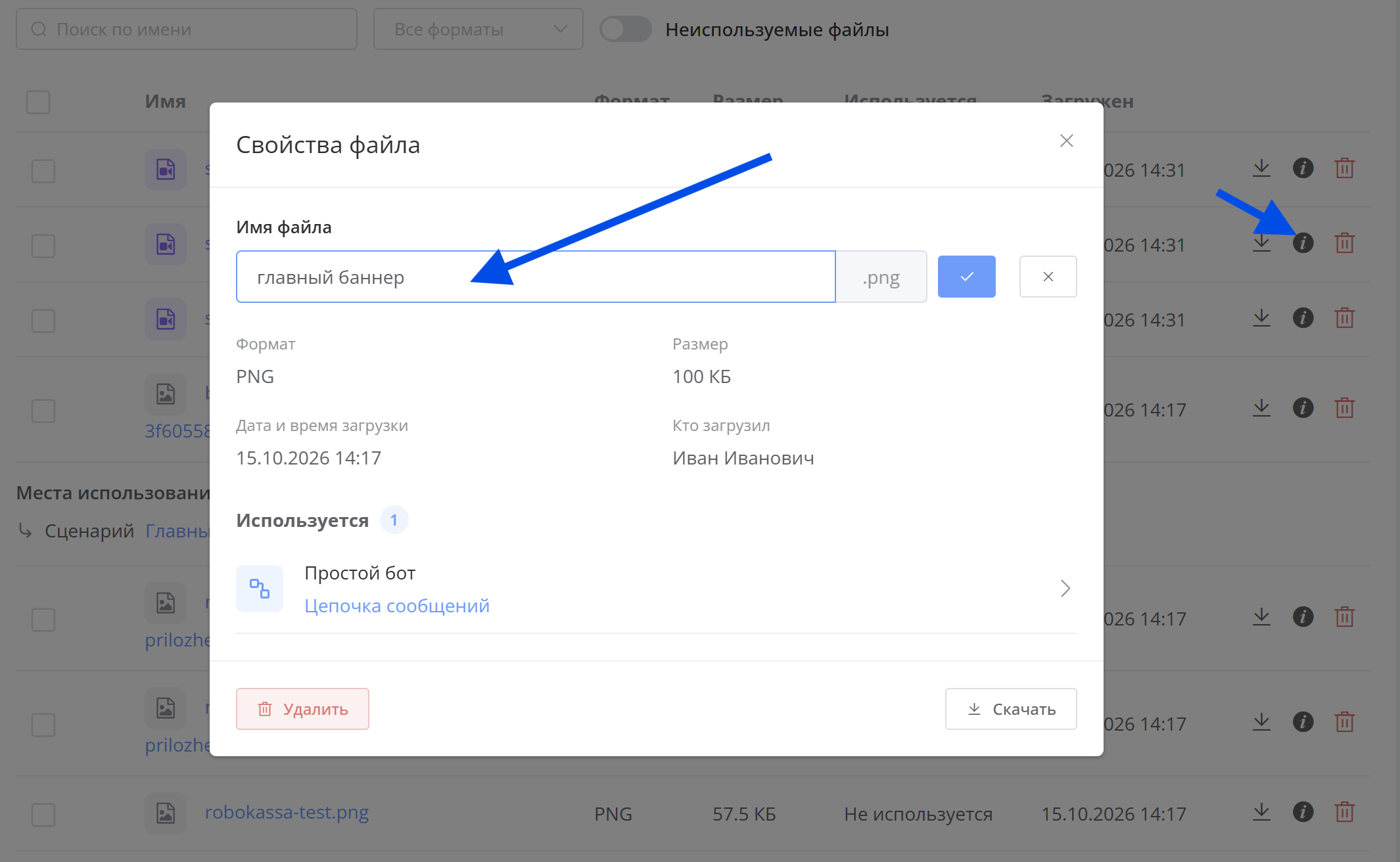
File card
Tip
Give files clear names. The client sees the file name when the bot sends a document, and the AI Agent sees it as a label for a knowledge base fragment. Renaming affects only future messages: messages that have already been sent do not change.
How to delete a file
- Click the delete icon in the file row or the Delete button in the file card.
- Check the details in the confirmation window and click Delete.
If the file is connected to blocks, the confirmation window lists these blocks. You can still delete such a file, but the blocks will show a File not found mark in its place — see What happens to a block if the file is deleted.
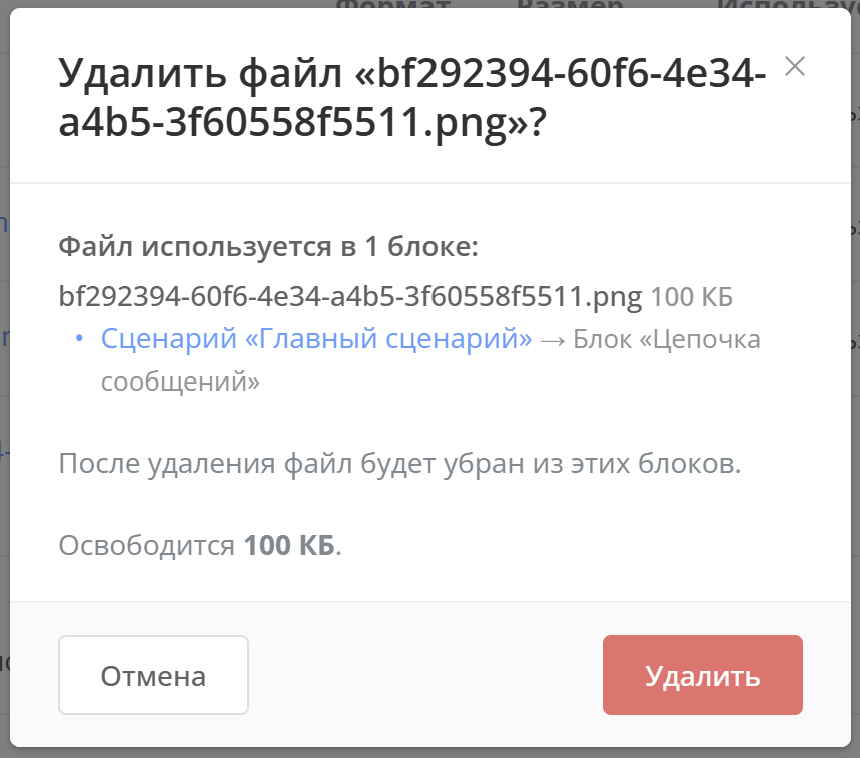
Deleting a file used in blocks
To delete several files at once, select them with checkboxes — a "Delete files (N)?" bar appears above the table. Click Delete in it. The confirmation window shows where each file is used and how much space will be freed in total.
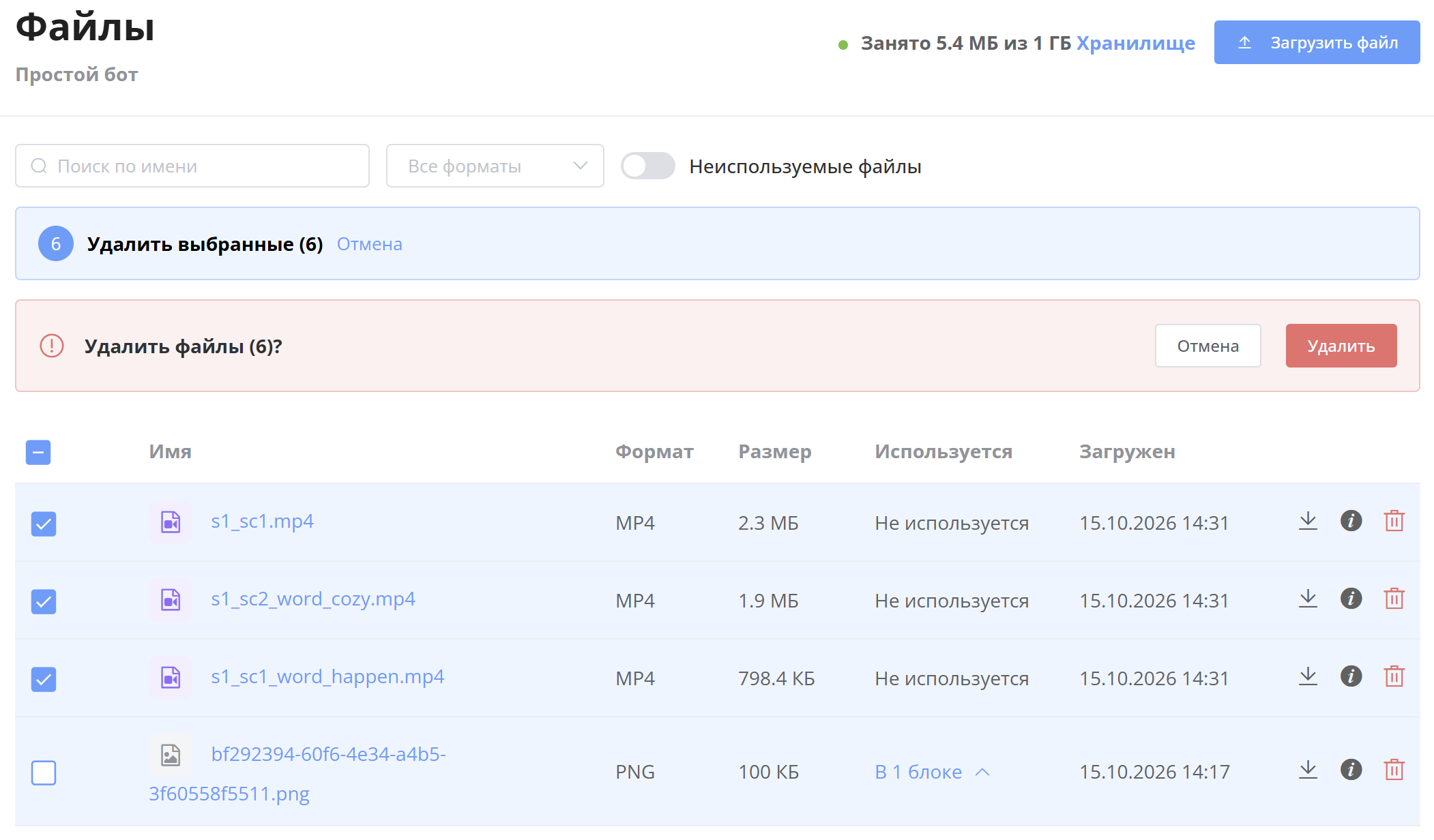
Bulk file deletion
Important
The file is deleted immediately and completely. A deleted file cannot be restored.
Unused files
A file is never deleted from the storage automatically. If you disconnect a file from a block or delete the block, the file stays in the storage and keeps taking up space.
To find such files, turn on the Unused files filter — the list will show only files that are not connected to any block, and the filter shows how much space you can free up. Select them and delete them.
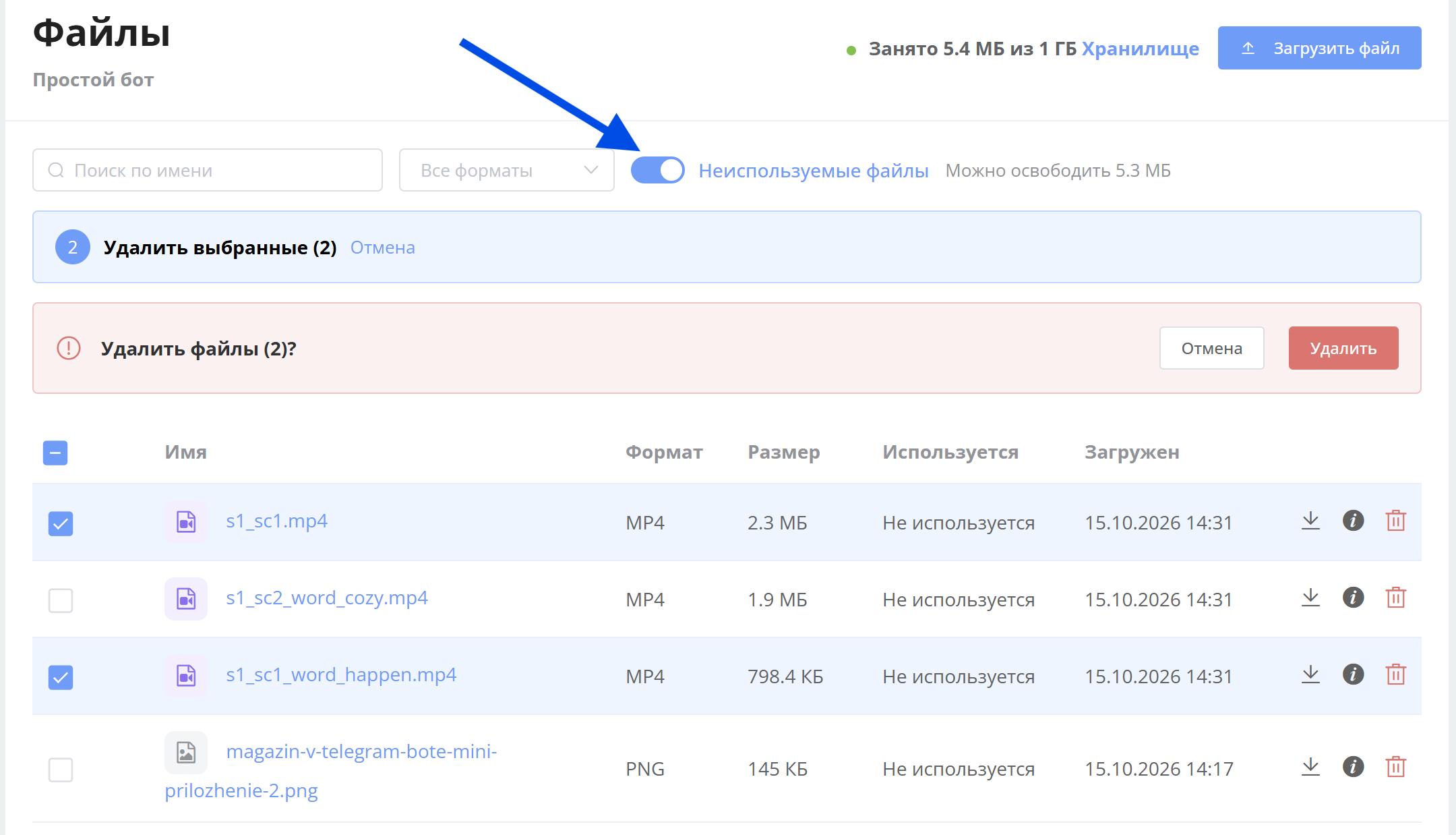
The Unused files filter
How to connect a file to a scenario block
Files from the storage can be connected to the AI Agent, HTTP Request, and Message Chain blocks. The file selection buttons in these blocks open the bot's storage window:
| Block | Button | Formats accepted by the block | Number of files |
|---|---|---|---|
| AI Agent | Add file | .txt, .md, .csv | Up to 10 |
| HTTP Request | Add file → Select file | Any | Several, each with its own key |
| Message Chain: image | Select photo | .jpg, .jpeg, .png, .gif | One per element |
| Message Chain: video and video message | Select video | .mp4, .mpeg, .mpg, .ogg, .ogv, .mov, .3gp, .webm | One per element |
| Message Chain: audio | Select audio | .mp3, .mpeg, .m4a, .mp4, .wav, .wma, .ogg | One per element |
| Message Chain: file | Select file | Any | One per element |
To connect a file:
- In the block settings, click the file selection button.
- In the window that opens, select the files you need.
- Confirm your selection.
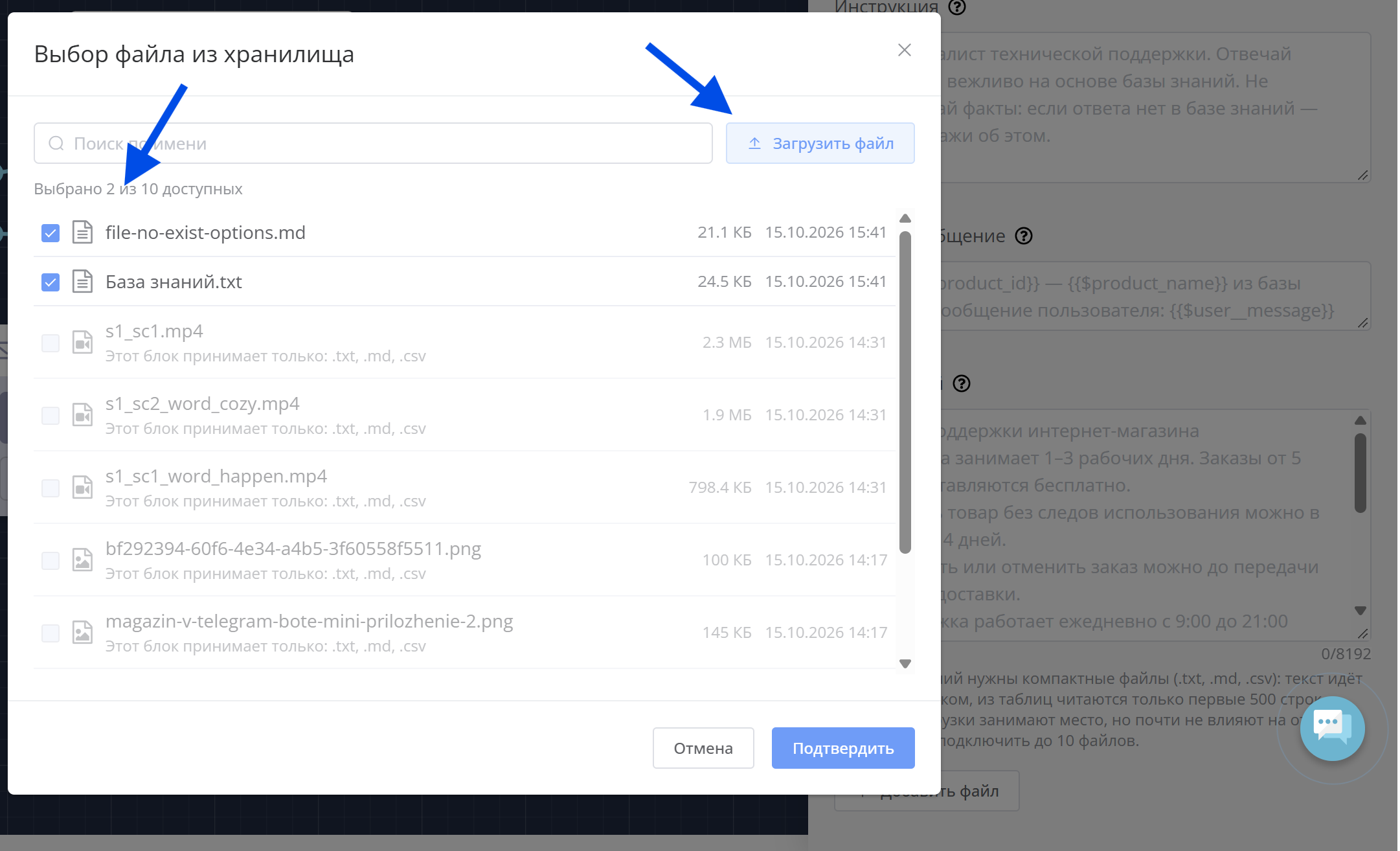
Selecting a file from the storage
The selection window lets you select only files of a supported format that are not yet connected to this block; unavailable files are grayed out. For example, for the Video message element, videos that do not fit a round video message are inactive: non-square, larger than 480 px, or longer than 60 seconds.
Some blocks accept several files at once, others accept only one. You can add up to 10 knowledge base files to the AI Agent block.
The same file can be connected to any number of blocks in the bot — you do not need to upload it again, and it takes up space only once.
To disconnect a file from a block, click the disconnect button in its row (a cross or a trash icon, depending on the block). The file is removed from the block but stays in the storage.
Uploading a new file from a block
If the file you need is not in the storage yet, upload it right from the selection window:
- In the selection window, click Upload file.
- Choose files on your device. From a block, you can upload only files of the formats this block accepts.
- After the upload, click Back to return to the storage window with the file list — the uploaded files will already be selected. If the upload is still in progress, clicking Back cancels it.
- Confirm your selection to connect the files to the block.
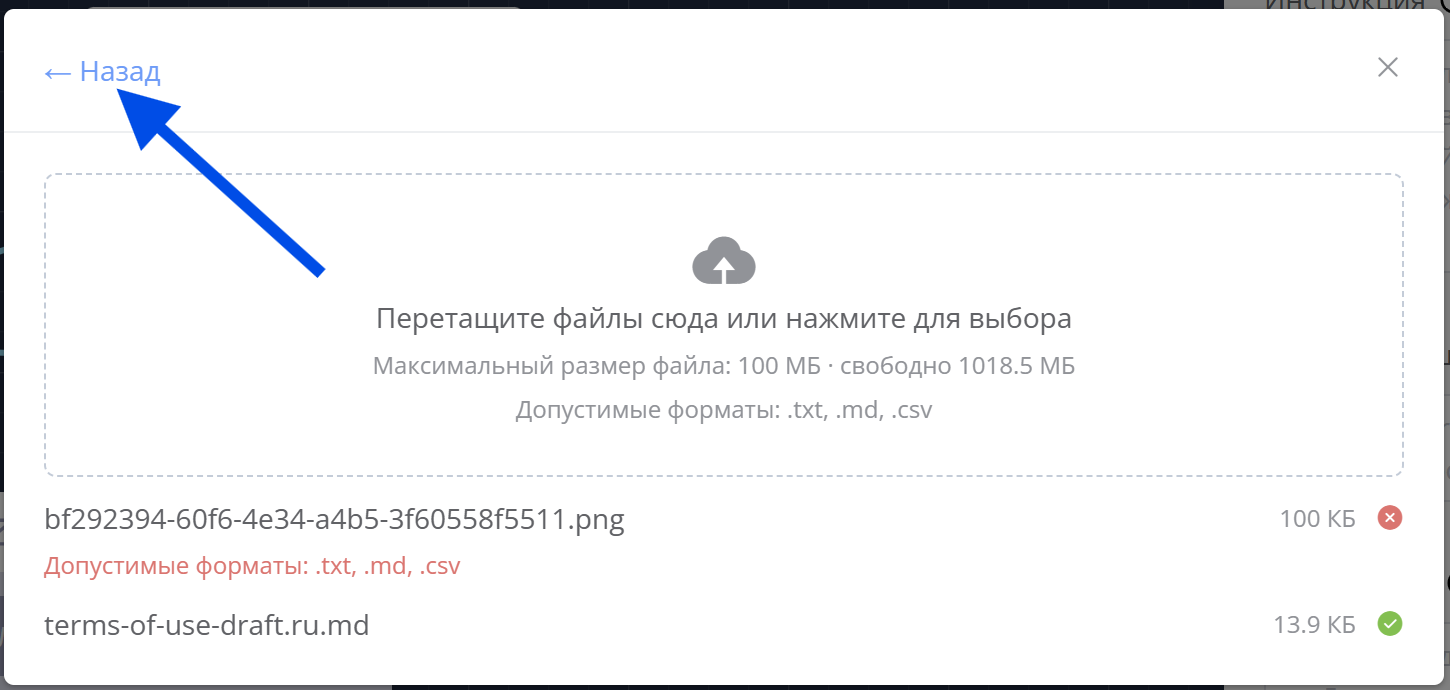
Uploading a new file from a block
Information
An uploaded file is saved to the bot's storage right away. If you close the window without confirming the selection, the file will not be connected to the block, but it will stay in the storage and take up space. You can find such files with the Unused files filter.
What happens to a block if the file is deleted
If a file is deleted from the storage, the blocks it was connected to show a red File not found mark in its place.
To fix the block, select another file or delete the element.
Until the file is replaced, the blocks work as follows:
- Message Chain — instead of the file, the contact receives the text "The file is unavailable and cannot be sent"; the other messages are sent as usual;
- AI Agent — answers using the remaining files and the knowledge base text;
- HTTP Request — the request is not sent, the contact receives the same text "The file is unavailable and cannot be sent", and the scenario follows the No response from server branch. If this branch is not connected to the next block, the scenario stops at this block.
In the dialog history, this text comes with a note "🔒 For administrator: the file … in the block … is unavailable" and a link to the block, so you can quickly find what to fix.
Copying a bot and installing a template
When you copy a bot, its files are copied to the copy's storage and take up space again. This way, the copy works independently: deleting a file in one bot does not affect the other.
When you install a template, the files connected to its blocks are copied to your storage and take up space in it. Unused template files are not copied.
When you copy a block from one bot to another, the files of the pasted block are also copied to the storage of the bot where the block is pasted. Copying blocks within one bot does not use extra space: both blocks use the same file.
If there is not enough free space for the copy's files, the bot is not copied (the template is not installed, the blocks are not pasted). A window opens showing how much space is needed and how much is free. Free up space or buy more and try again.
If you are running out of space
When 90% of the space is used, your account shows the "Running out of space" warning. When 100% is used, it shows the "Out of space" warning. In both cases, you also get a notification in Telegram or by email with the Buy more storage button. The notification is sent again only if the used space has dropped below 80%.
If there is no space left:
- bots keep working: all connected files are sent;
- you cannot upload a new file, copy a bot, or install a template until space is freed.
To free up space:
- delete files you no longer need — the easiest way is the Unused files filter;
- check the Deleted bots row on the Storage page: files of bots in the trash also take up space (see Files of deleted bots);
- or buy more space.
Important
Purchased packages are valid while your subscription is paid. If your plan is blocked for non-payment, the packages do not add space; after you pay for the plan, they count again. If more space is used than is available, your files are kept and keep working, but you cannot upload new ones until space is freed.
How to buy more space
- Open the Payment section or click Buy more storage on the Storage page.
- Find the +2 GB package among the additional options and enter the number of packages you need.
- Confirm the payment.
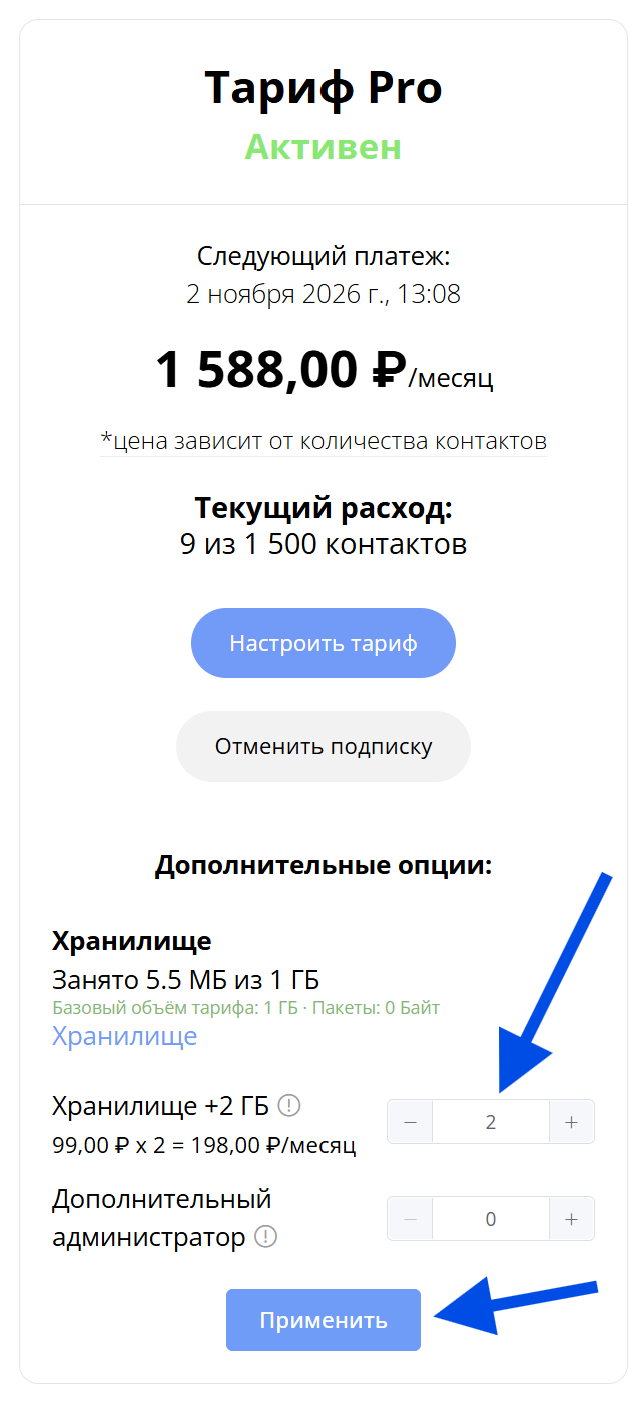
The +2 GB package in the payment section
The new space is available right away. If you buy a package in the middle of a paid period, you pay extra for the remaining days; after that, the cost of the packages is charged together with your monthly plan payment.
You can reduce the number of packages only if your files fit into the new space. Otherwise, free up space first — the system will show how much you need to delete.
Files of deleted bots
While a bot is in the trash, its files are kept and take up storage space. If you restore the bot, all its files will be in place.
A bot can be restored from the trash within 30 days after deletion. After that, the bot and all its files are deleted permanently, and the space is freed.
To free up space earlier, restore the bot, delete unneeded files in the Files section, and delete the bot again.
Access for bot administrators
The account owner and additional administrators with the Files permission can work with files. The permission is granted in the role settings — see How to give access to another user.
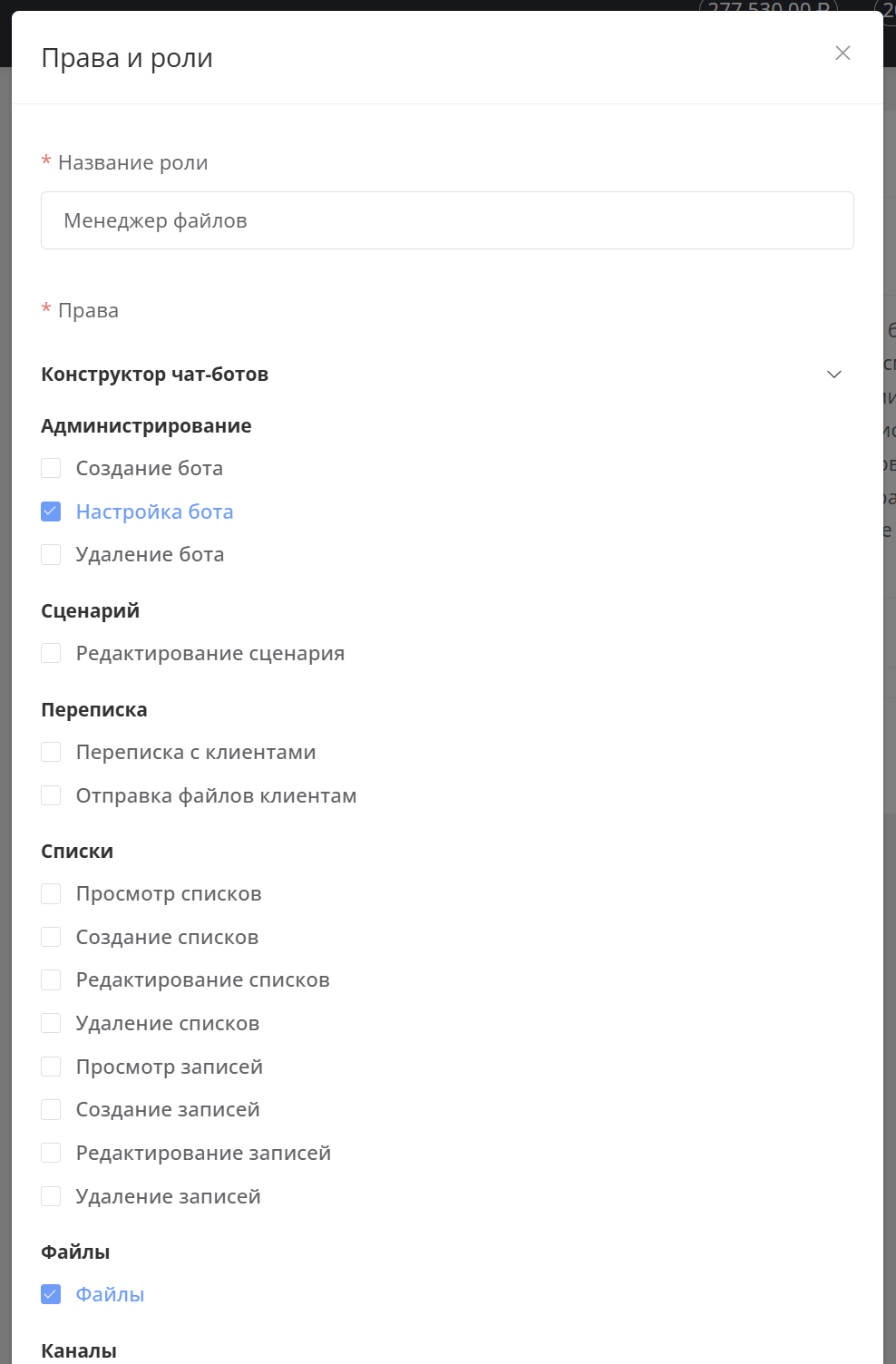
The Files permission in role settings
An administrator with the Files permission:
- sees the Files section only for bots they have access to;
- can upload, rename, download, and delete files;
- can select files in blocks if they also have permission to edit the scenario;
- sees how much space is used in the account but does not see the Storage page.
Files uploaded by an administrator take up space in the bot owner's storage.
An administrator without the Files permission does not see the Files section and cannot upload or select files in blocks. They can see files that are already connected and disconnect them from a block if they have permission to edit the scenario.
FAQ
Will space be freed if I delete a block with a file?
No. When you delete a block or disconnect a file from a block, the file stays in the storage. To free up space, delete the file in the Files section. The Unused files filter will help you find such files.
Why did the used space grow after copying a bot?
When you copy a bot, all its files are copied to the copy's storage and take up space again. This way, the copy works independently of the original bot.
Will bots stop working if the space runs out?
No. Connected files keep being sent, and the AI Agent answers using the knowledge base. Only uploading new files, copying bots, and installing templates are restricted.
Are files sent by clients included in the storage?
No. Chat attachments and order documents are not shown in the storage and do not take up space.