Bot Scenario
How to create scenarios for chat bot in LEADTEX: visual constructor, message blocks, conditions and transitions
Creating Chat Bot Scenarios
After creating a bot, you enter the main scenario.
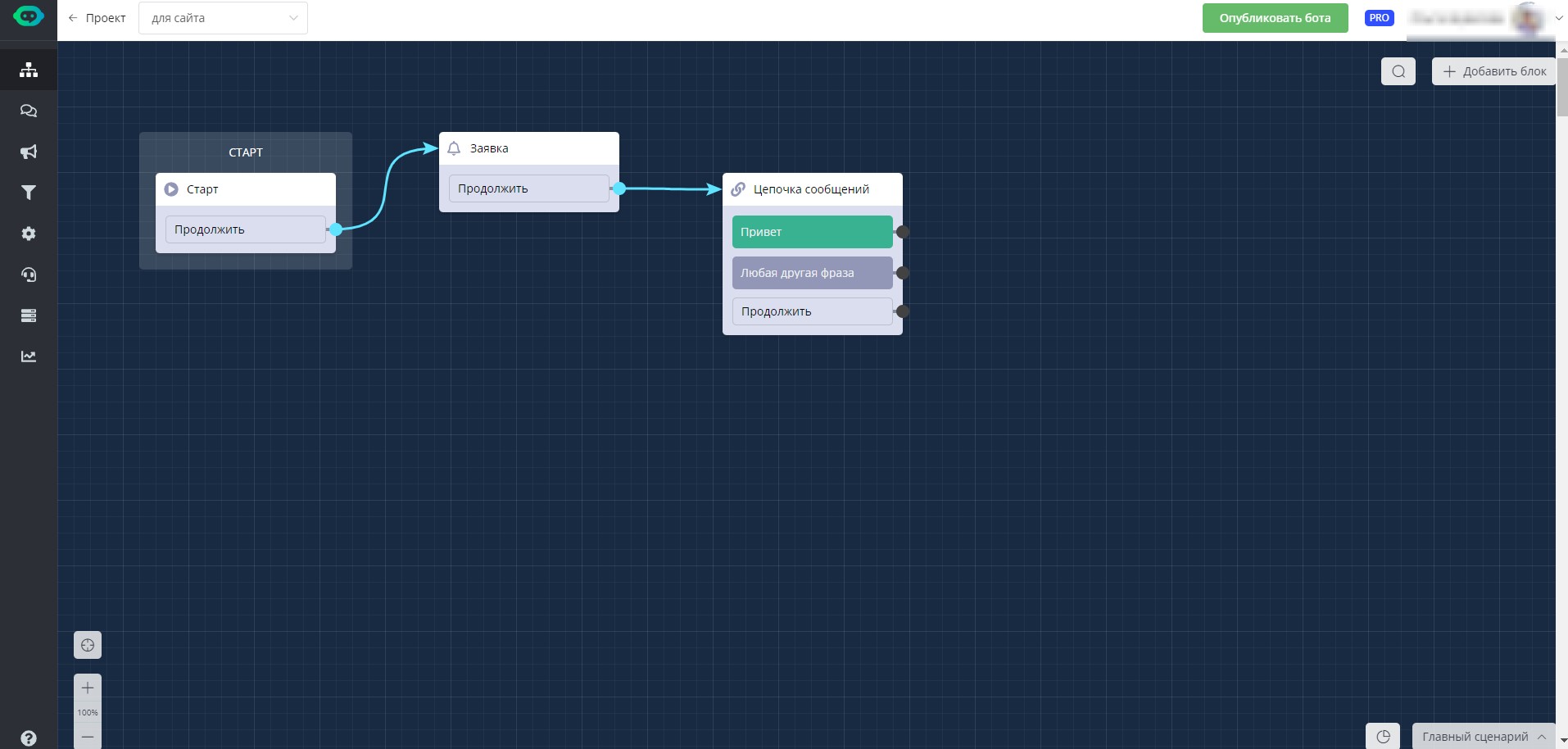
Main bot scenario
It contains 3 standard blocks by default: start, application, message chain. They can be modified or deleted.
The start block can only be copied, it cannot be deleted. The "copy" function sends the block to the clipboard, it can be pasted into the main or additional scenario; the "create copy" function copies the block to the main scenario immediately.
Other blocks can be deleted, copied and their copies can be created.
To edit the content of a block, you need to click on it. A block editing window will open on the right. It is different for each block.
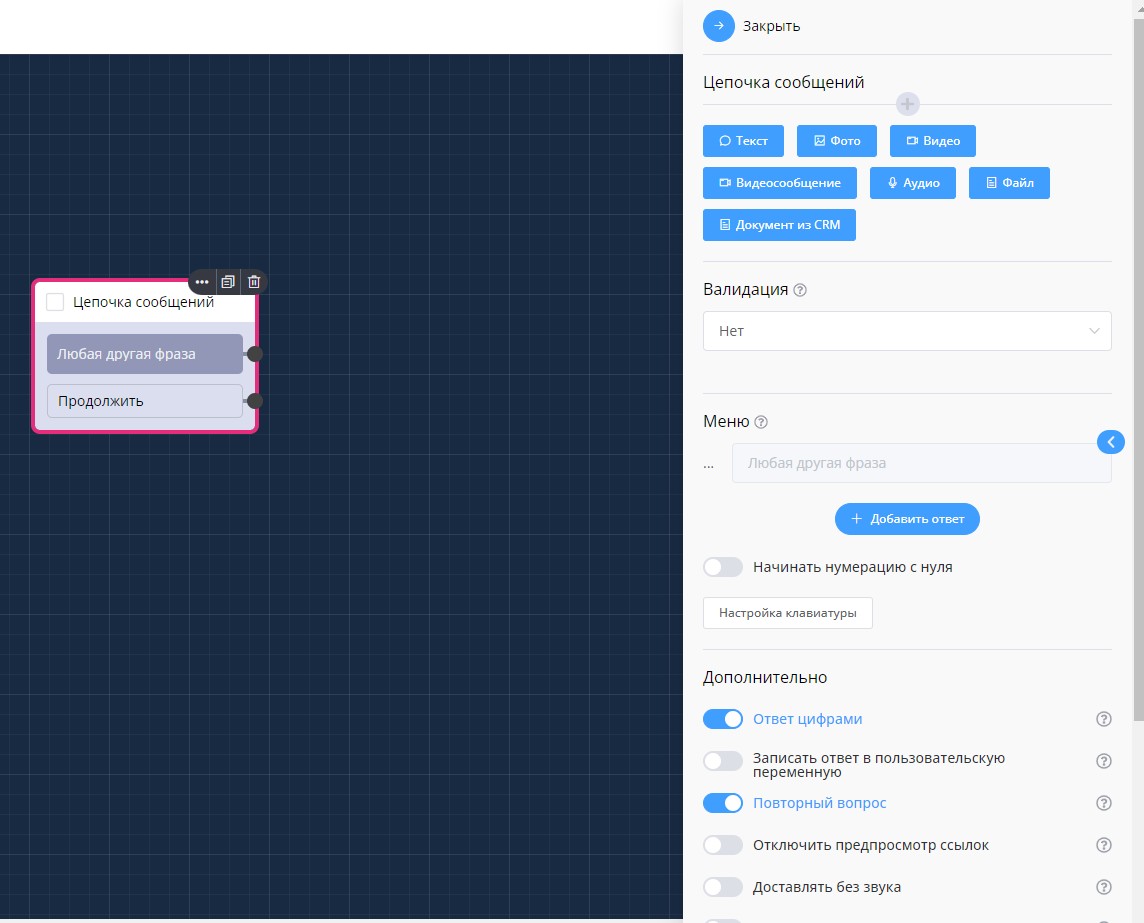
Message chain block functionality
You can establish connections between blocks using blue arrows, for this you need to drag the arrow from one block to another/ from a specific answer to another answer/ from an answer to a block. Connections between blocks can be deleted by hovering the cursor over the desired arrow and clicking on the trash.
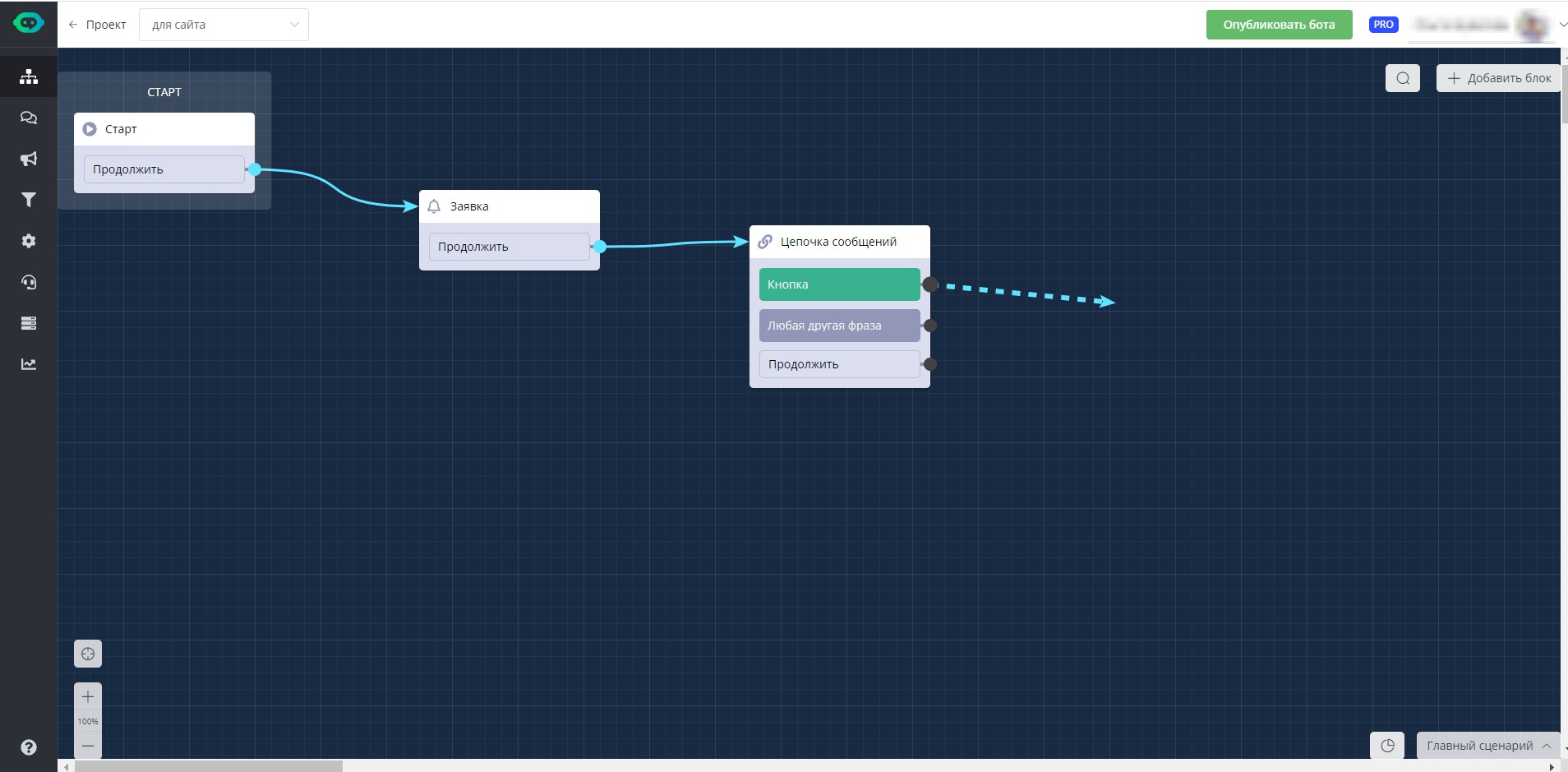
Solid arrow - connection exists, dashed - connection is being established
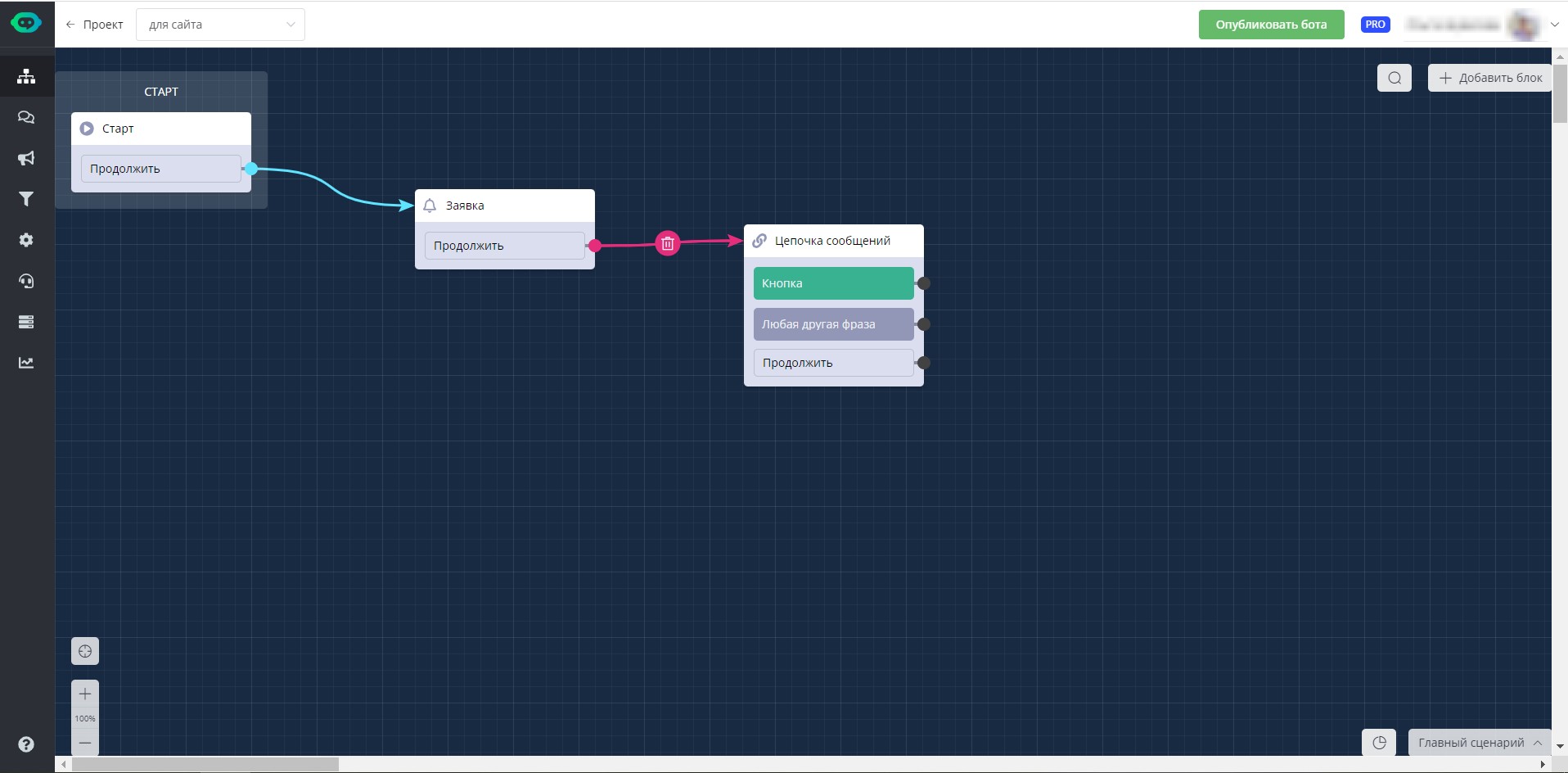
Deleting connection between blocks
To add a new block to the scenario, there are three ways:
- click the "add block" button in the upper right corner
- click "+" next to one of the buttons
- right-click anywhere in the field and select "add block".
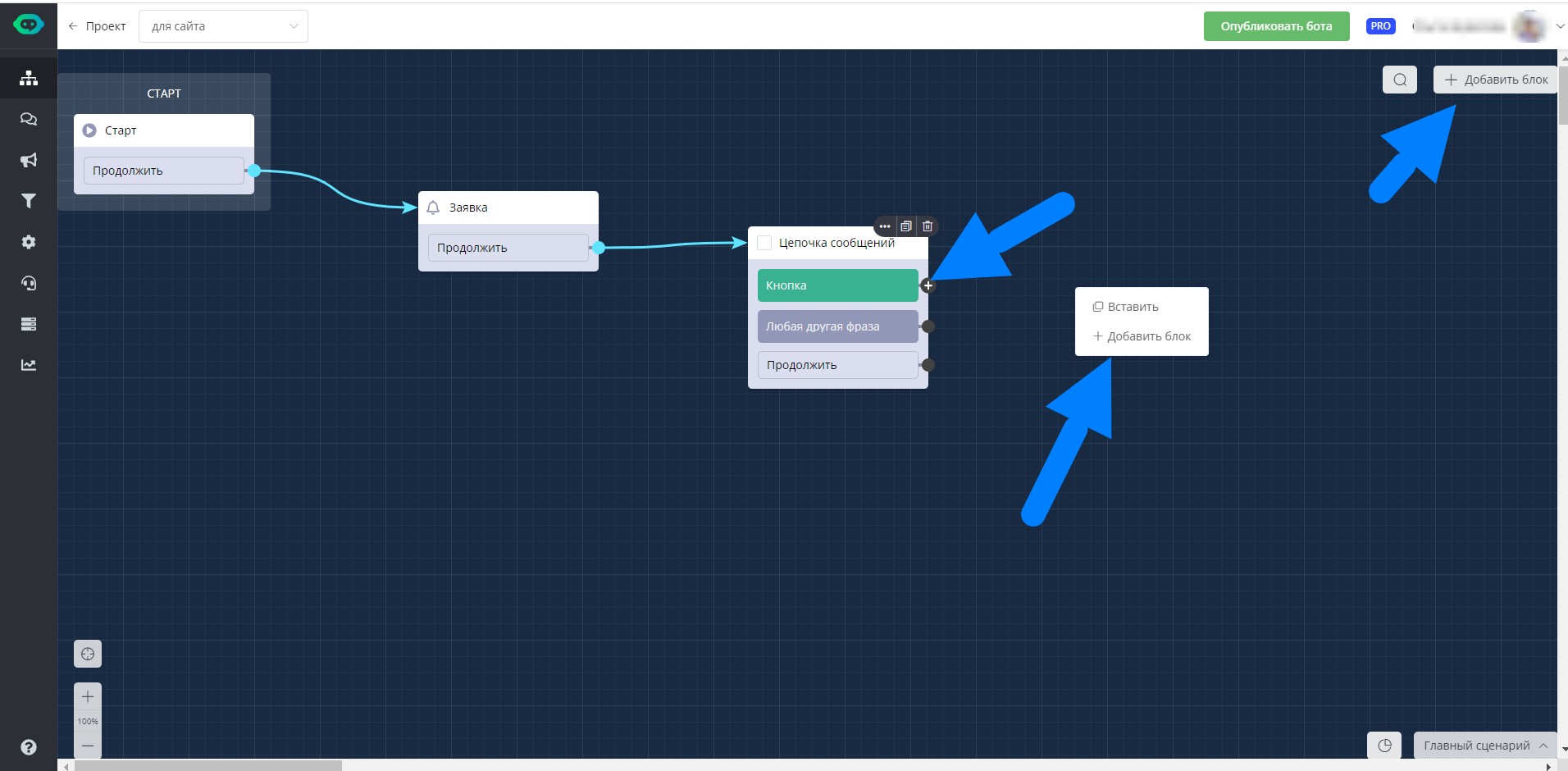
Adding a new block
In the upper left corner, the name of the chat bot you are currently in is shown. Here you can also quickly navigate to another chat bot in this project.
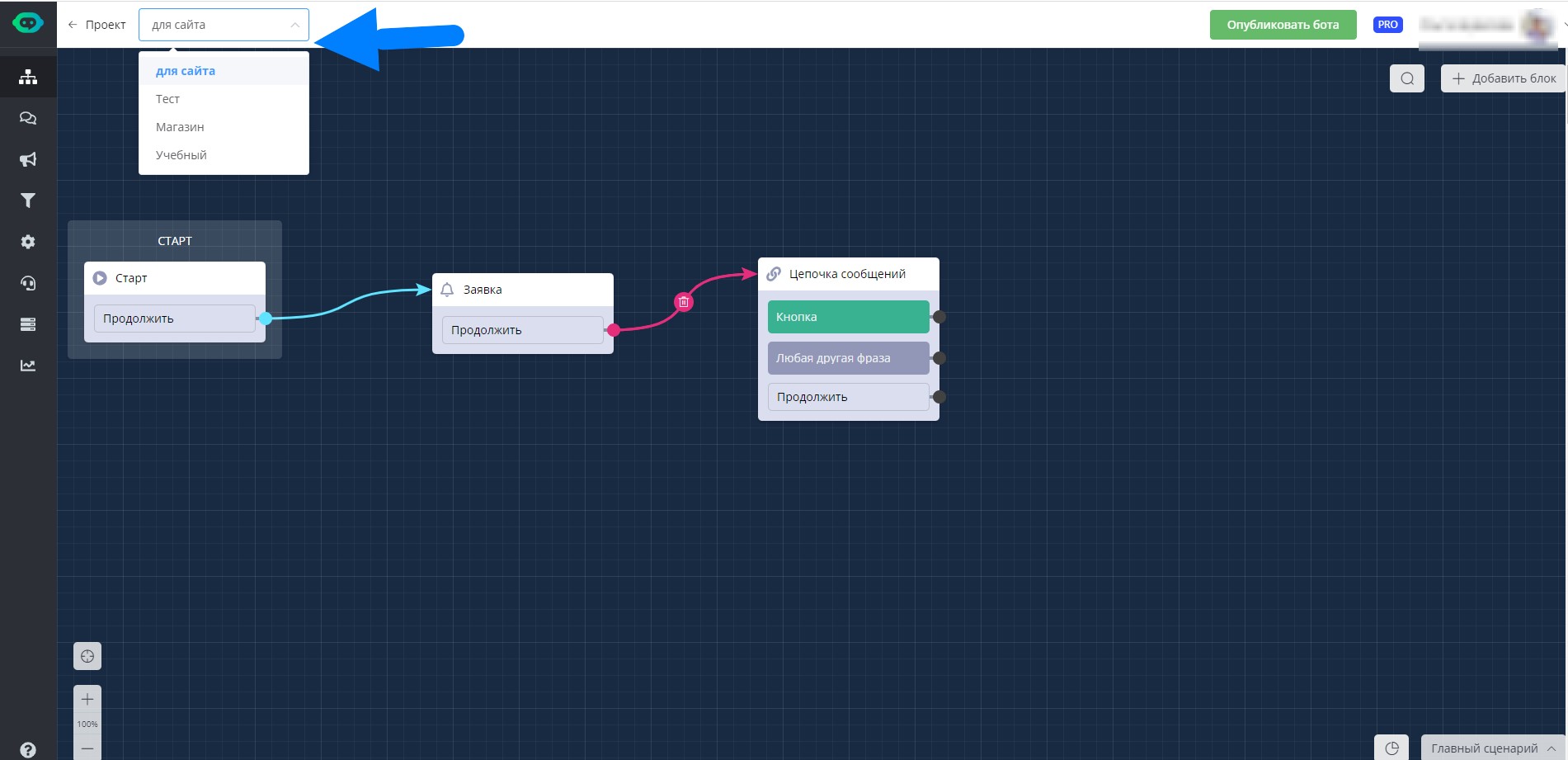
Moving between project chat bots
Create your first project in 10 minutes:
In the LEADTEX personal account, 250+ lessons on developing chat bots and MiniApps are already available, as well as the opportunity to join the largest no- code developer community with 6000+ participants - Go to personal account.