Importing Contacts from an Excel File (Telegram and WhatsApp)
Instructions for bulk adding contacts to a chat bot list: how to prepare an Excel file, map columns to contact fields for Telegram and WhatsApp, and upload data.
Telegram bot migration
When migrating a bot:
- First copy the contact database from the old bot;
- Unlink the token from the old bot;
- Connect the token to the new bot in the "Channels" section (Telegram, WhatsApp);
- Then import contacts using the instructions below.
Imported contacts must already be subscribers of this bot — they must have written to it in Telegram at least once (clicked "Start"). Otherwise, Telegram will not allow sending them messages.
Broadcasts after import
For new contacts to participate in broadcasts, after import go to the required broadcasts and re-save them (open the broadcast and click Save). This is enough to trigger audience recalculation so new contacts matching the filter are included in the broadcast.
Preparing the Excel file
Supported formats: .xls and .xlsx.
- The first row can be a header or data immediately — you map fields to columns by letters (A, B, C, …).
- Required fields must be filled in every row; rows with empty required fields are skipped.
Required fields:
- Name
- For WhatsApp: phone number (tags — as needed)
- For Telegram: Telegram ID (phone, username, email, tags — as needed)
Starting the import
1. Open the import window
Go to the required bot. Open the Lists section and click the Contacts list.

Going to lists
On the Contacts list page, click the three dots and select Upload contacts. A step-by-step import window will open.

"Upload contacts" option
2. Select messenger and map columns
On the first step:
- In the Messenger field, select WhatsApp or Telegram — this determines the set of fields for mapping.
- For each contact field, select the column in your file (A, B, C, …) or the "-" value if this field is not planned for import.

Field mapping
More details on fields for WhatsApp and Telegram — below.
Click Next.
3. Upload the file
On the second step, drag the Excel file into the upload area or select it from your computer. Supported types: .xls, .xlsx.
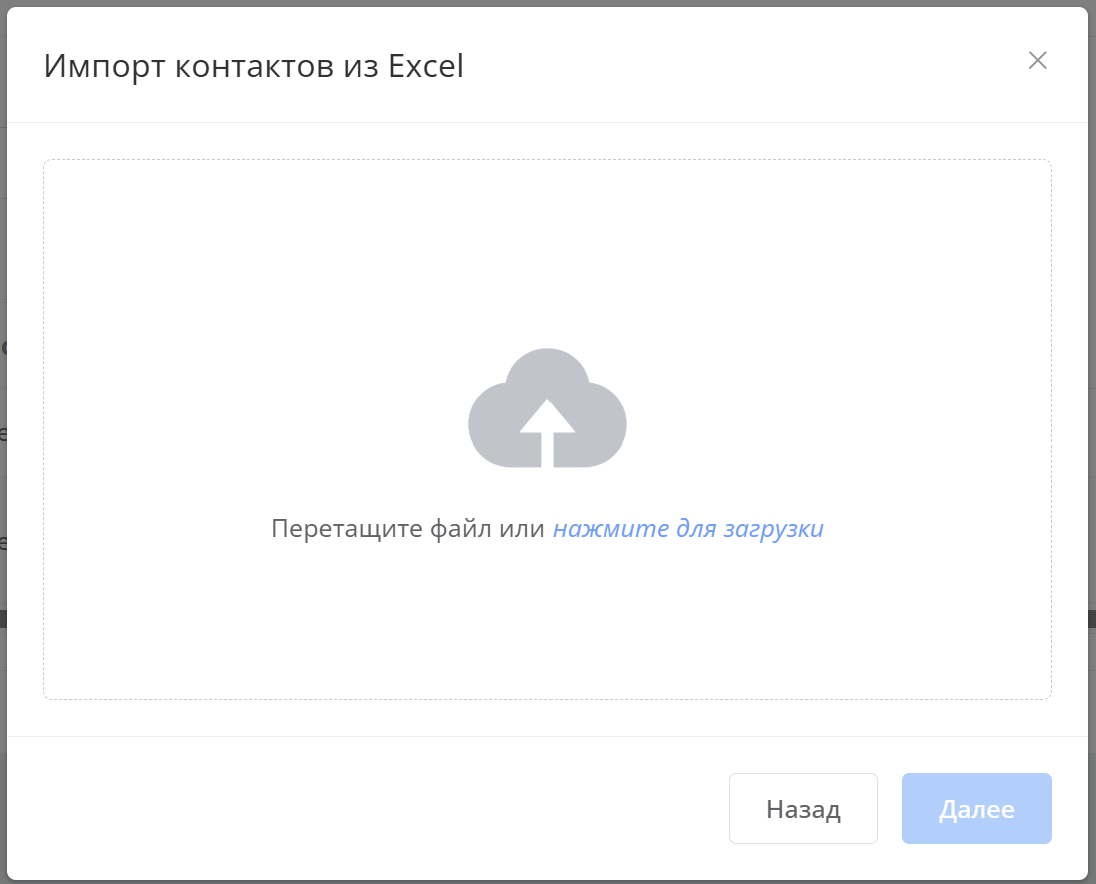
File upload
After uploading the file, click Next.
4. Wait for completion
After clicking Next, the import is sent for processing. If the file is large, import may take several minutes. Wait for the import to finish.
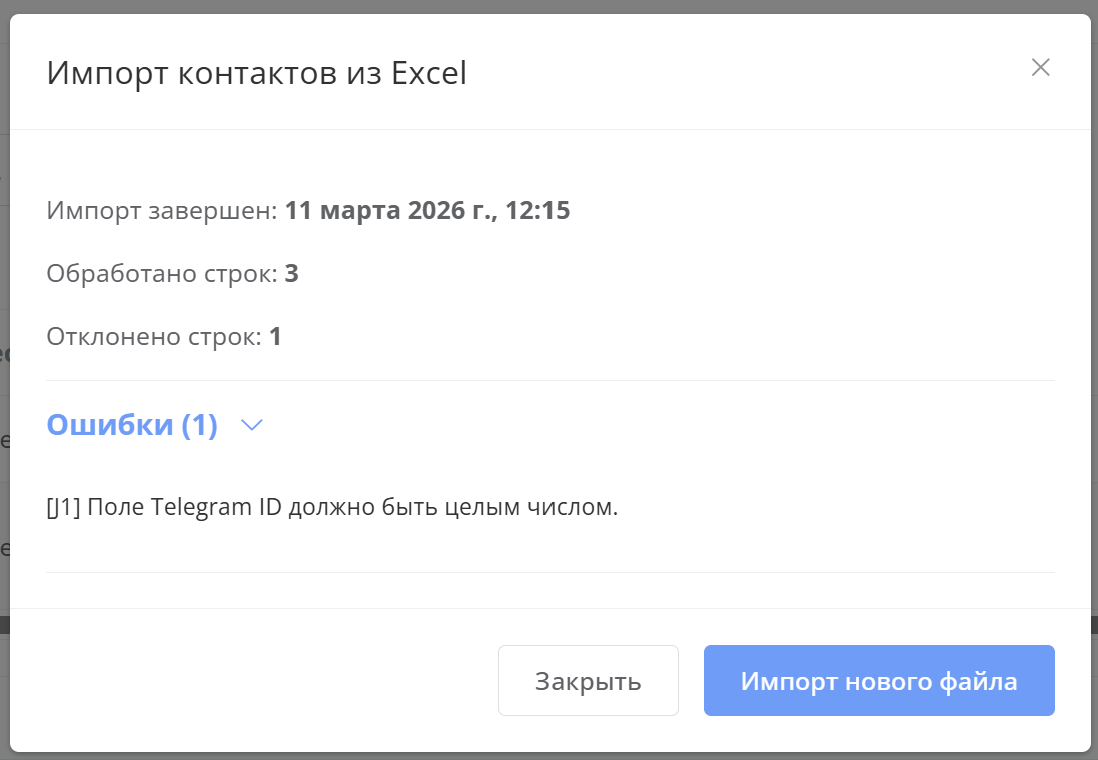
Import results
When import is complete, results are displayed. If incorrect data was found in the file, it is shown in the expandable Errors block with the count. You can correct the file and upload it again (see Common import file errors).
Start a new import
To start a new import, click Import new file in the import window.
Fields for WhatsApp
| Field | Description |
|---|---|
| Name | Contact name. Specify the column letter (for example, A). |
| Phone | Phone number — required field for identifying a contact in WhatsApp. Extra characters (spaces, parentheses, hyphens) are removed automatically. |
| Tags | Tags separated by commas. You can specify a column or "-", if tags are not imported. |
Information
For WhatsApp, a contact is uniquely identified by phone number. Rows with an empty or invalid number will be skipped or appear in the error list.
Fields for Telegram
| Field | Description |
|---|---|
| Name | Contact name. Specify the column (for example, A). |
| Telegram ID | User's numeric identifier in Telegram — required field. Positive integer. |
| Phone | Phone number. Optional; specify a column or "-" if needed. Extra characters in the number are removed automatically. |
| Username | Text field (for example, @username). Optional. |
| Tags | Tags separated by commas. Optional. |
| Email address. Optional. |
Information
Telegram ID is the main identifier for a contact in Telegram. Without it, the row will not be imported. You can find a user's Telegram ID via a bot or third-party services.
Common import file errors
- Empty required fields — for WhatsApp, phone is required; for Telegram, Telegram ID. Rows with empty values in these columns are skipped.
- Invalid format — for Telegram ID, only numbers are allowed; the system tries to remove extra characters from phone numbers, but an invalid format may cause the row to be rejected.
- Wrong file format — only Excel files (.xls, .xlsx) are accepted. Save CSV as .xls or .xlsx before uploading.
If validation errors occur (for example, code 422), the error message is displayed at the top of the import window. Correct the file or settings and retry the upload.